
Guard your WordPress and WooCommerce site from AI agents. Set rules by risk, hold changes for approval with a before-and-after preview, and undo mistakes in one click.
Persjay AI Agent Firewall (Agent Firewall for short) sits between AI agents (Claude, ChatGPT, Cursor, WordPress MCP connectors, WP-CLI, and REST or Abilities API clients) and your WordPress site. Every agent call stops at the gate first: safe reads and low-risk drafts can pass, live changes and high-risk actions wait in an approval queue with a before-and-after diff preview, and dangerous actions are blocked outright.
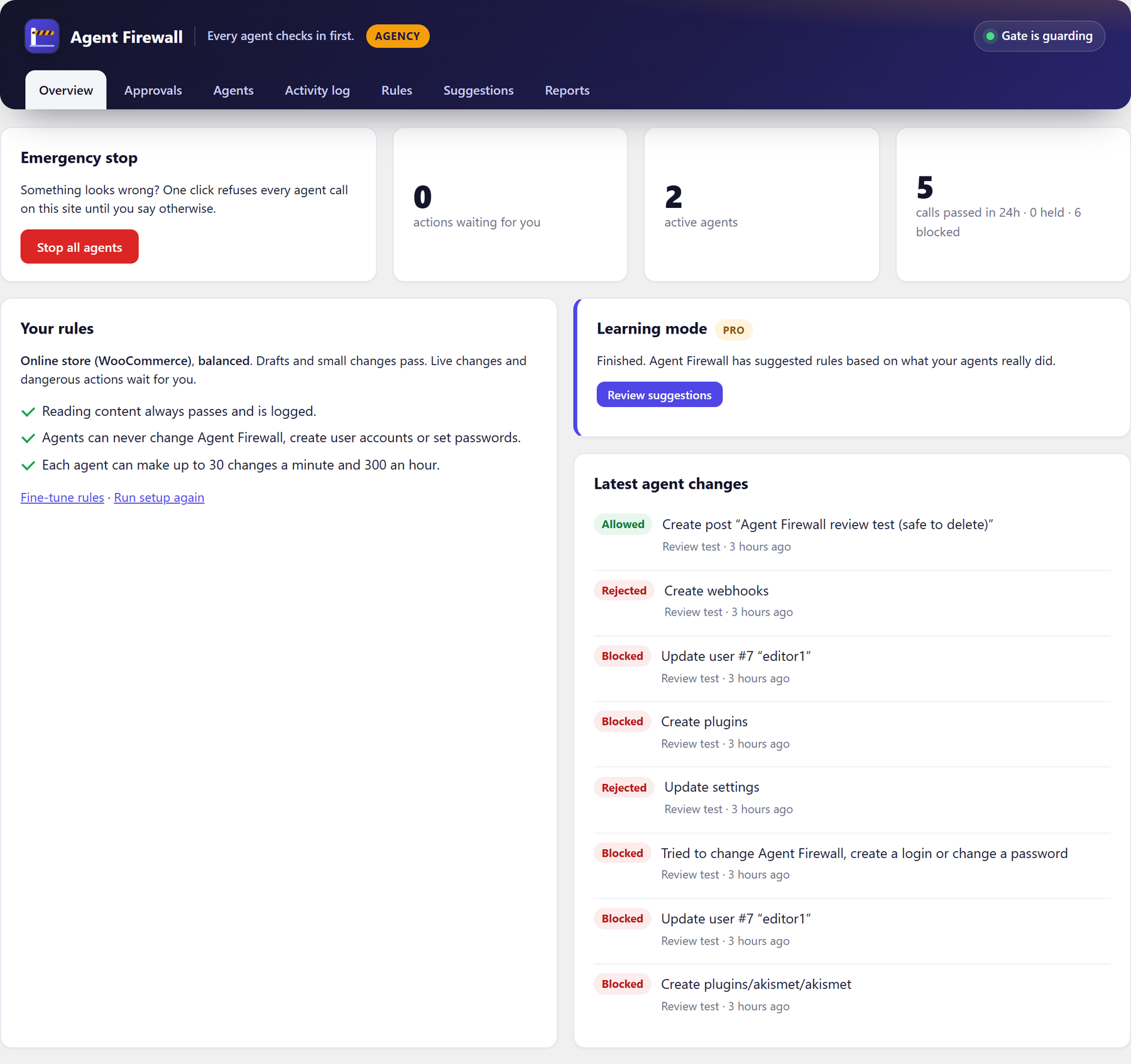
If something ever looks wrong, one click on Stop all agents on the Overview screen — or in the WordPress admin bar from anywhere on your site — refuses every agent call, including reads, until you let agents back in.
| Plan | Sites | Adds |
|---|---|---|
| Free | Any | 60-second setup wizard, site-type and strictness presets, per-area and per-ability rule overrides, live approval queue with before/after diff previews and edit-conflict warnings, per-agent modes and pause/revoke, connection watching (Application passwords, WP-CLI, WordPress.com/Jetpack, WooCommerce keys, OAuth/JWT tokens, Basic Auth and XML-RPC), 1-click undo for posts and pages, 30-day activity log with CSV export, and a multisite network overview with a network-wide emergency stop |
| Pro | 1 | One-tap phone approval links (no login needed), Slack, Discord and multi-recipient email alerts, WooCommerce store money rules with two-person approval for large refunds, per-agent rate limits and auto-pause on error spikes, 7-day learning mode with rule suggestions, 1-click undo for site settings, users and WooCommerce orders, products and coupons, and up to 365 days of activity log history |
| Business | 5 | Everything in Pro on up to 5 sites |
| Agency | Unlimited | Everything in Pro on unlimited sites, plus white-label agency branding, client approval routing, monthly client activity reports (print/PDF and scheduled monthly email), portable JSON rule templates, and multisite network tools to copy shared rules across sites and review network-wide waiting actions and activity |
Requirements: WordPress 6.9 or newer and PHP 7.4 or newer. WooCommerce is optional; when active, Agent Firewall automatically guards WooCommerce REST routes, store areas, and store money rules.
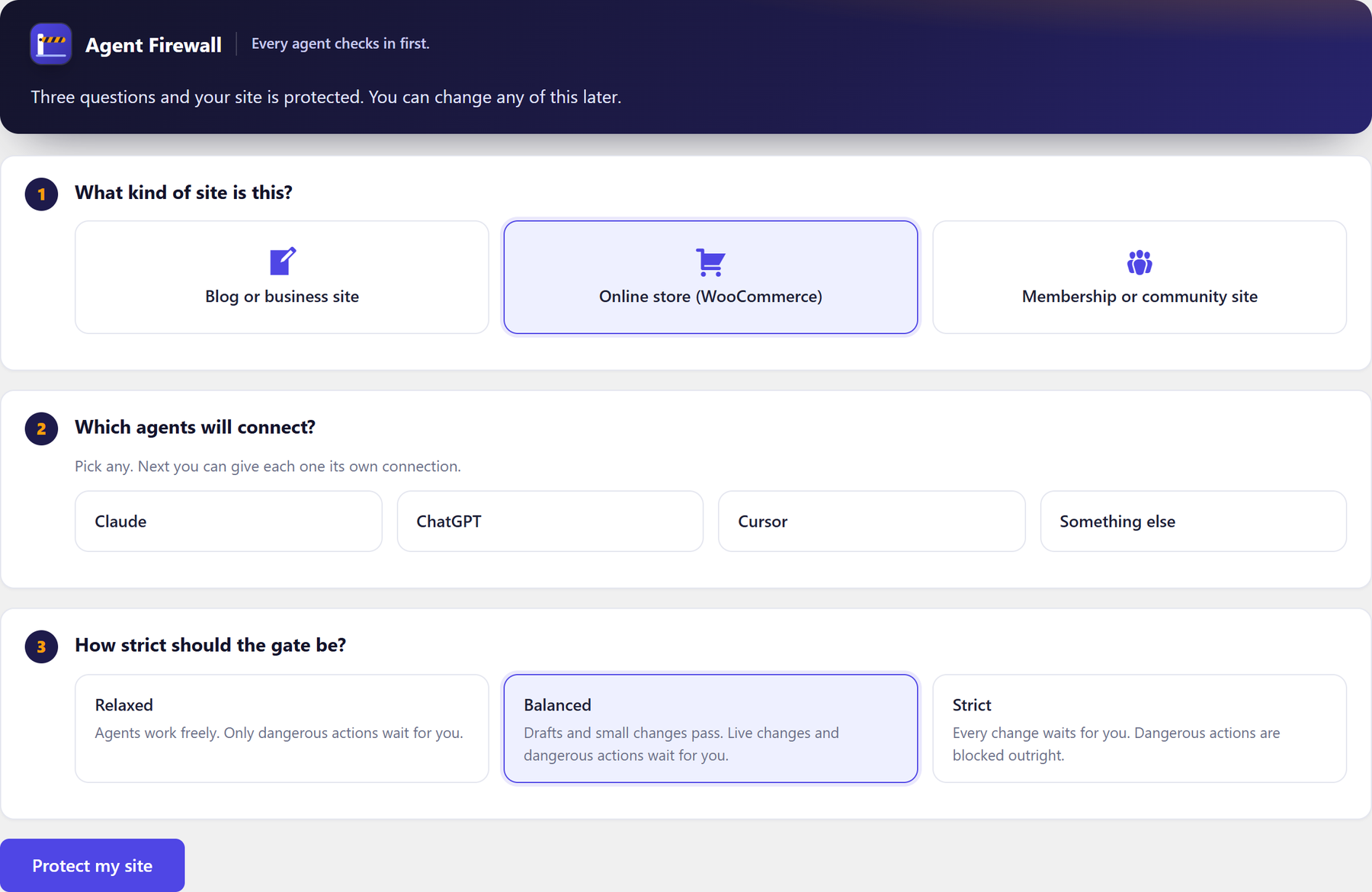
Right after activation (or anytime via Run setup again on the Overview screen), Agent Firewall asks three quick questions to build your initial ruleset:
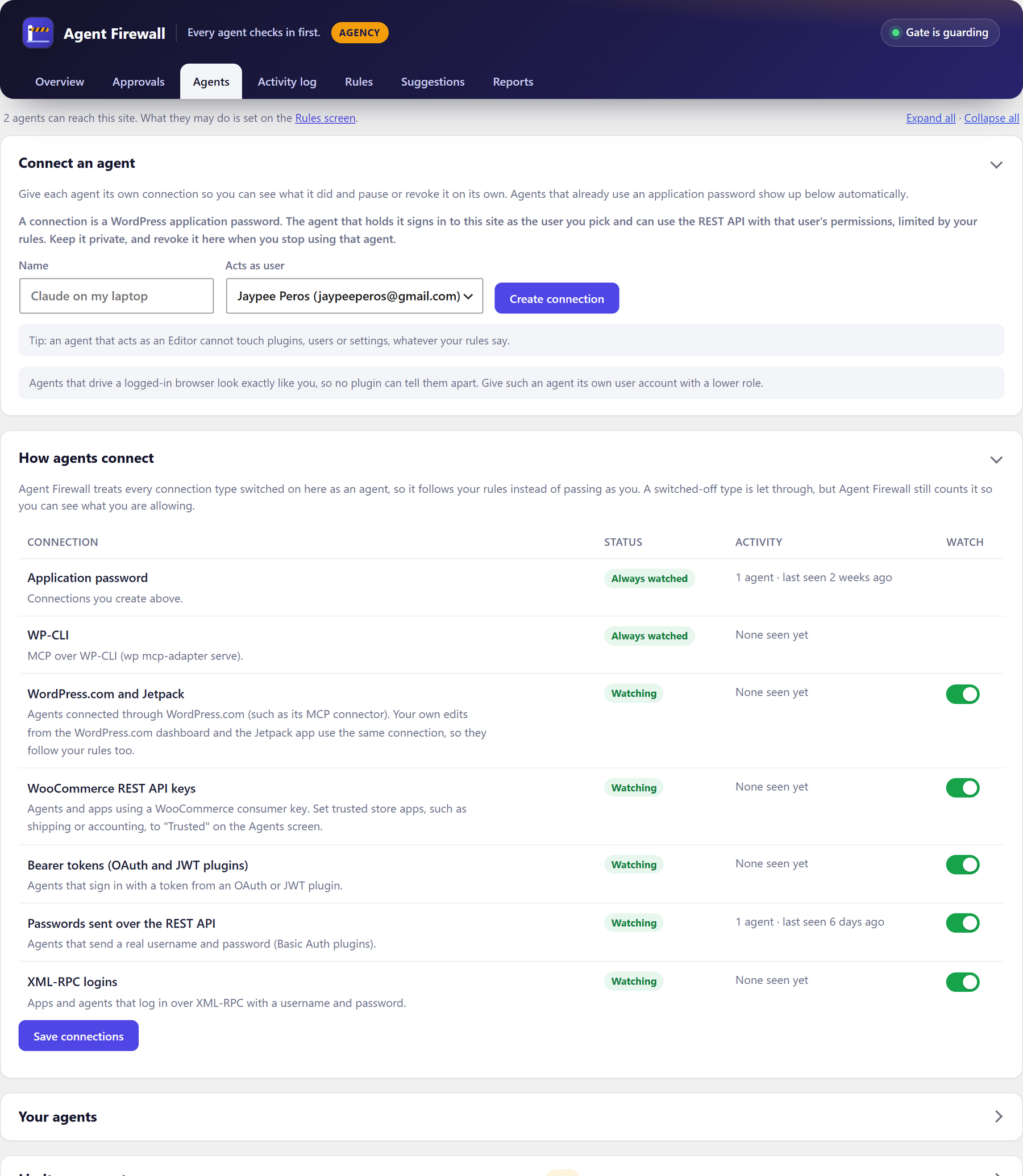
Open Agent Firewall → Agents to create dedicated credentials for each AI agent, choose which sign-in channels count as agents, and set per-agent permissions.
Give each agent its own connection name (such as Claude on my laptop), pick a WordPress user you are allowed to edit for it to act as, and click Create connection. Agent Firewall generates a WordPress Application Password and displays it once so you can copy it into your MCP server or agent tool. Agents that already authenticate with an existing Application Password appear in your agents list automatically on their first call.
Not every AI tool uses a dedicated Application Password — some connect through Jetpack, a WooCommerce consumer key, an OAuth/JWT token, Basic Auth, or XML-RPC. Without Agent Firewall watching those channels, requests look like the site owner at the keyboard and bypass every rule. In the How agents connect table, you can see activity for every channel and toggle which ones Agent Firewall watches:
wp mcp-adapter serve) are always watched.ck_… consumer key. If you use a trusted shipping or accounting integration, keep this channel watched and set that specific key’s agent row to Trusted.In the Your agents table, you can rename any agent, see when it was last active, Pause or Revoke its connection (revoking deletes its Application Password immediately), or override how Agent Firewall treats it:
When an agent attempts a change that requires your approval, Agent Firewall intercepts the call before WordPress executes it, saves the replayable request (including media uploads up to 25 MB), and returns HTTP 409 Conflict (error code pjaf_held) with the request ID. The response tells the agent that its request is queued for human review and instructs it not to retry.
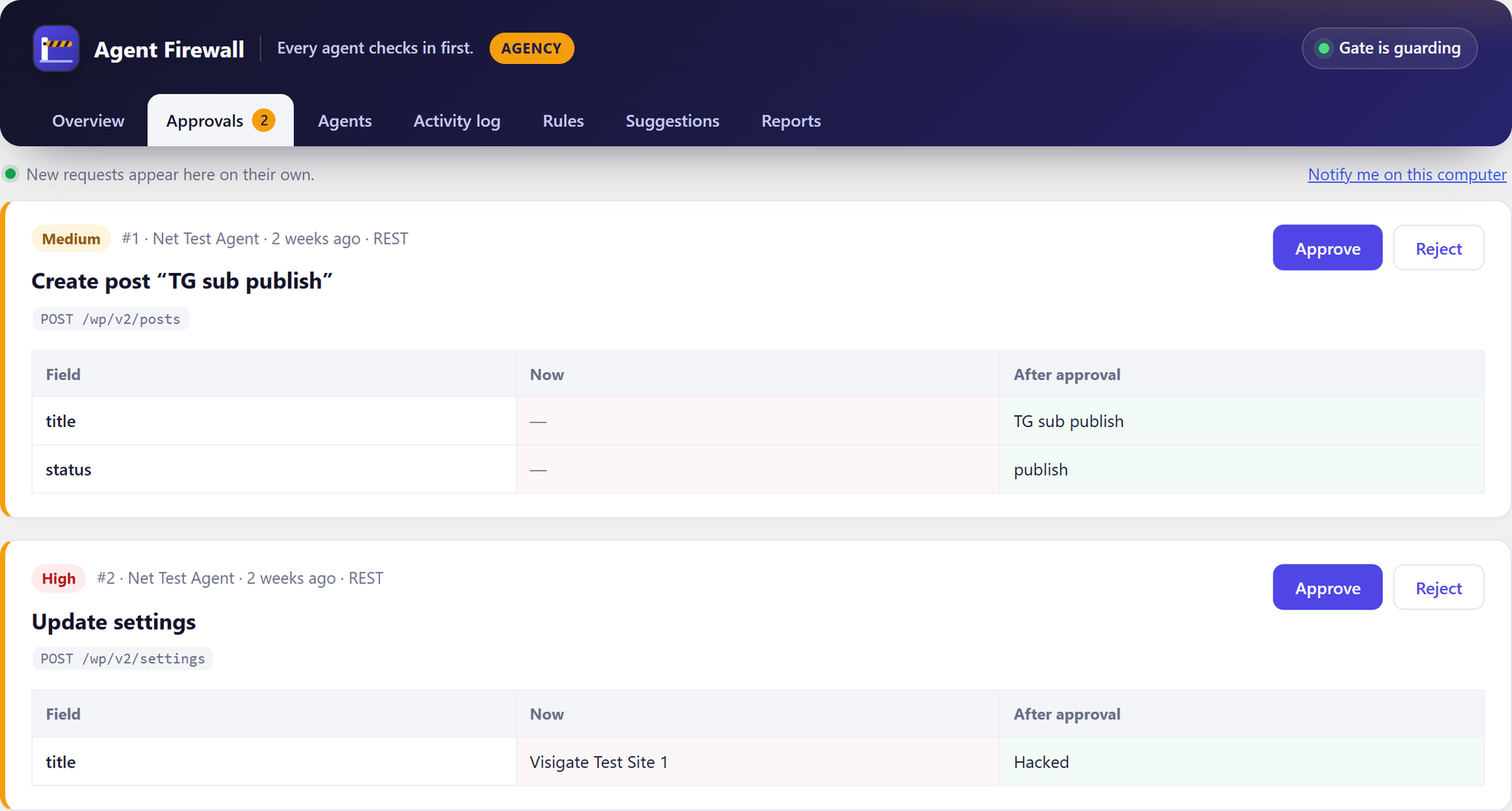
Open Agent Firewall → Approvals to review waiting requests. The page polls automatically in the background — new requests appear on their own without refreshing, and you can click Notify me on this computer to get a browser notification whenever an agent is waiting.
Each request card shows the risk badge (Low, Medium, or High), the agent name, the channel and route, and a Field / Now / After approval diff table comparing the current value on your site against what the agent wants to write.
When Agent Firewall holds a request, it records a fingerprint of the target post, product, order, user, or option. If a human or another process edits that item while the request is waiting, Agent Firewall refreshes the Now column and warns you: “This changed after the agent asked. ‘Now’ shows the current value.” Clicking Approve asks you to confirm before overwriting the newer content (Approve anyway).
When you click Approve, Agent Firewall replays the request as the agent’s user and saves the response (up to 256 KB). Agents can check the status of a held request (pending, approved, rejected, or expired after 7 days) and retrieve its output over the connection they already use by calling the persjay-ai-agent-firewall/get-request ability or GET /wp-json/persjay-ai-agent-firewall/v1/requests/<id>.
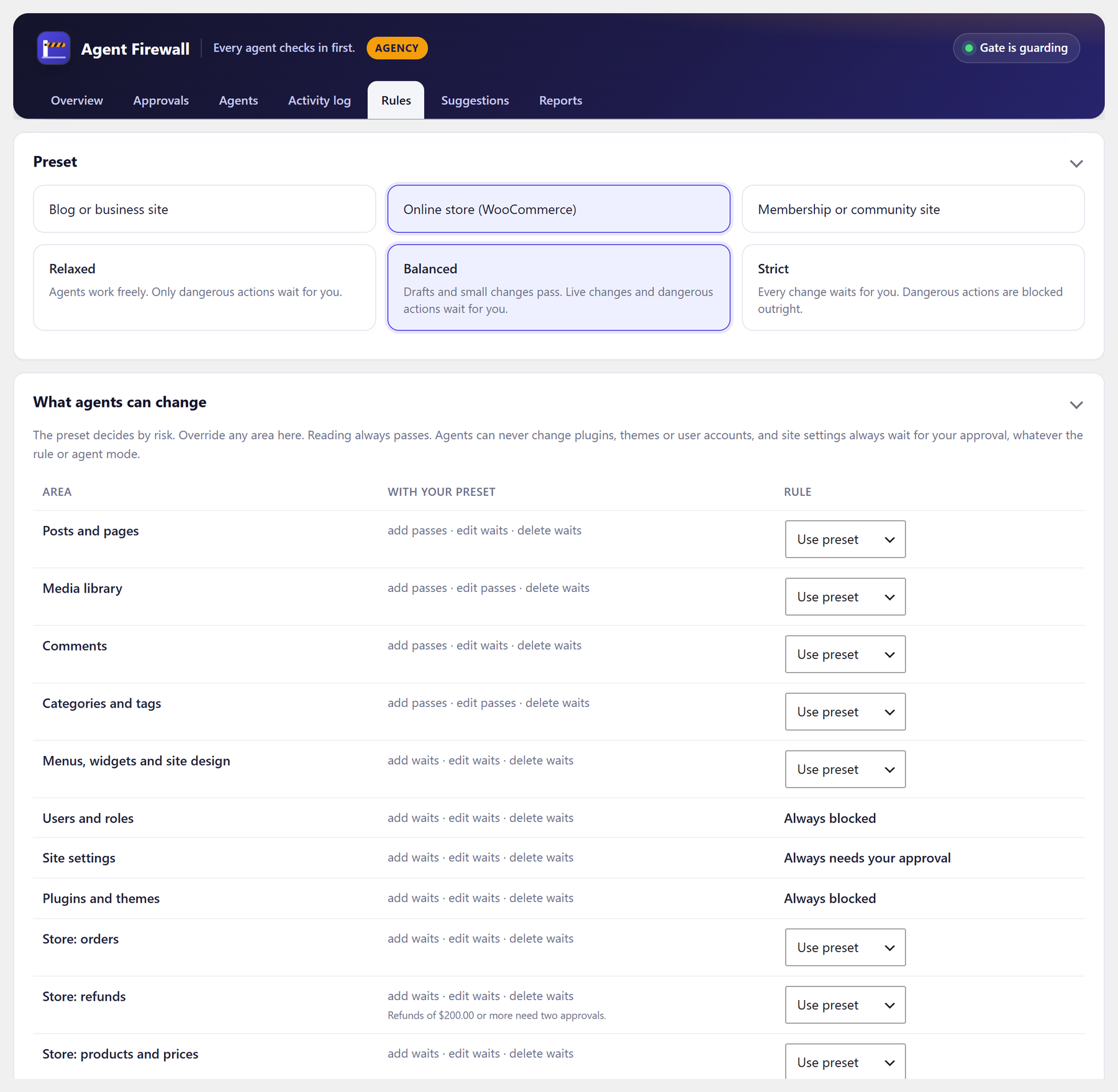
Open Agent Firewall → Rules to change your site preset, override individual action areas, control WordPress Abilities, and configure rate limits.
Agent Firewall classifies every write into one of 18 areas and assigns a base risk to creating, updating, and deleting items. Your strictness preset maps that risk to a decision:
| Strictness | Low risk (e.g. new draft, media upload) | Medium risk (e.g. editing a live post or product) | High risk (e.g. deleting content, users, settings, refunds) |
|---|---|---|---|
| Relaxed | Passes | Passes | Waits for approval |
| Balanced | Passes | Waits for approval | Waits for approval |
| Strict | Waits for approval | Waits for approval | Blocked outright |
In What agents can change, you can override any of the 18 areas (Posts and pages, Media library, Comments, Categories and tags, Menus, widgets and site design, Users and roles, Site settings, Plugins and themes, the six Store areas, Batched requests, Other MCP tools, Abilities, and Everything else) to Use preset, Always allow, Wait for my approval, or Always block.
Below that, the Abilities table lists every ability registered with the WordPress Abilities API (core, WooCommerce, and third-party plugins) so you can set a rule for any specific ability. Read-only abilities always pass.
Open Agent Firewall → Activity log to inspect every action agents have attempted on your site. Filter by agent, outcome (Allowed, Waiting, Approved, Rejected, Blocked, Rate-limited, Stopped, Paused, Learned, Undone), or tick Changes only to hide read calls. Click Export CSV to download the filtered log for auditing.
Before an allowed or approved write runs, Agent Firewall saves a snapshot of the item being changed. If an agent makes an unwanted change, click Undo on that row in the Activity log:
Undo anyway).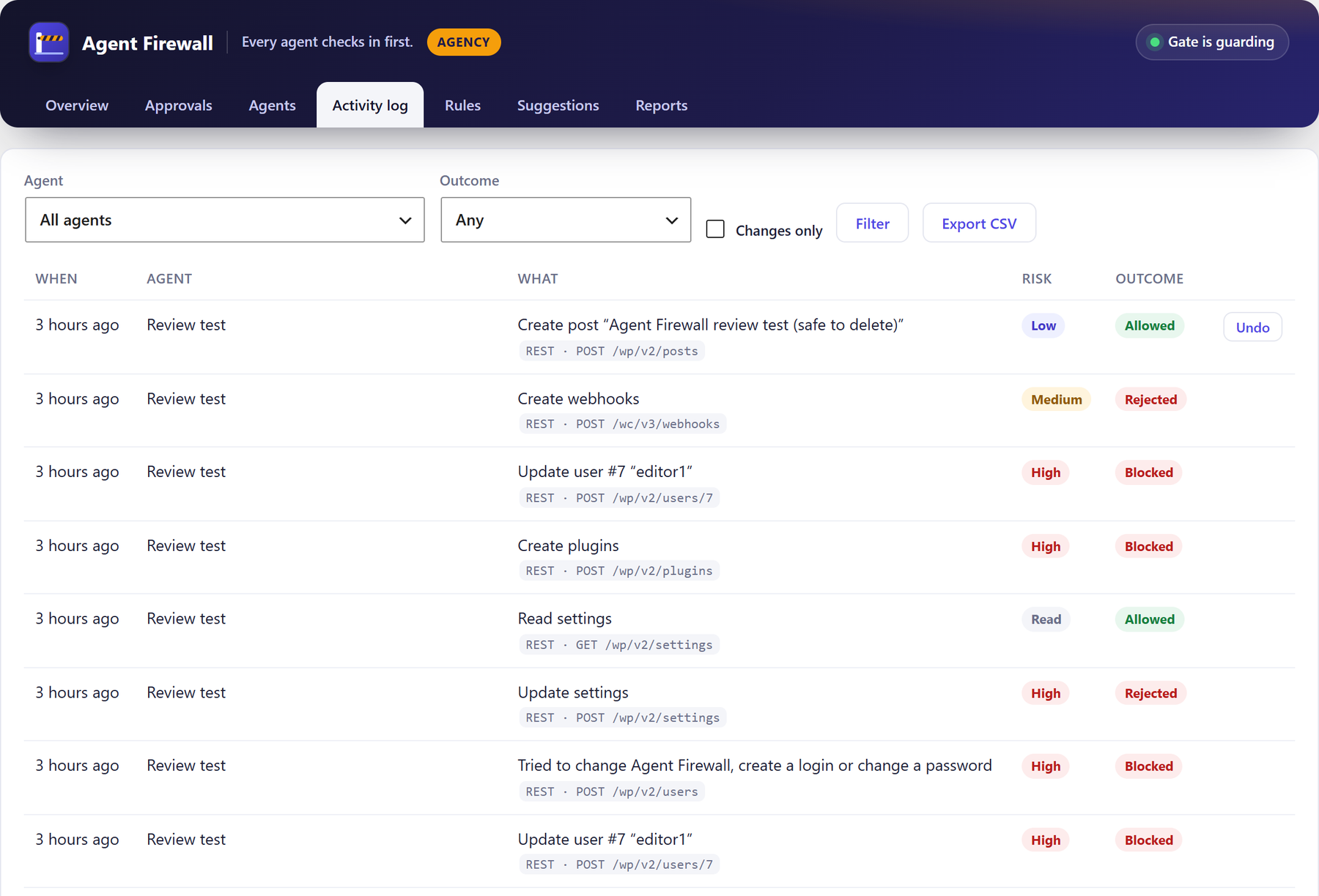
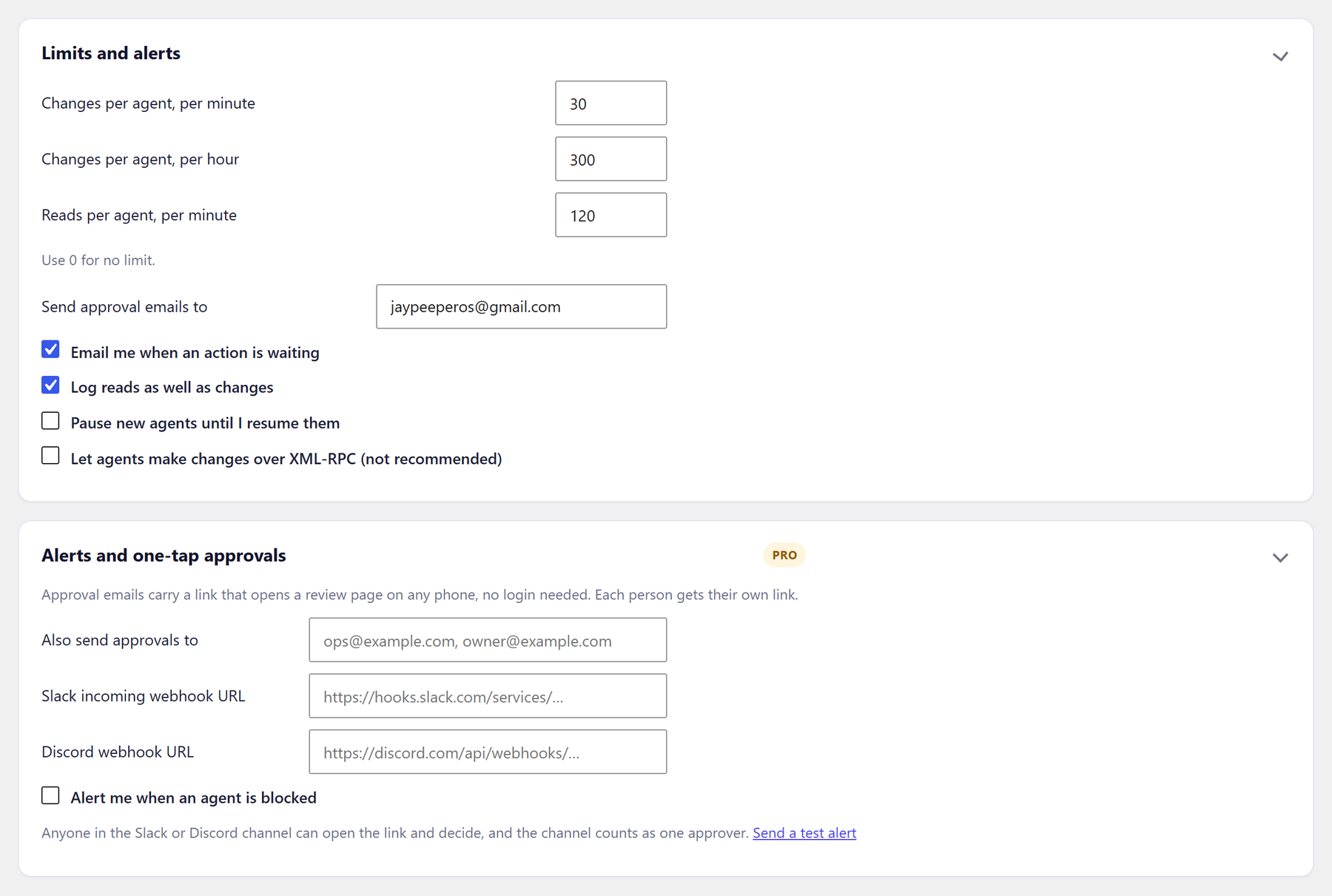
With Pro, Business, or Agency, you can review and decide on held agent requests straight from your phone or team chat without signing in to wp-admin.
On WooCommerce stores, Rules → Store money rules checks the actual dollar and percentage amounts inside an agent’s request — catching expensive changes even if store actions would otherwise pass:
wp-admin plus a colleague via a Slack/email one-tap link, or your agency and the client).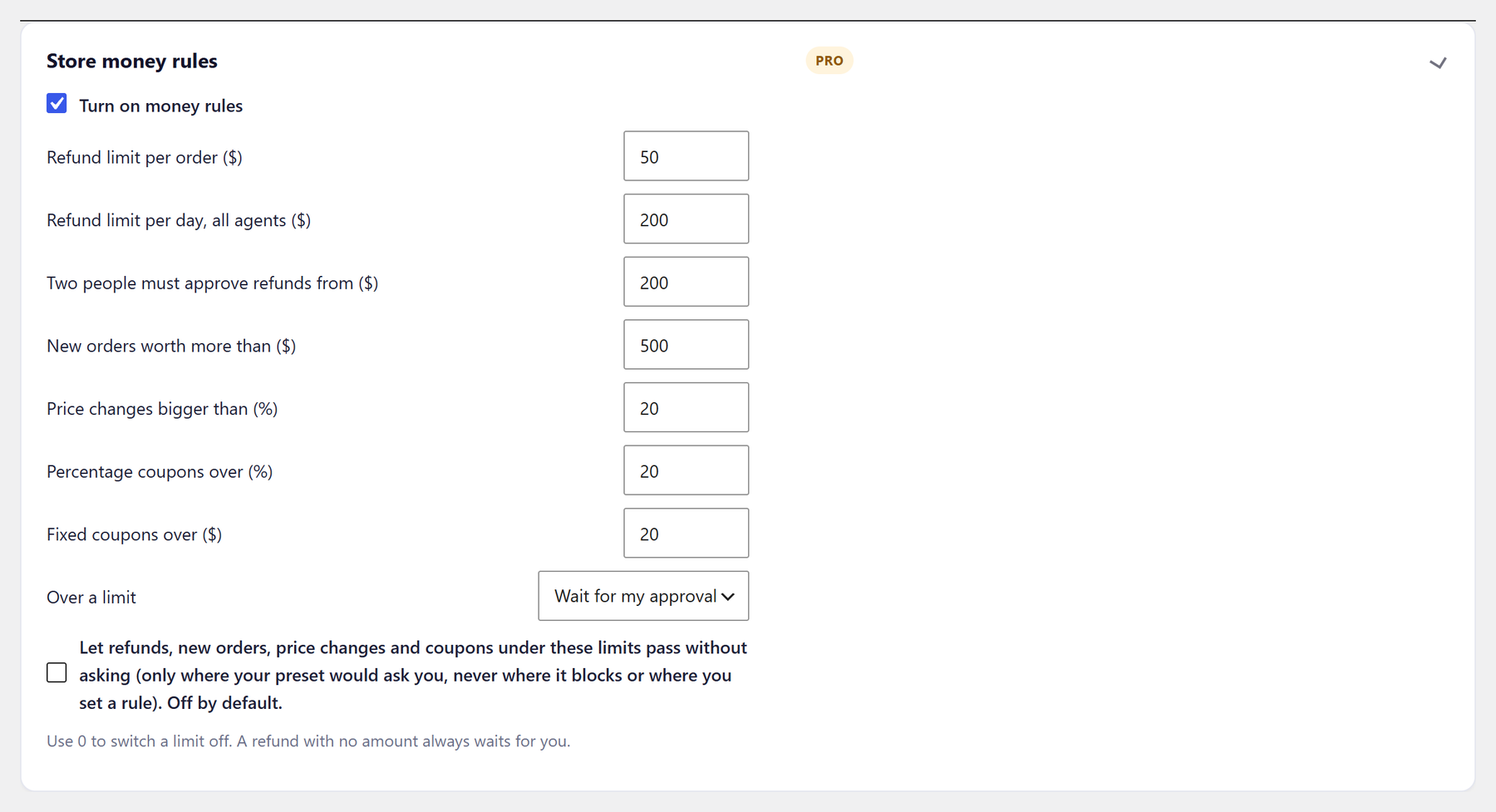
Every site has default per-agent rate limits under Rules → Limits and alerts (30 changes/minute, 300 changes/hour, and 120 reads/minute). With Pro, you can also:
If you are setting up a new workflow and want Agent Firewall to recommend rules based on real usage, click Start learning mode on the Overview screen or open Agent Firewall → Suggestions. While learning mode runs (default: 7 days), low- and medium-risk actions pass and are recorded as Learned, while high-risk actions still wait for your approval.
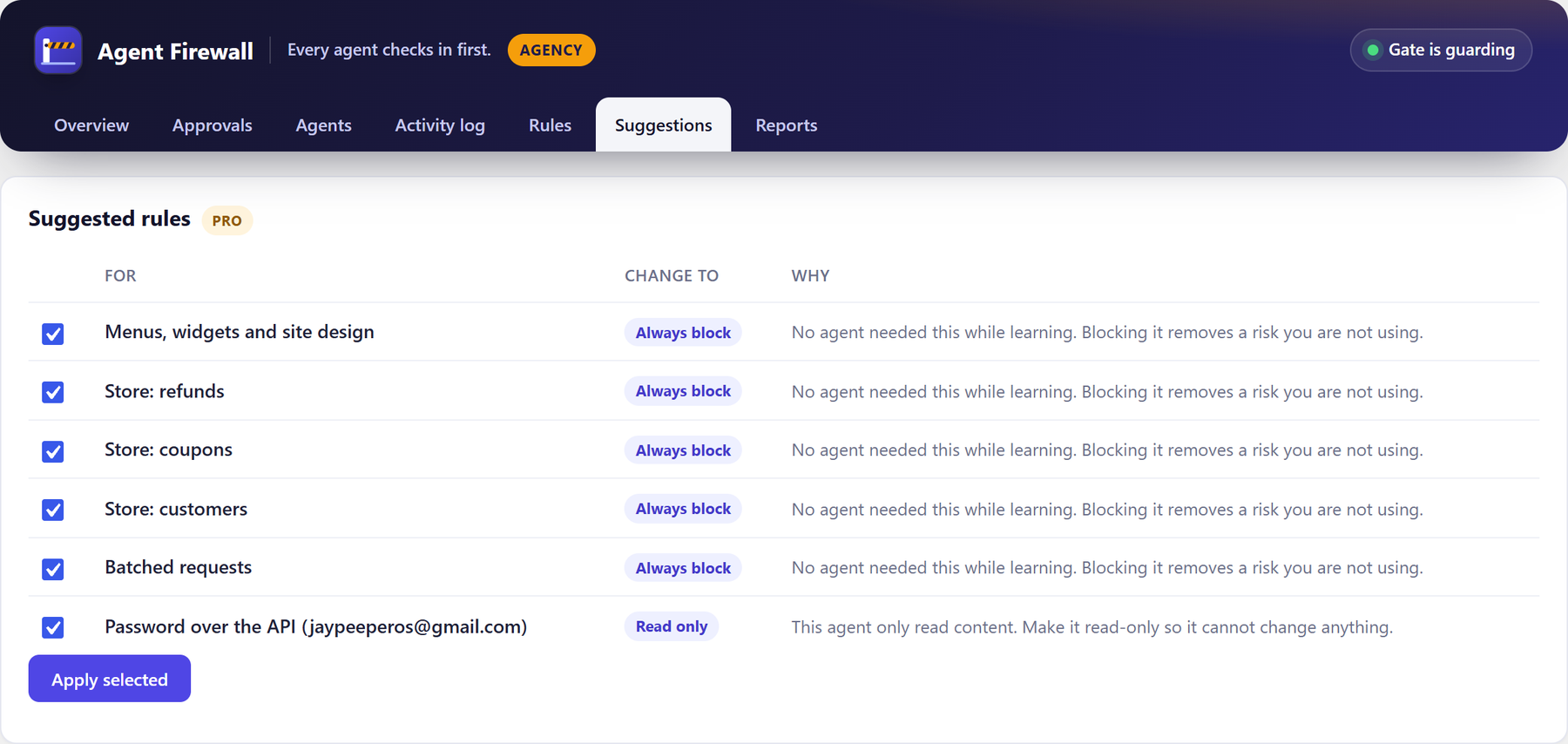
As agents work, Agent Firewall builds a list of Suggested rules — recommending Always block for sensitive areas no agent needed and Always allow for low-risk areas your agents used cleanly without rejections or undos. Tick the suggestions you want and click Apply selected.
The Agency plan adds white-label branding, client approval routing, and portable rule templates so you can roll out consistent AI agent governance across every client site.
wp-admin menu name. Clients see your brand instead of Agent Firewall on one-tap approval pages, alert emails, and monthly reports.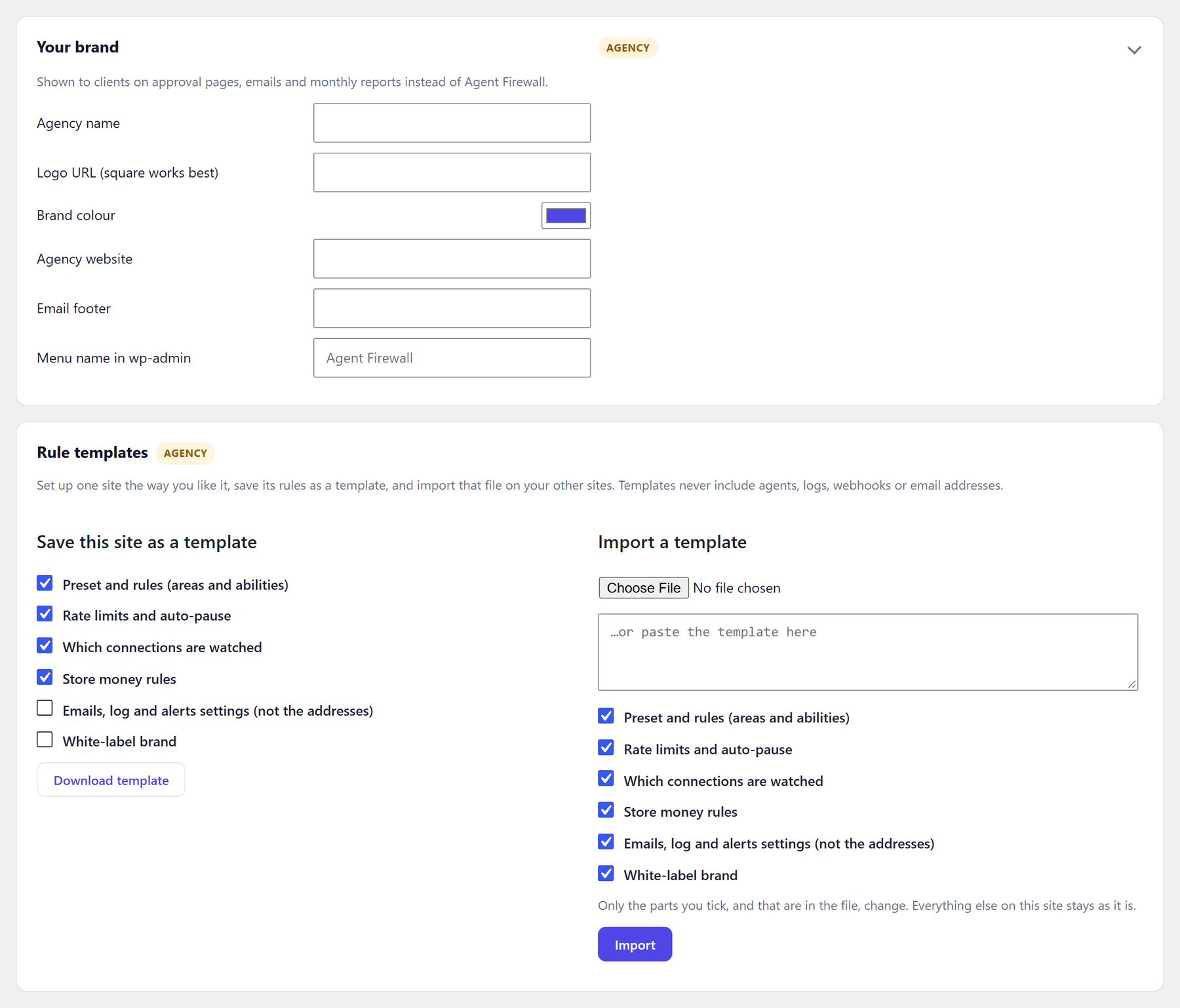
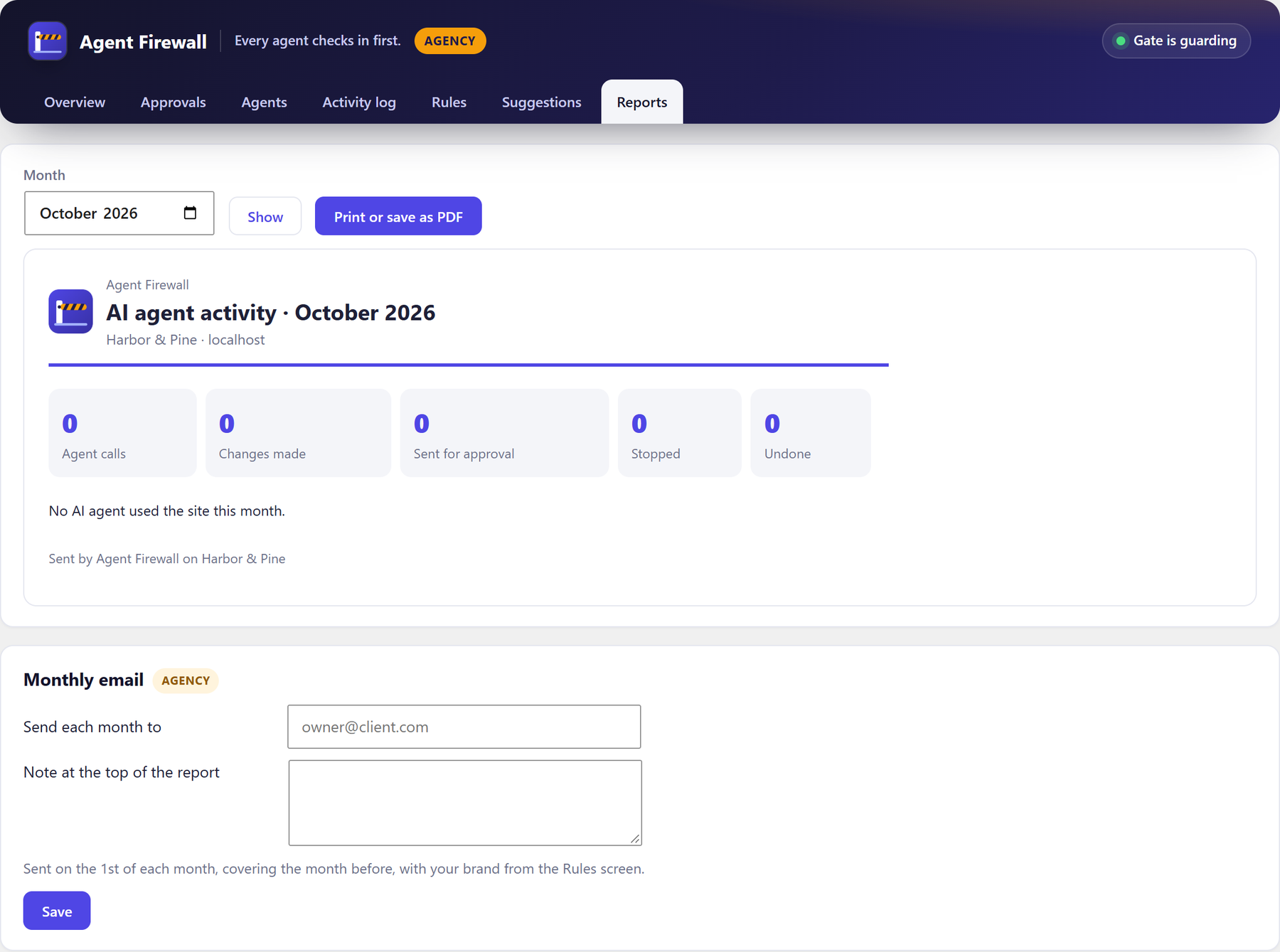
Open Agent Firewall → Reports to generate a client-ready summary for any month — showing total agent calls, changes made, actions sent for approval, actions stopped, and actions undone, plus a per-agent breakdown table and an itemised list of what changed and what was stopped.
Click Print or save as PDF to save a clean copy with your agency branding, or enter recipient addresses under Monthly email to send the branded report automatically on the 1st of every month.
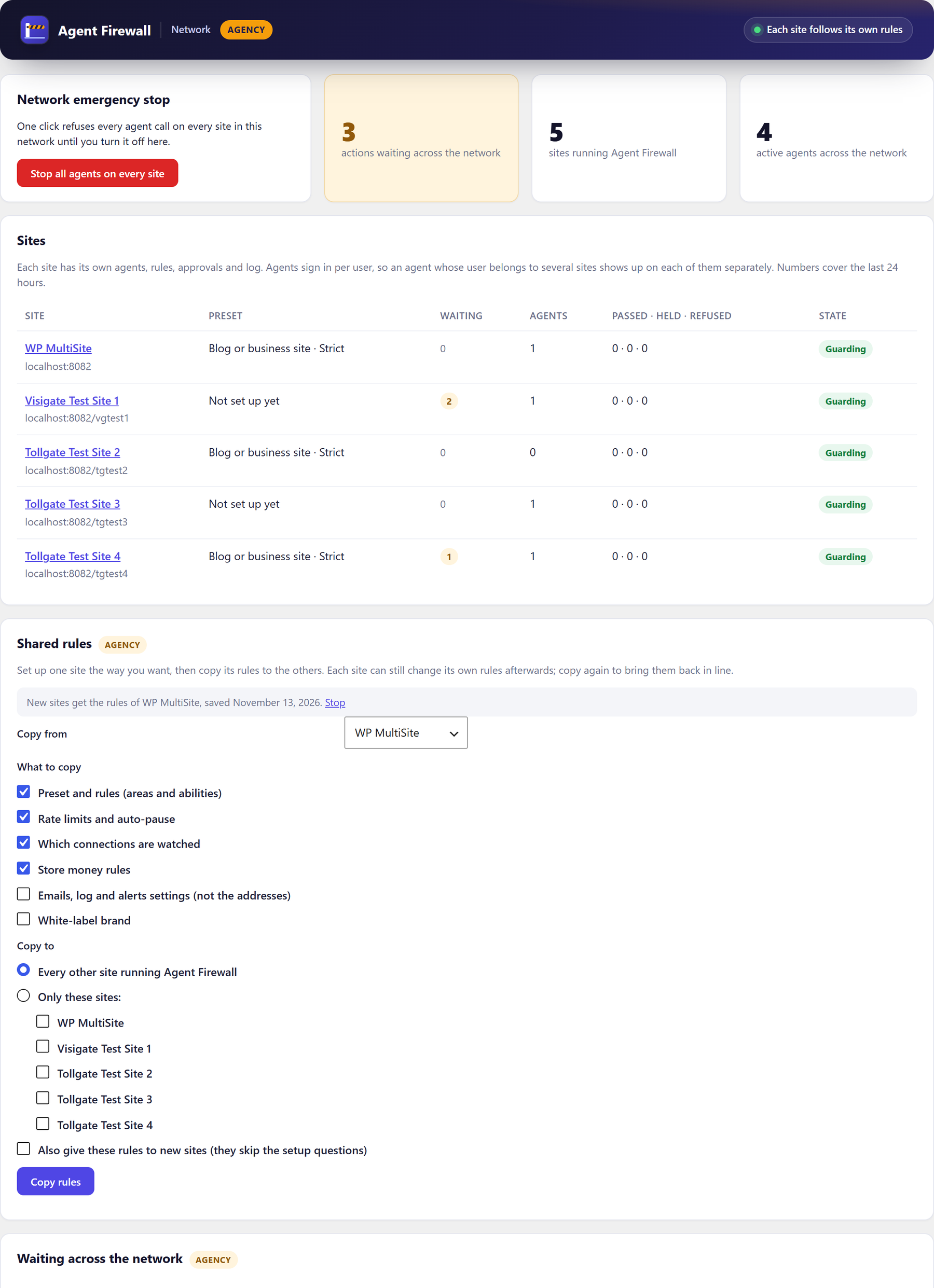
When Agent Firewall is network-activated on a WordPress Multisite network, go to Network Admin → Agent Firewall (paid licenses also activate once at the network level for all subsites). Every plan includes the network-wide Sites overview table and a single Network emergency stop button that refuses agent calls across every site in the network (site admins cannot re-enable agents until a network admin turns the network stop off).
With an Agency license, the network screen also unlocks:
When Agent Firewall holds an action for approval, it returns HTTP 409 (pjaf_held) with instructions to wait and check persjay-ai-agent-firewall/get-request rather than retrying. If a custom script or agent loop ignores the 409 response and keeps resending the write, lower its per-minute write limit on the Agents screen or enable automatic pause under Rules → Limits and alerts.
Agent Firewall compares a fingerprint of the target post, order, product, user, or option before replaying a held action or running an undo. If someone edited that item in the meantime, Agent Firewall pauses and shows the current value so you don’t overwrite newer work by accident. Click Approve anyway or Undo anyway only if you want to replace the newer version.
Check two places: first, make sure the agent is not signing in with your own logged-in browser session (cookie + nonce requests are treated as the human at the keyboard — give browser-driving agents their own WordPress user account with a lower role). Second, open Agent Firewall → Agents → How agents connect and confirm that the authentication method the agent used (such as WooCommerce REST keys, OAuth/JWT tokens, or Basic Auth) is switched on.
Deactivating Agent Firewall pauses protection but keeps all of your agents, rules, approval history, and activity logs intact. Deleting the plugin also keeps your data by default so you can reinstall or upgrade from Free to Pro without losing your setup. To erase all Agent Firewall tables and options upon uninstall, tick Remove all Agent Firewall data when the plugin is deleted under Rules → When Agent Firewall is deleted before deleting the plugin (or define PJTG_REMOVE_ALL_DATA as true in wp-config.php).