
Everything you need to set up rule sets, apply them anywhere and get the most from Pro, Business and Agency features.
Visigate shows or hides any block, Elementor element or piece of content based on who is visiting and when. You describe the audience once as a rule set — for example “logged-in customers on mobile” or “weekends in December” — and apply it anywhere on your site.
Rules are evaluated on the server before the page is sent. Content that doesn’t match is never rendered, so it isn’t just hidden with CSS, and Visigate adds no JavaScript to your front end.
| Plan | Sites | Adds |
|---|---|---|
| Free | Any | Rule builder, block editor, Elementor & shortcode, 8 core conditions, cache safety, admin preview |
| Pro | 1 | Country, URL parameter, cookie, referrer, user meta and 8 WooCommerce conditions |
| Business | 5 | Fallback content, scheduling presets, 6 more WooCommerce conditions |
| Agency | Unlimited | Rule templates, import/export, white-label, client lock, multisite |
Requirements: WordPress 6.2 or newer and PHP 7.4 or newer. WooCommerce and Elementor are optional.
A Visigate menu appears in wp-admin with Rule Sets, Settings and — with Pro — Templates, Import / Export and Pro Settings.
A rule set is a saved, reusable description of an audience. Build it once under Visigate → Rule Sets → Add Rule Set, then apply it to as many blocks, Elementor elements or shortcodes as you like. Change the rule set later and every place that uses it updates.
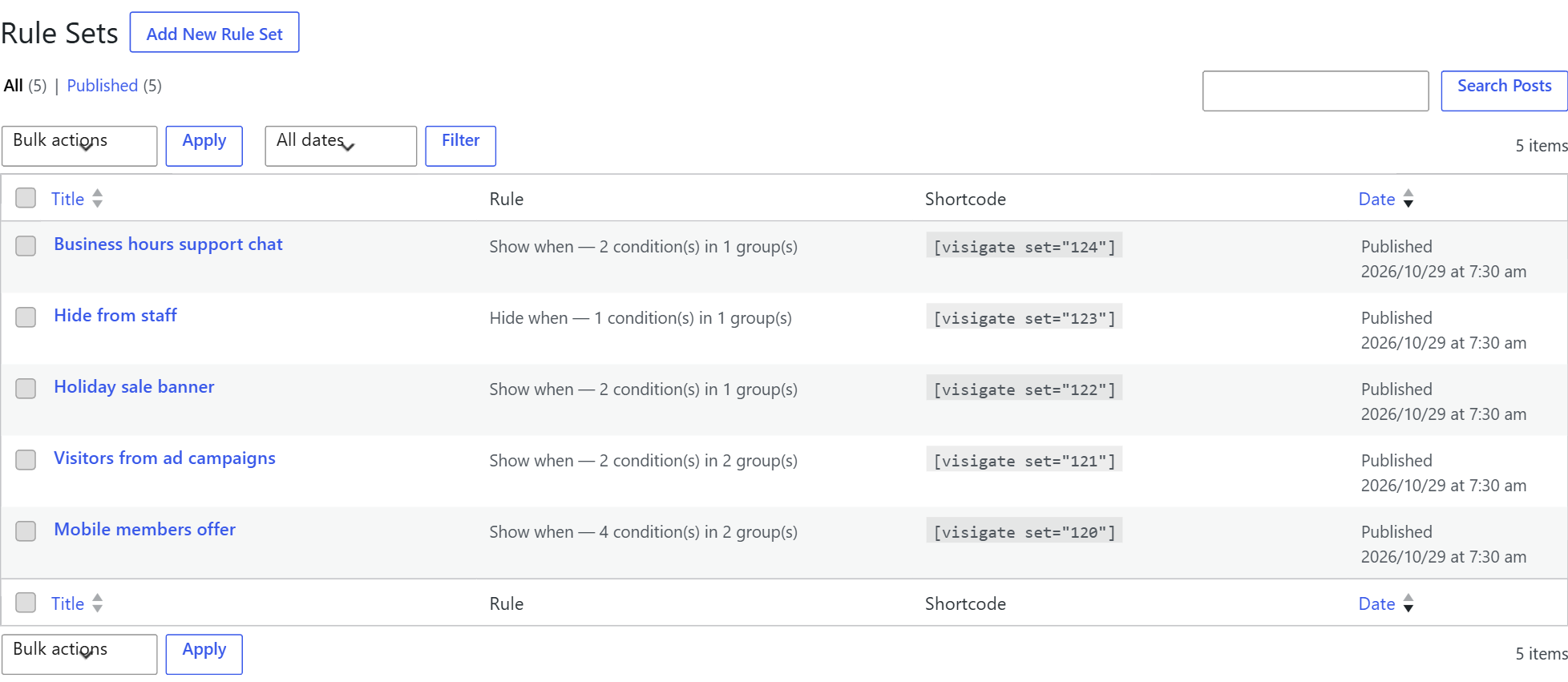
The Rule Sets screen shows a summary of each rule and the shortcode to use it.
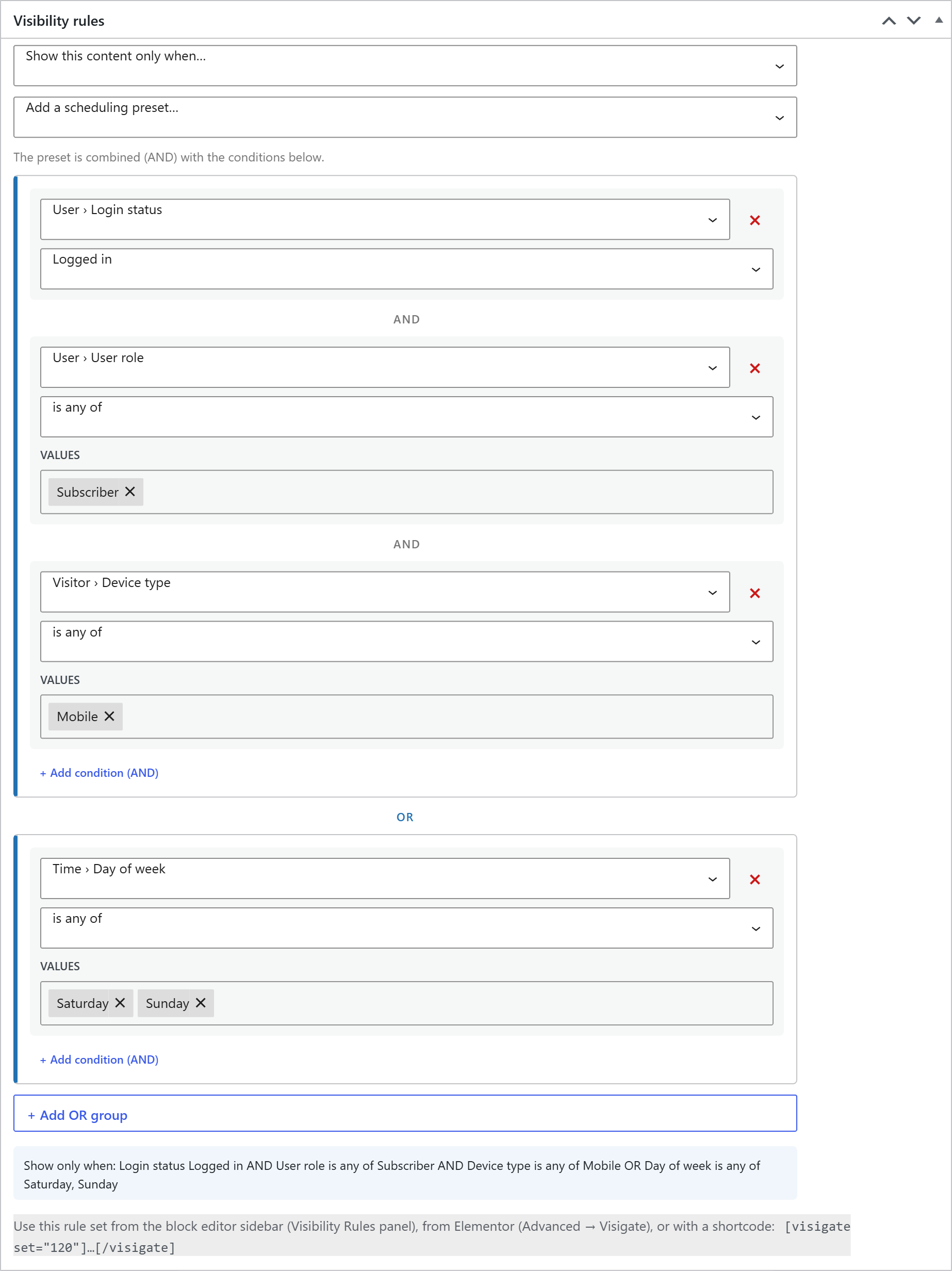
Every rule starts with an action: Show this content only when… or Hide this content when….
Below the builder, a plain-English summary reads the rule back to you, so you can double-check it before saving.
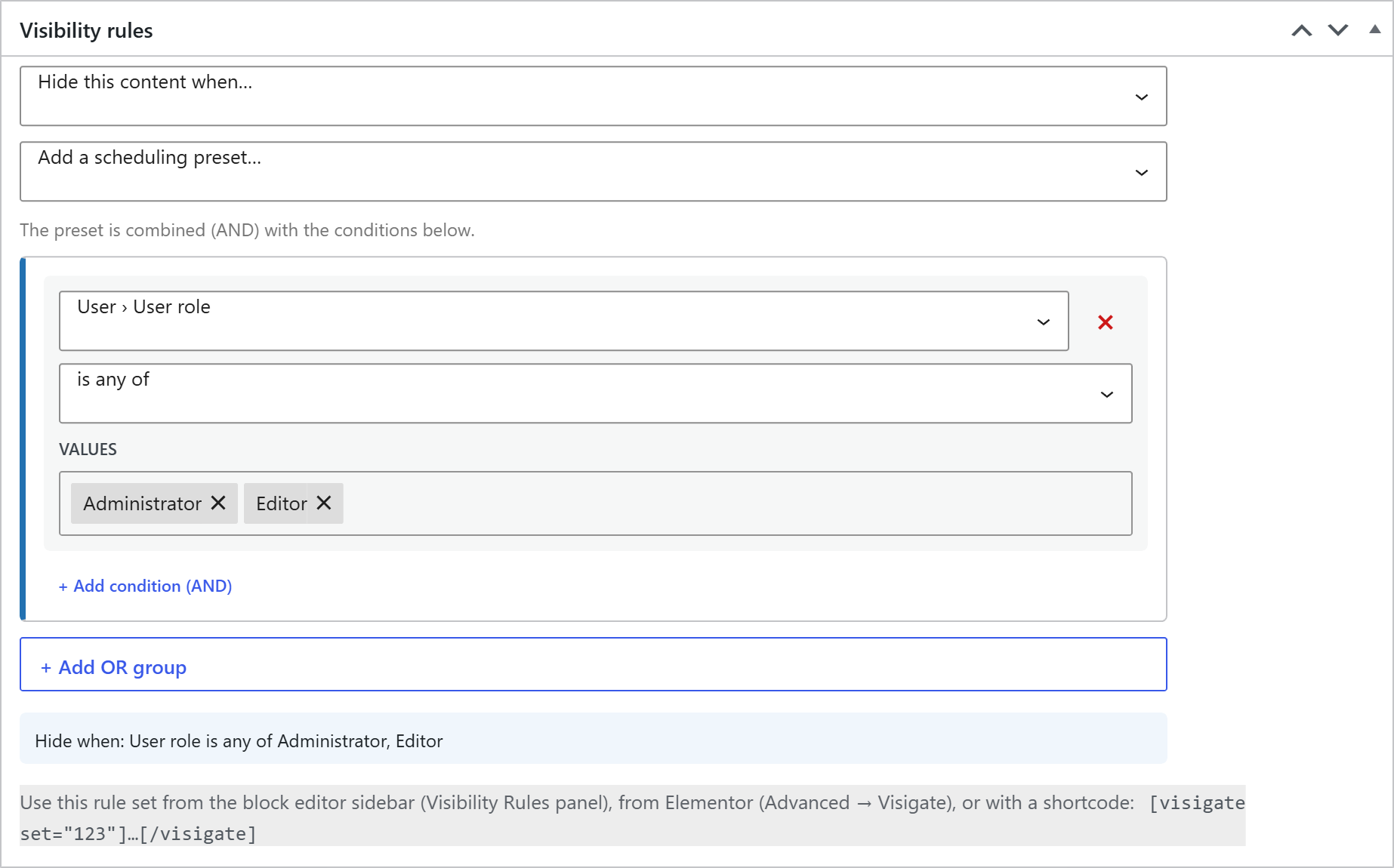
Switch the action to hide content from a specific audience — for example, hide promotional banners from your own team.
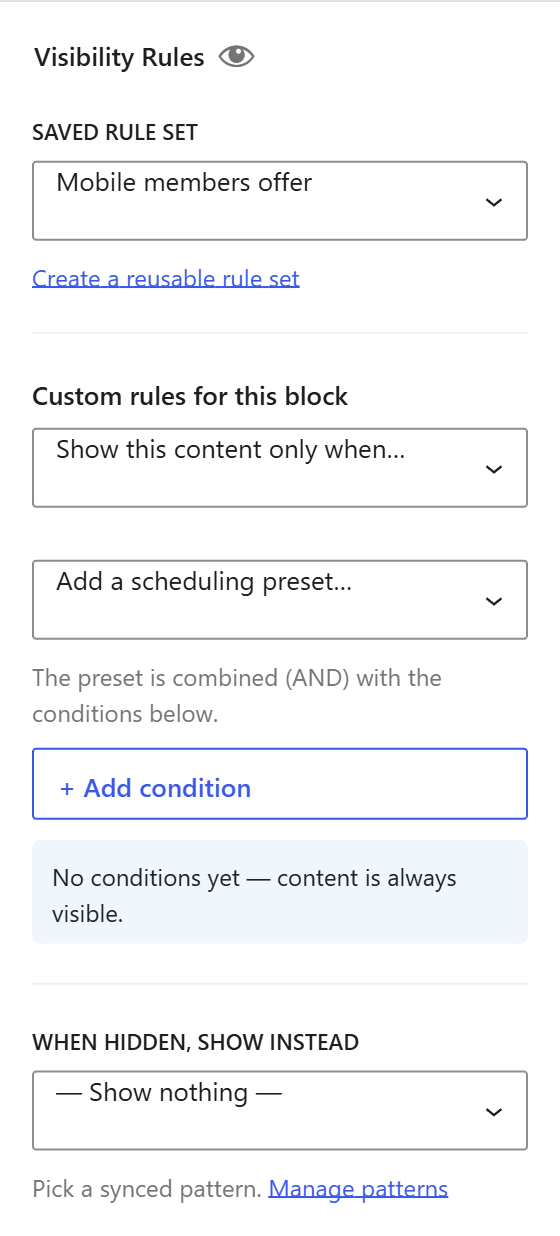
Select any block, open the block settings sidebar and expand Visibility Rules. You can:
Rules on a container block (Group, Columns, Cover…) apply to everything inside it.
Visigate adds a Visigate: Visibility section to the Advanced tab of every Elementor widget, section, column and container.
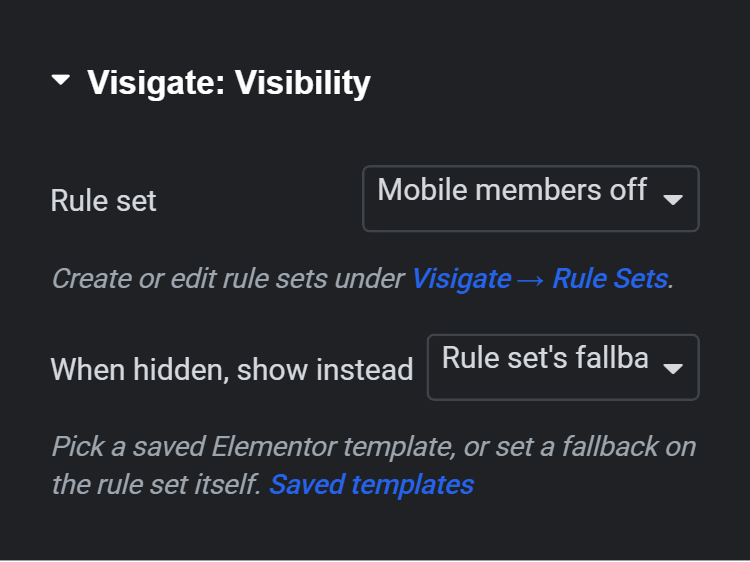
Wrap any content — in classic editors, widgets, page builders or theme files — with [visigate].
[visigate set="12"]
  Content for rule set #12
[/visigate]
The rule set ID is shown in the Rule Sets list. You can also write simple rules directly as attributes:
| Attribute | Example | Meaning |
|---|---|---|
set | set="12" | Apply a saved rule set |
logged_in | logged_in="yes" | yes = logged-in users, no = logged-out visitors |
roles | roles="customer,subscriber" | User has any of these roles |
device | device="mobile,tablet" | desktop, tablet or mobile |
bought Pro | bought="45,46" | Customer has bought any of these product IDs |
bought_days Pro | bought_days="30" | …within the last N days (0 = any time) |
hide | hide="yes" | Hide (instead of show) when the attributes match |
fallback Business | fallback="34" | Synced pattern ID to show when hidden |
[visigate logged_in="yes" roles="customer" device="mobile"]
  Mobile offer for logged-in customers
[/visigate]
When you combine set with attributes, both must allow the content.
Theme and plugin developers can check a rule set anywhere in PHP:
<?php if ( function_exists( 'visigate_visible' ) && visigate_visible( 12 ) ) : ?>
  <div class="promo">Members-only promo</div>
<?php endif; ?>
visigate_visible() accepts a rule set ID or a rules array and returns true or false.
| Condition | Options | Notes |
|---|---|---|
| Login status | Logged in / Logged out | |
| User role | is any of / is none of | Any role on your site, including custom roles |
| User capability | has / does not have | Any capability, e.g. edit_posts |
| Account age (days) | is more than / is less than | Days since the user registered — great for welcome messages |
| Device type | is any of / is none of | Desktop, tablet or mobile, detected from the browser’s user agent |
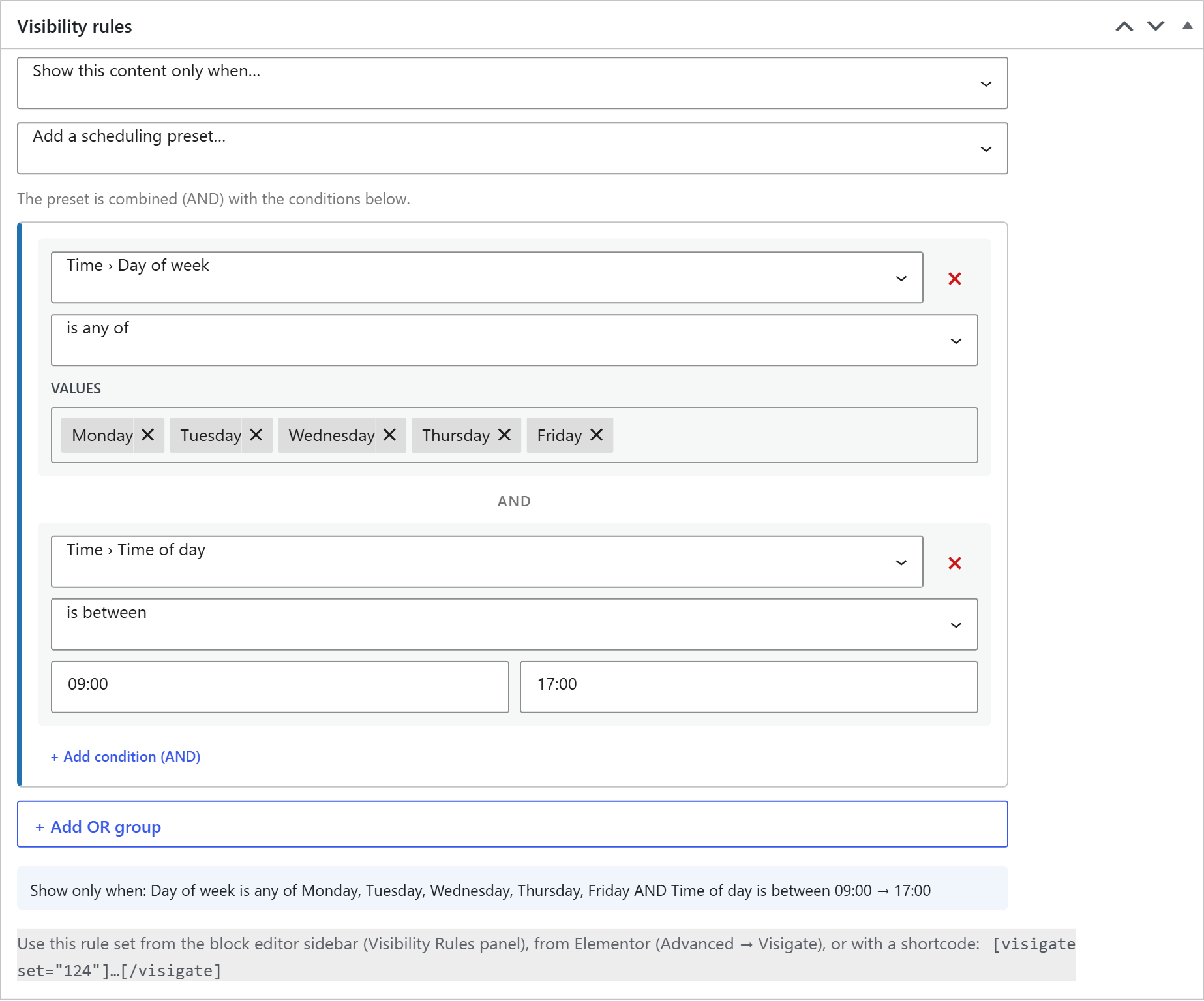
| Day of week | is any of / is none of | Monday–Sunday |
| Time of day | is between / is not between | Supports overnight ranges such as 22:00–06:00 |
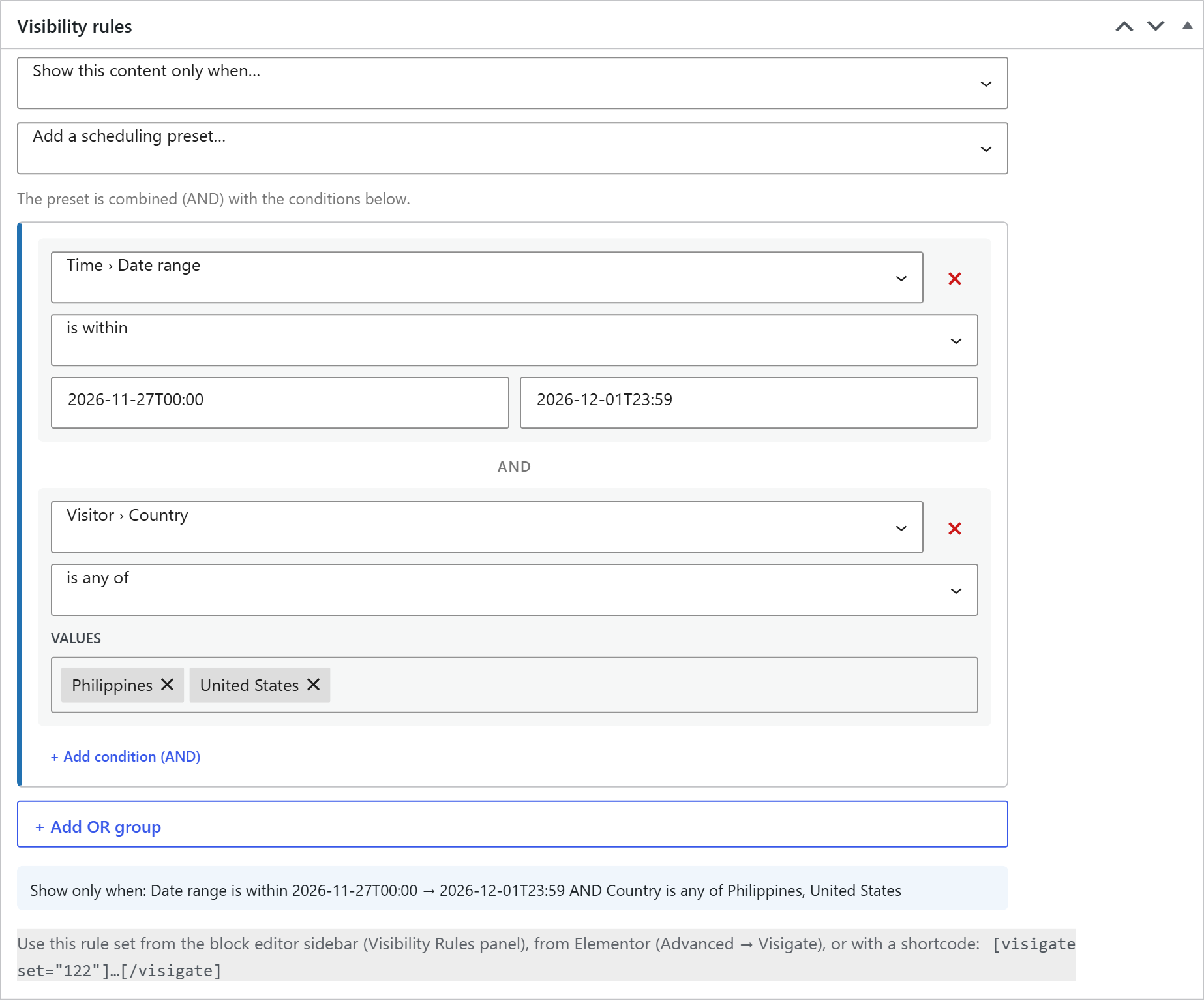
| Date range | is within / is outside | Start, end or both |
Day, time and date conditions use your site’s timezone from Settings → General.
| Condition | Options | Notes |
|---|---|---|
| Country | is any of / is none of | See detection below |
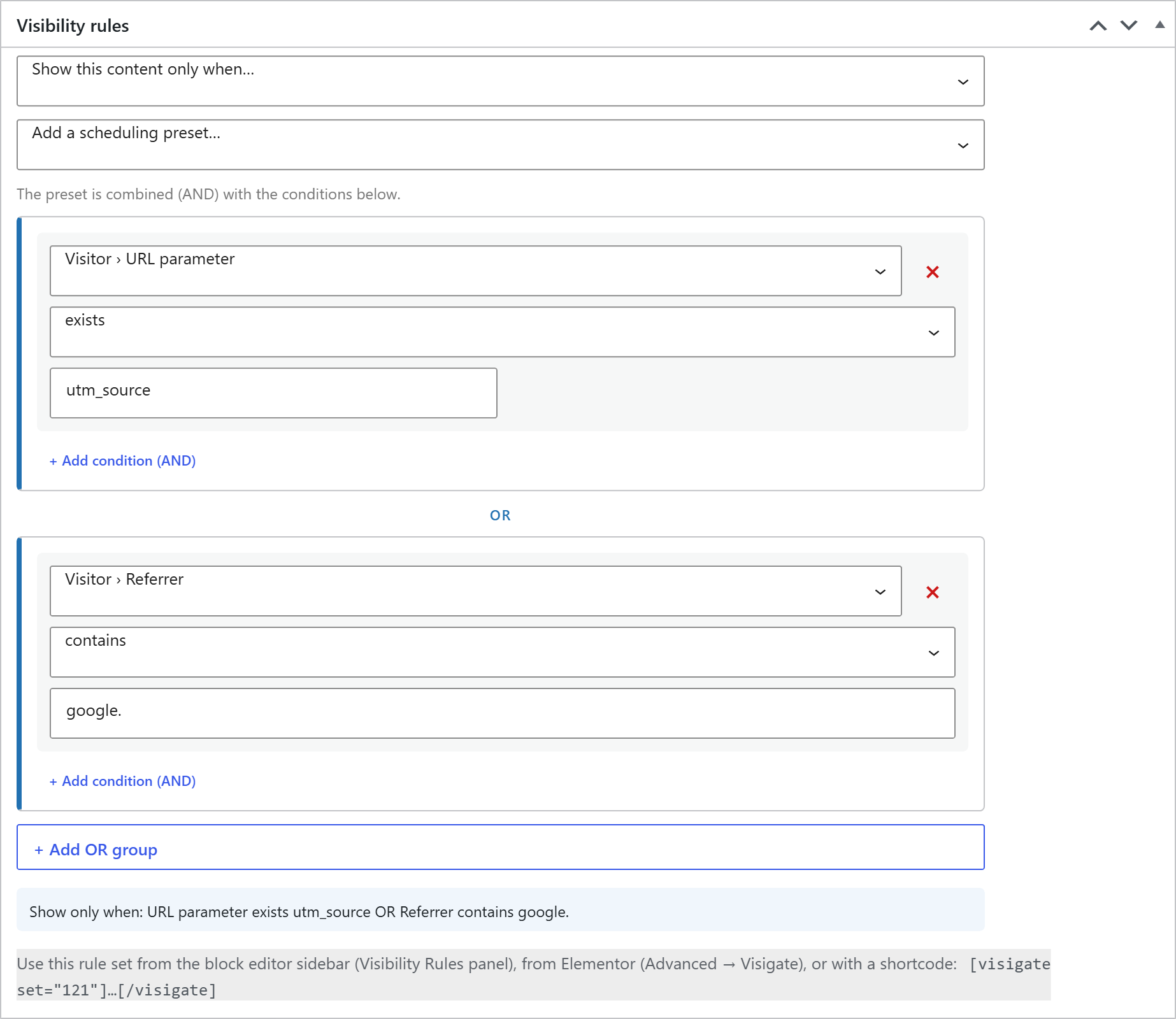
| URL parameter | equals, does not equal, contains, exists, does not exist | Perfect for campaigns, e.g. utm_source exists |
| Cookie | equals, does not equal, contains, exists, does not exist | Any cookie name and value |
| Referrer | contains / does not contain | The page the visitor came from, e.g. google. |
| User meta | equals, does not equal, contains, exists, does not exist | Any user meta key, e.g. a membership level stored by another plugin |
Visigate never calls an outside lookup service. It reads the country your host or CDN already provides — Cloudflare, Amazon CloudFront, Vercel, Google App Engine and common GeoIP headers — and falls back to WooCommerce’s built-in geolocation when WooCommerce is installed. Developers can supply their own with the visigate_country_code filter.
These conditions appear in the builder automatically when WooCommerce is active.
| Condition | Plan | Options |
|---|---|---|
| Purchased product | Pro | has / has not bought any of — optionally within the last N days |
| Purchased from category | Pro | has / has not bought from — optionally within the last N days |
| Lifetime orders | Pro | is at least / is at most / equals |
| Lifetime spend | Pro | is at least / is at most / equals |
| Customer billing country | Pro | is any of / is none of |
| Cart contents | Pro | includes any of / includes none of |
| Cart subtotal | Pro | is at least / is at most / equals |
| Subscription | Pro | has / has no active subscription (WooCommerce Subscriptions) |
| Coupon used | Business | has / has not used any of — optionally within the last N days |
| Coupon applied to cart | Business | includes any of / includes none of |
| Shipping country | Business | is any of / is none of |
| Product reviews | Business | has / has not left a product review |
| Subscription to product | Business | has / has no active subscription to any of |
| Days since last order | Business | is at least / is at most |
Ideas: upsell accessories to people who bought a product in the last 30 days, show a VIP banner to customers who have spent 500 or more, nudge carts under your free-shipping threshold, or win back customers whose last order was more than 90 days ago.
By default, hidden content simply disappears. With fallback content you show something else in its place — a sign-up prompt instead of members-only content, or “Sale starts Friday” before the sale banner goes live.
Fallback can be set in three places. The first one that applies wins:
[visigate set="12" fallback="34"] where 34 is a synced pattern ID.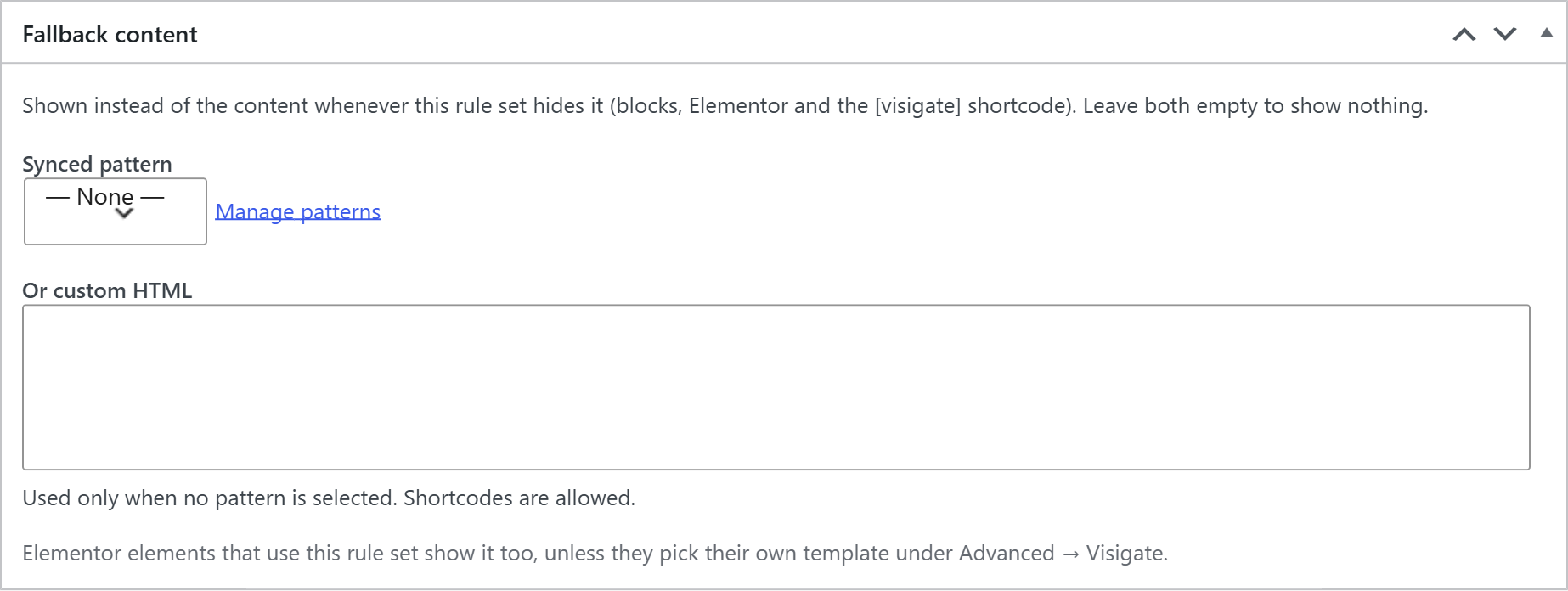
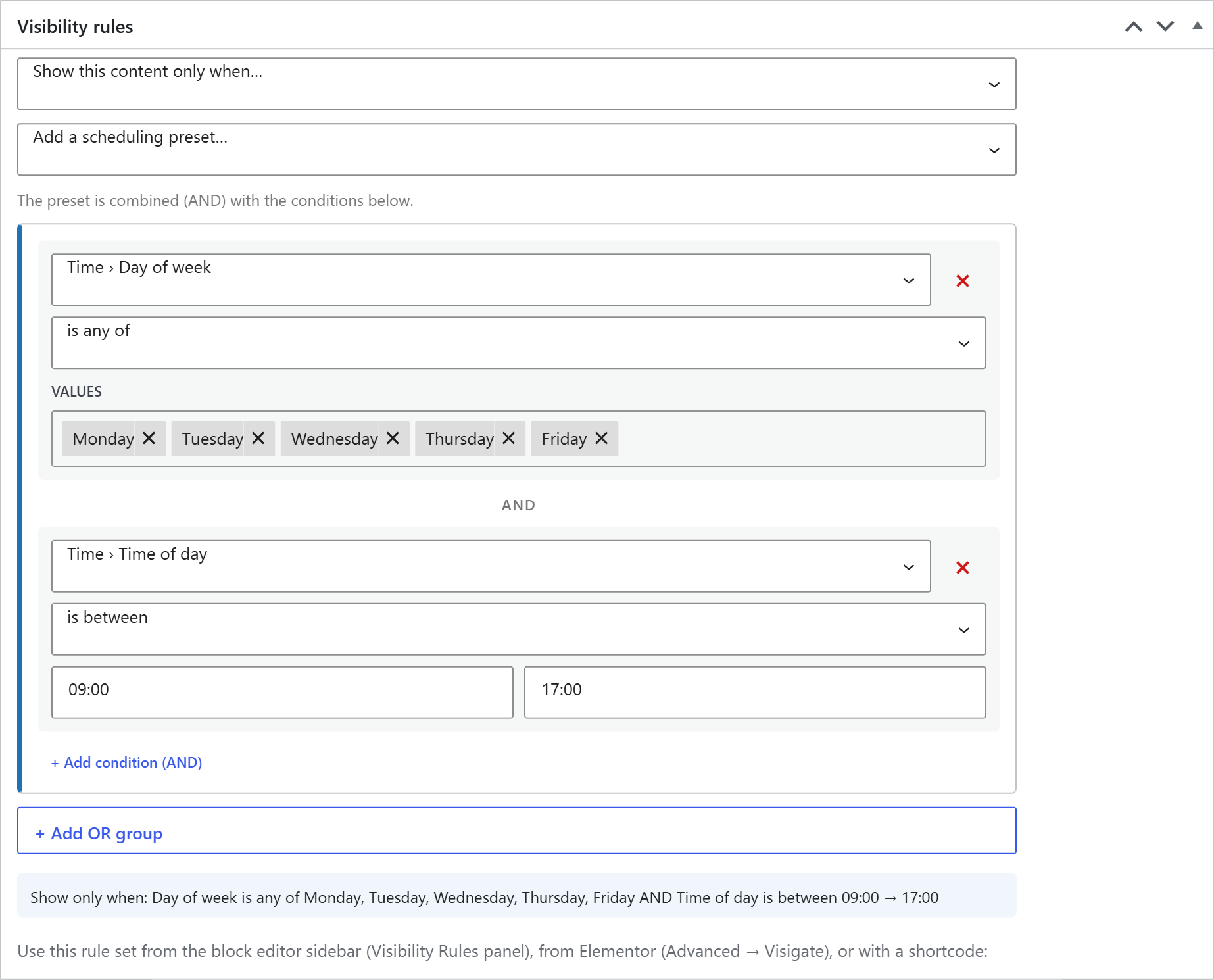
Add a time rule in one click from Add a scheduling preset… at the top of the builder. The preset is combined (AND) with your other conditions.
Presets insert ordinary day, time and date conditions, so you can fine-tune them afterwards — and they keep working even without a license.
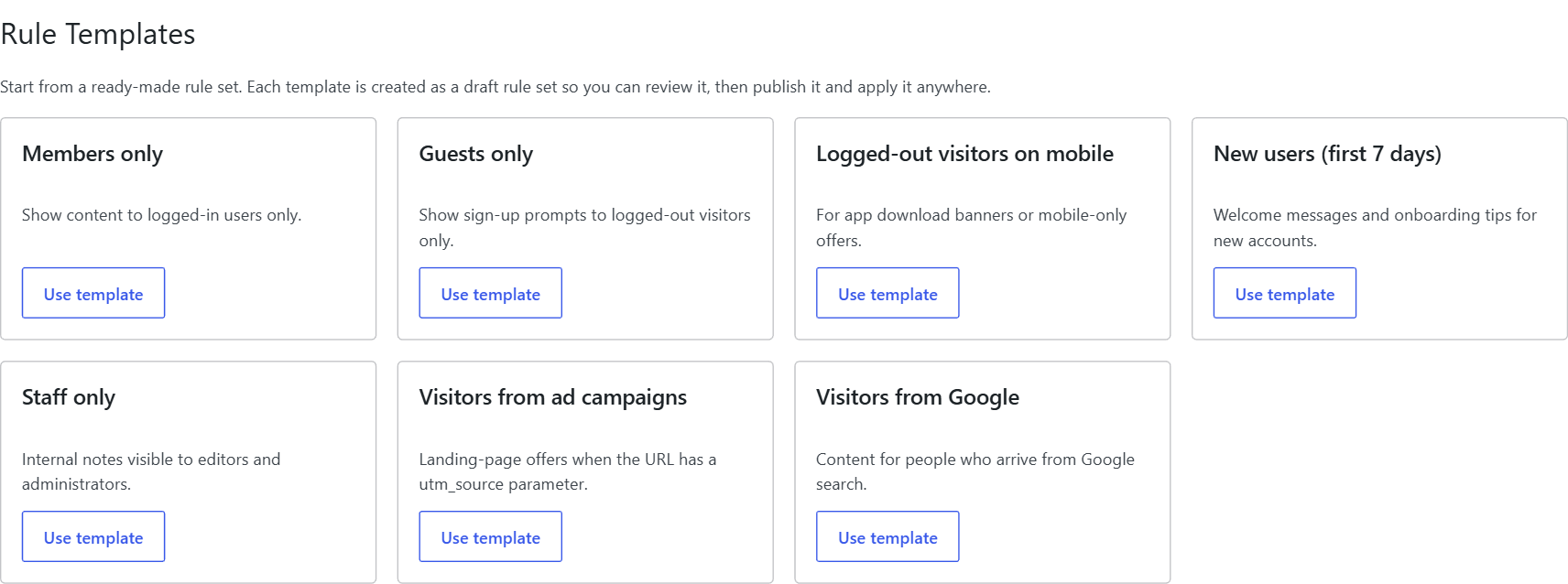
Visigate → Templates is a library of ready-made rule sets. Click Use template and Visigate creates it as a draft so you can review it, then publish it.
Included: Members only, Guests only, Logged-out visitors on mobile, New users (first 7 days), Staff only, Visitors from ad campaigns and Visitors from Google. With WooCommerce you also get VIP customers, Repeat customers, First-order offer, Free-shipping nudge and Active subscribers.
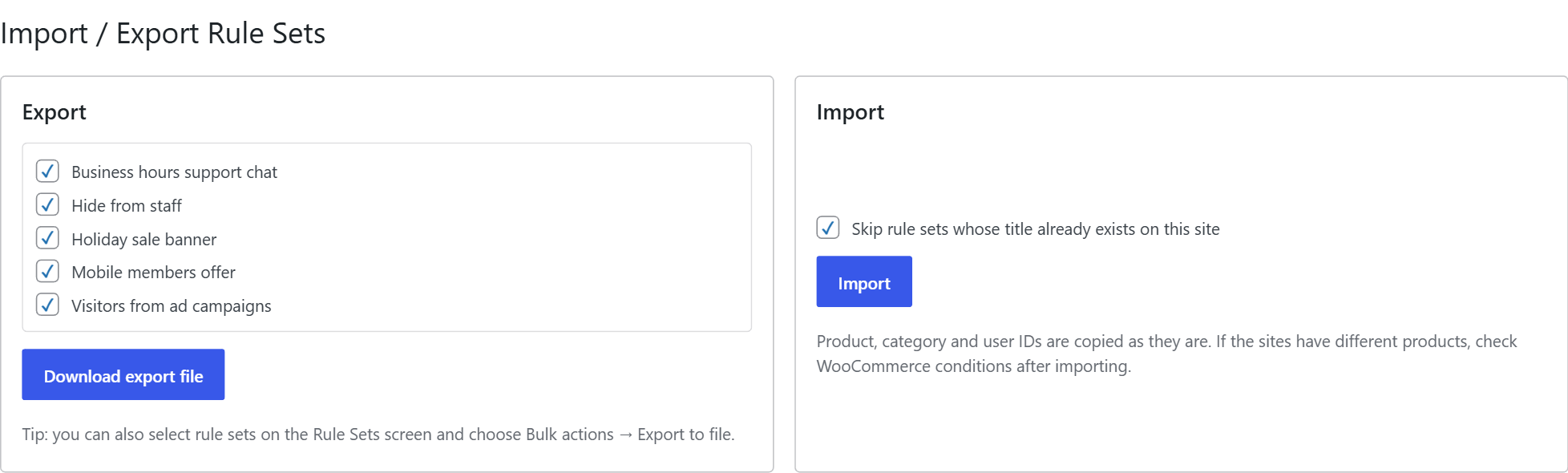
Move rule sets between sites under Visigate → Import / Export.
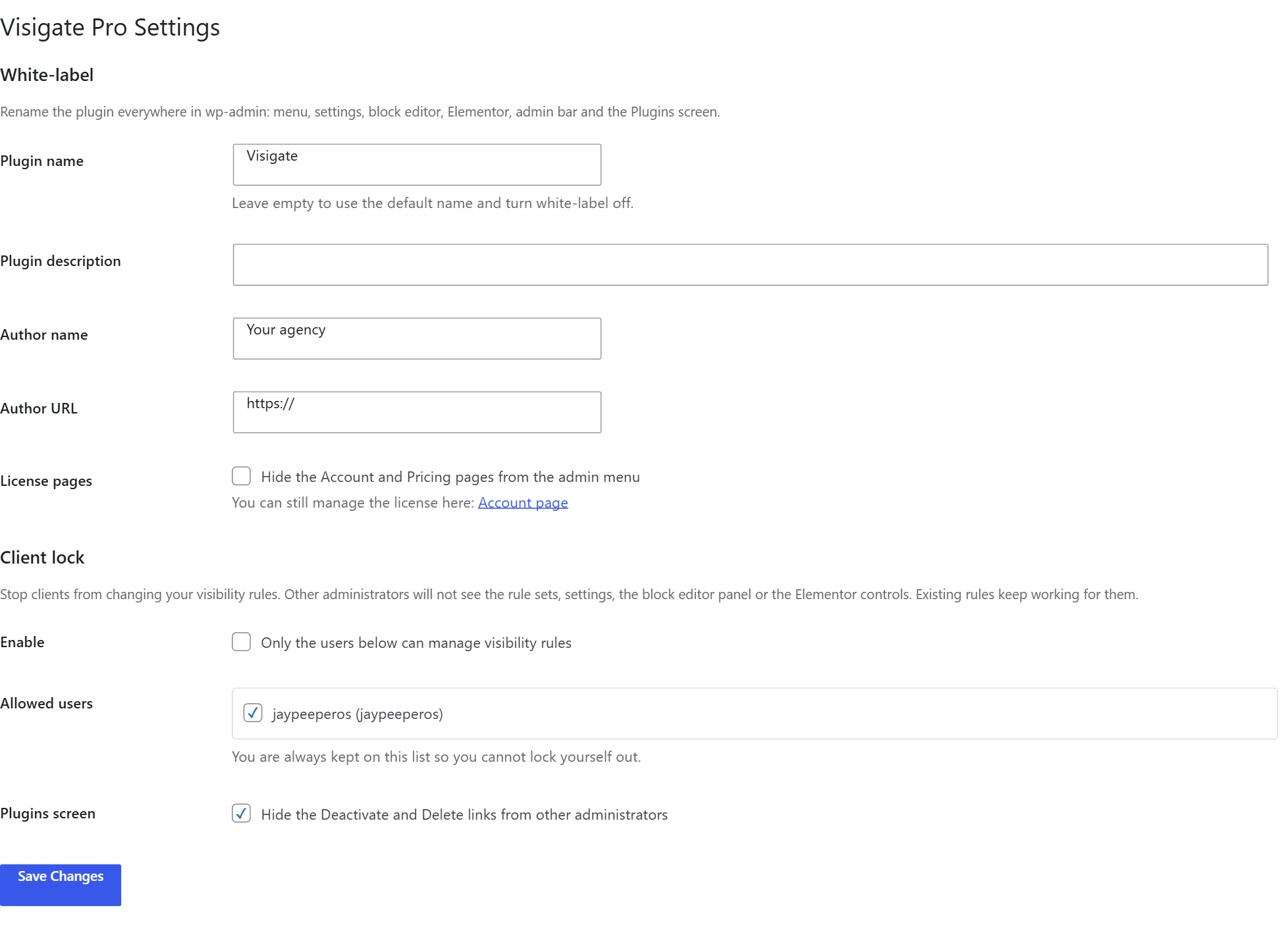
Under Visigate → Pro Settings:
Rename the plugin everywhere in wp-admin — menu, settings, block editor, Elementor, admin bar and the Plugins screen. You can set the plugin name, description, author name and author URL, and hide the Account and Pricing pages from the menu. Leave the name empty to turn white-label off.
Stop clients from changing your rules. When enabled, only the users you list can manage visibility; other administrators won’t see rule sets, settings, the block editor panel or the Elementor controls — but existing rules keep working for them. You’re always kept on the list so you can’t lock yourself out, and you can also hide the Deactivate and Delete links from other administrators.
Network-activate Visigate and Visigate Pro, then open Network Admin → Settings → Visigate Network.
Un-sharing or deleting a rule set never removes the copies — they just stop updating. Edit shared rule sets on the main site; changes made on a subsite are replaced at the next sync.
Visigate checks rules on the server and adds no front-end CSS or JavaScript. To keep page caches accurate, pages whose rules depend on the individual visitor are automatically excluded from page caching (Visigate sets the standard DONOTCACHEPAGE signal used by most caching plugins).
This applies to: device, day of week, time of day, date range, country, URL parameter, cookie, referrer, cart contents, cart subtotal, coupon applied to cart and shipping country. Login, role and purchase-history rules need no exclusion, because logged-in users already bypass most page caches.
Turn this off under Visigate → Settings → Cache safety only if you handle caching yourself.
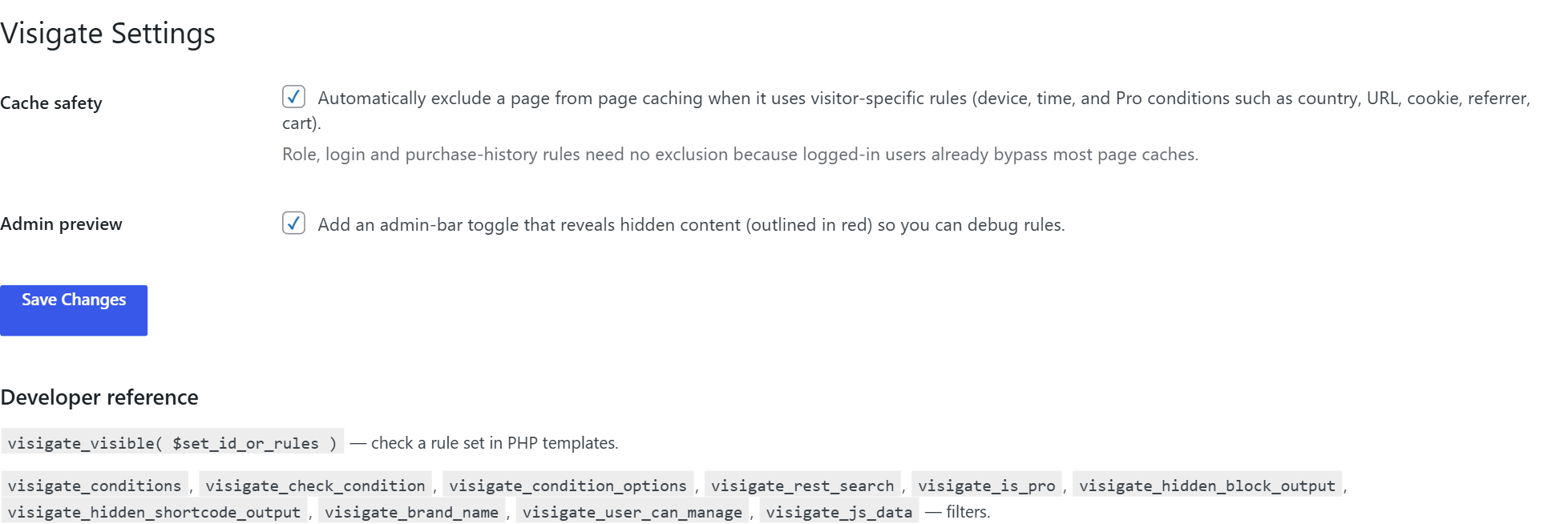
DONOTCACHEPAGE, exclude pages that use visitor-specific rules in that cache's settings.Because you’re logged in as an administrator, you may not see what visitors see. With Admin preview enabled (Visigate → Settings), the admin bar on the front end shows Visigate: reveal hidden content. Click it to show everything that is hidden from you, faded and outlined in red. Click again to switch back.


To see the page exactly as a visitor, open it in a private browser window — and on a phone for device rules.
| Hook | Use it to |
|---|---|
visigate_conditions | Register your own conditions in the builder |
visigate_check_condition | Evaluate your custom conditions |
visigate_condition_options | Change option lists (roles, devices, weekdays…) |
visigate_device | Override device detection |
visigate_country_code (Pro) | Supply the visitor’s country code |
visigate_hidden_block_output | Change what a hidden block renders |
visigate_hidden_shortcode_output | Change what a hidden shortcode renders |
visigate_missing_set_visible | Decide visibility when a rule set is missing |
visigate_dynamic_page (action) | Runs when a page is marked as uncacheable |
visigate_rest_search, visigate_is_pro, visigate_brand_name, visigate_user_can_manage, visigate_js_data | Advanced customisation |
Set your timezone under Settings → General — Visigate uses the site’s timezone, not the visitor’s.