
Overview
Persjay Graveyard scans installed plugins, themes and database tables, then gives your site a Persjay Graveyard Score from 0 to 100. Open Persjay Graveyard in WordPress admin to see the latest scan. The WordPress dashboard widget shows the score and last scan time.
What each plan includes
| Plan | Features |
|---|---|
| Free | Manual scans, score and dashboard widget, orphaned table cleanup, automatic table snapshots and restore. |
| Pro | Plugin footprint inspection, inactive-plugin cleanup, unused theme removal, longer snapshot retention and scheduled scans with email digests. |
| Business | Closed-plugin alerts, replacement suggestions, approval-based auto-bury, activity log with CSV export and WP-CLI commands. |
| Agency | Multisite overview and bulk actions, shared snapshot retention, white-label branding and printable client reports. |
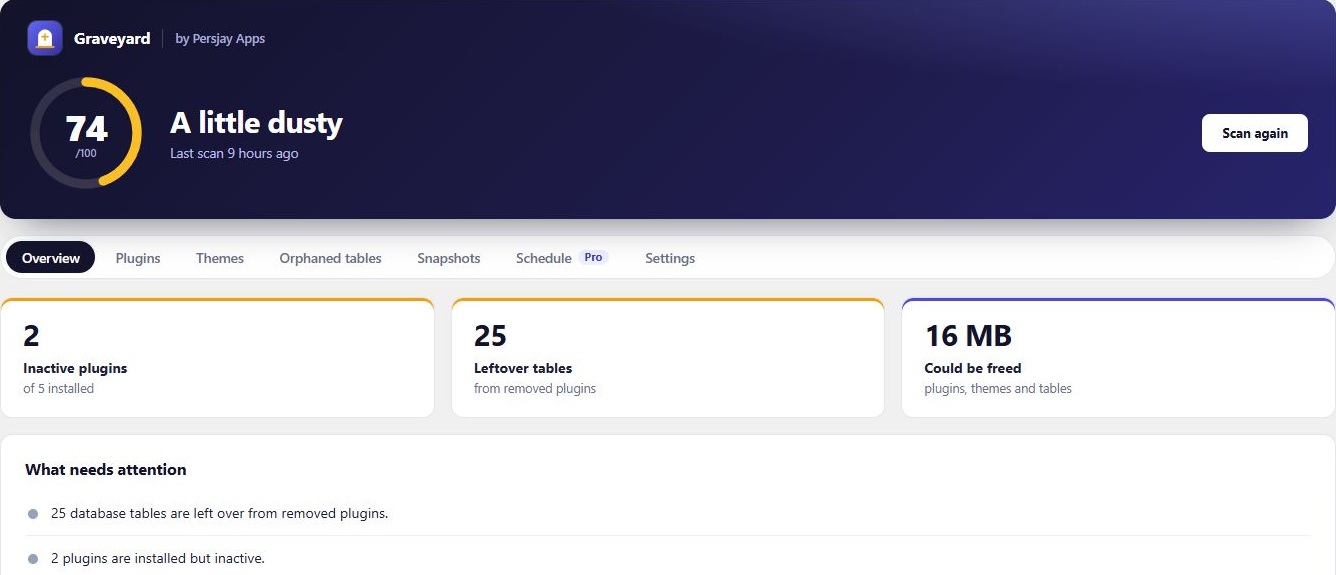
Installation & license
Persjay Graveyard requires WordPress 6.0 or newer and PHP 7.4 or newer.
- In WordPress, open Plugins → Add New Plugin. Search for Persjay Graveyard or choose Upload Plugin to install your ZIP.
- Activate Persjay Graveyard, then open Persjay Graveyard in the main WordPress admin menu and run your first scan.
- For a paid plan, install the Premium ZIP from your Freemius purchase email or account and activate your license when prompted.
The WordPress.org edition omits the Freemius SDK and updater as of 0.2.20.
Run a scan
Persjay Graveyard checks WordPress.org for plugin status and shows each plugin’s installed version. The first scan may finish lookups in the background. It sends the plugin folder name to WordPress.org and caches results for seven days.
- Maintained means the listing is available and was updated within the last two years.
- Abandoned means the listing has gone at least two years without an update. Review the plugin before deciding what to do.
- Closed means the matching WordPress.org listing has closed.
- Premium / vendor covers plugins distributed or updated by a vendor. This status carries no score penalty.
- Use Ignore to exclude a known plugin or table from the score. You can undo that choice later.
Plugin autopsy Pro
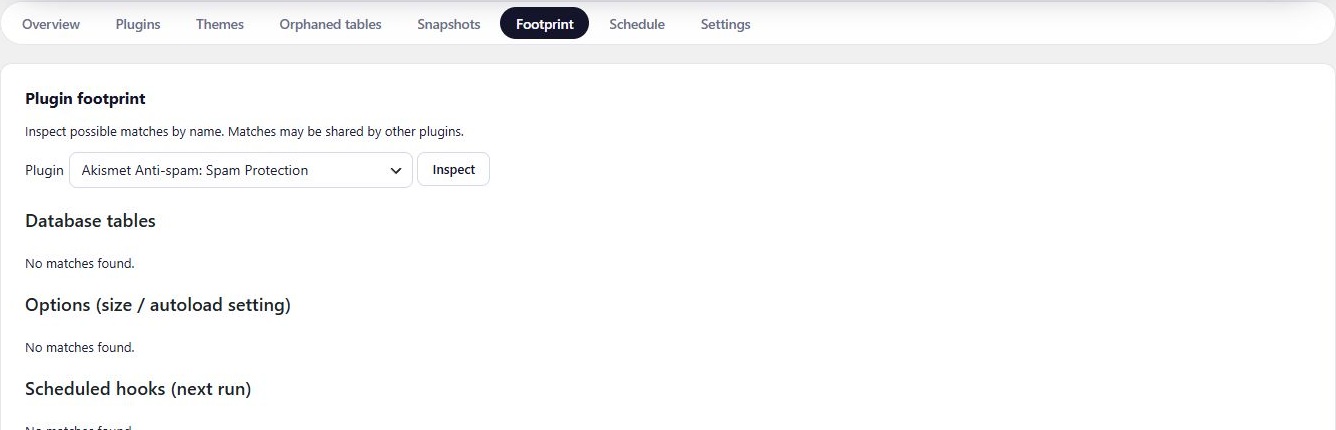
Open a plugin’s footprint to inspect the database tables, saved options, transients, scheduled tasks and upload folders Persjay Graveyard associates with it. Pro can clean leftover options, transients and scheduled tasks for inactive plugins. Review the footprint before running cleanup.
Pro can also remove unused themes. Persjay Graveyard keeps the last fallback theme installed.
Orphaned tables
Open Orphaned tables and review each table and its confidence label. Matching uses table names. A table whose name resembles an installed plugin is capped at Medium confidence and starts unselected.
- Keep a separate full site backup and select only the tables you have verified.
- Follow the typed confirmation prompt. Persjay Graveyard rechecks eligibility and protects WordPress core tables and tables from other installations sharing the database.
- Persjay Graveyard saves a snapshot of the selected tables before deletion. If it cannot save one, deletion stops.
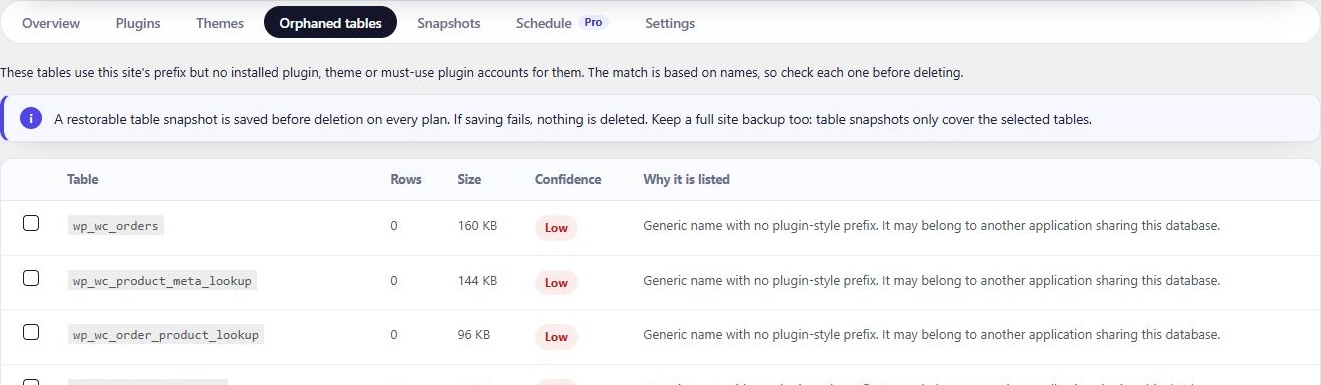
Table snapshots & restore Free
Every plan includes automatic snapshots for table deletion and restore access. A snapshot contains the structure and rows of the selected tables. Keep a separate full site backup for WordPress files and the rest of the database.
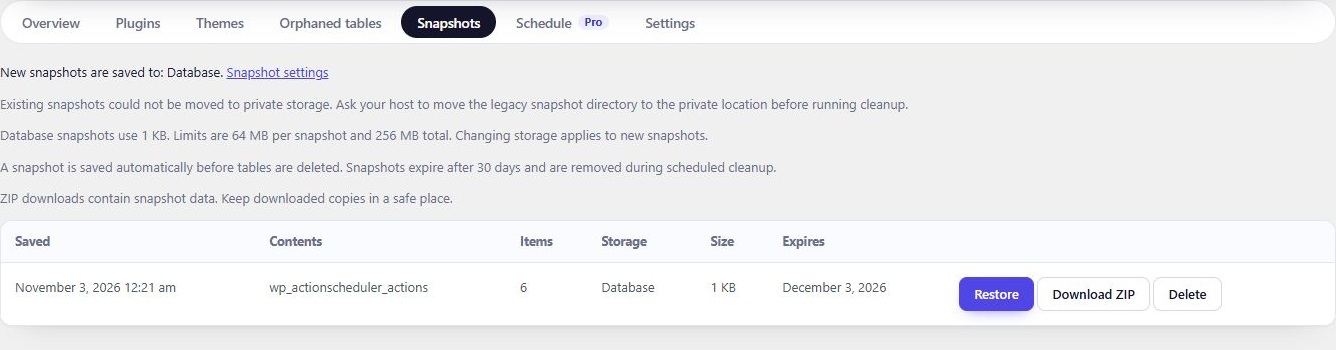
Open Persjay Graveyard → Snapshots to see each snapshot’s storage, size and expiry date. Choose Restore to recover tables. An existing table with the same name is protected from overwrite. Restore access remains available without an active paid license.
Snapshots expire after 30 days by default and scheduled cleanup removes expired entries. Pro can set retention from 30 to 365 days. Agency can enforce a shared retention policy across a multisite network.
Snapshot storage & ZIP downloads
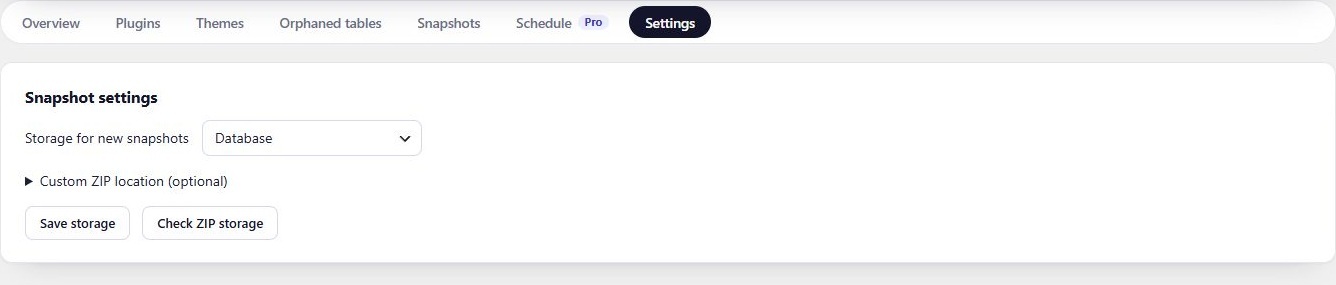
Open Persjay Graveyard → Settings to choose where new snapshots are stored. Existing snapshots stay in their original storage.
- Automatic (recommended) prefers private ZIP storage when available and uses the database otherwise. A saved explicit storage choice takes precedence.
- Database stores snapshots in WordPress. To export a copy, choose Download ZIP on the Snapshots tab. ZIP downloads require PHP’s ZIP extension.
- Private ZIP saves future snapshots in an existing writable directory outside every web root. Enter the path, then use Check ZIP storage to verify it.
When private storage is unavailable, ask your host for a writable directory outside all document roots and web aliases. Your host can set PJGY_SNAPSHOT_PRIVATE_ROOT in wp-config.php. Legacy ZIPs on a separate filesystem may need to be moved by your host. If the configured snapshot provider cannot save a snapshot, Persjay Graveyard blocks table deletion.
Scheduled scans & email digest Pro
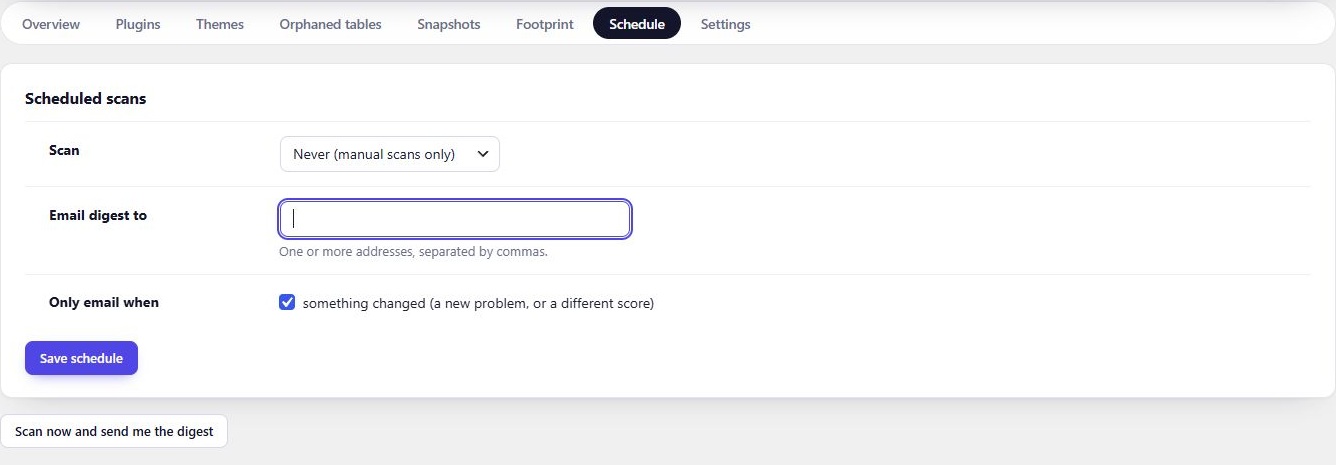
Open the Schedule tab to configure recurring scans and the digest email. The digest summarizes scan results and highlights items that need review.
Alerts, auto-bury & activity Business
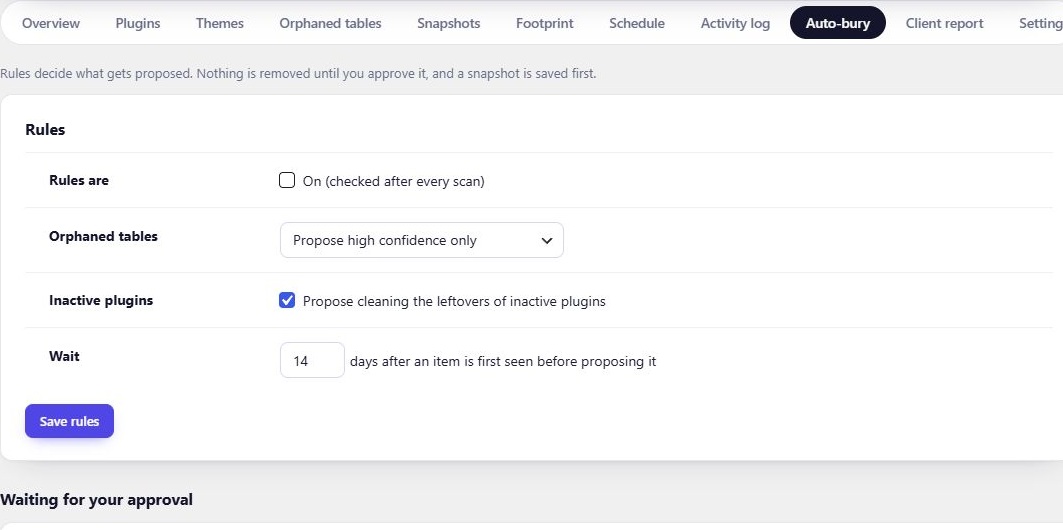
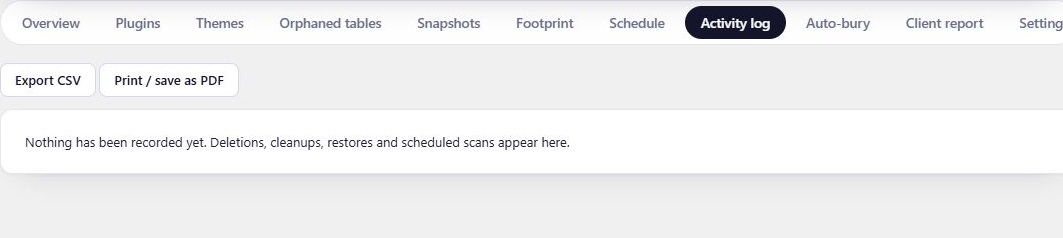
Use closed-plugin alerts and replacement suggestions to review plugins that may need attention. Auto-bury rules queue matching items for your approval. The activity log records plugin activations, deactivations and successful deletions and supports CSV export. Business also unlocks WP-CLI commands.
Multisite & client reports Agency
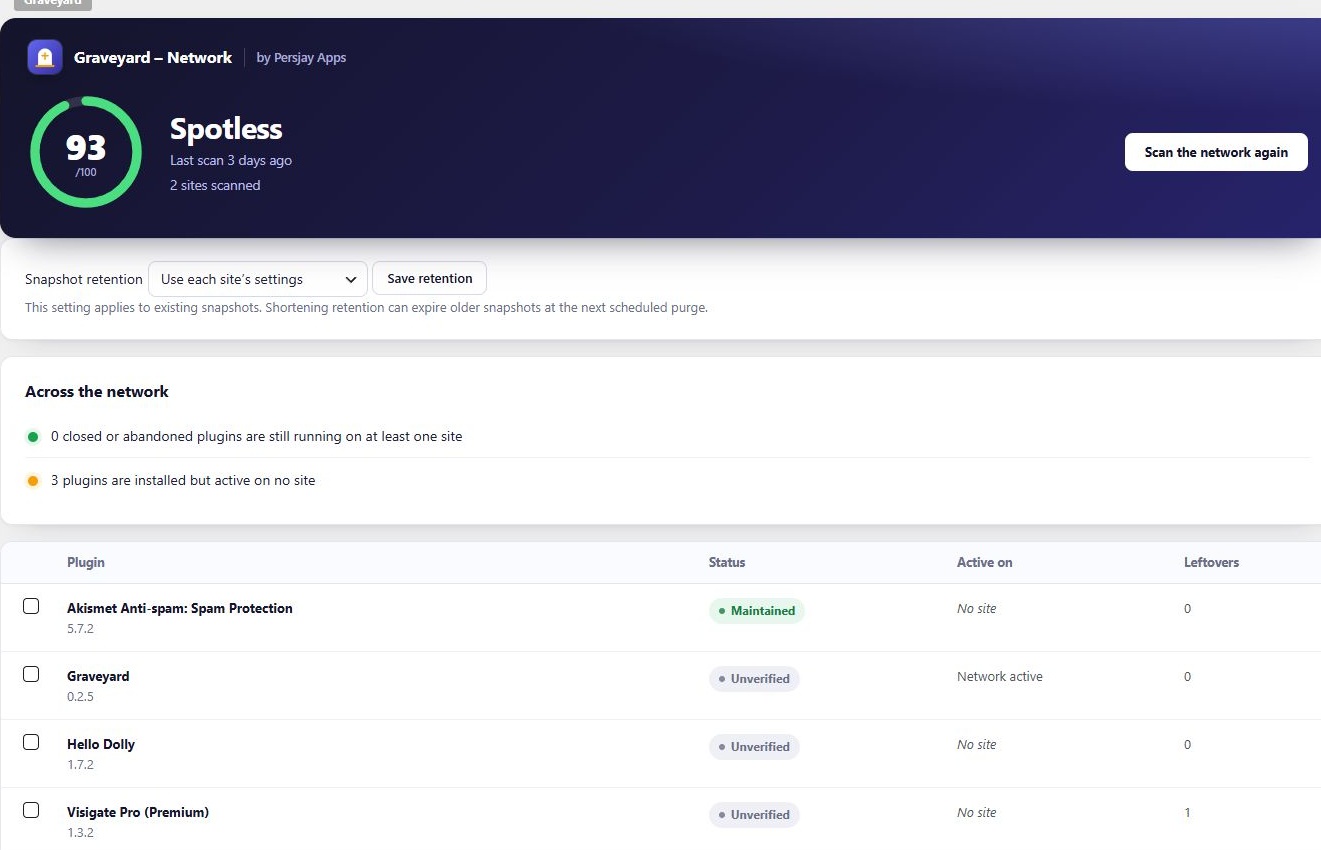
Open Persjay Graveyard in Network Admin to review plugin usage across sites, apply bulk actions and configure shared snapshot retention. Bulk actions skip archived, spam and deleted sites and report skips. Agency also supports white-label branding and printable client reports.
Troubleshooting
Table deletion is blocked
Check the active storage on Snapshots. If you selected Private ZIP, run Check ZIP storage and verify the directory is writable and private. Deletion also stops when a snapshot exceeds the size limit.
A scan still has pending lookups
Give the background checks time to finish, then refresh the results.
Need help?
Include your WordPress, PHP and Persjay Graveyard versions when contacting support. Email support or use the contact form.