
Overview
Promo Revert gives a temporary page change an end date. Save the regular version of a published page, prepare a private sale version, and start the sale at the same URL. When the end time arrives, Promo Revert puts the regular version back. Open Promo Revert in the WordPress admin menu to see every campaign.
What each plan includes
| Plan | Features |
|---|---|
| Free | Unlimited campaigns on any number of pages, automatic restore, live-edit review, block editor and Elementor support, cache purge and overdue alerts. |
| Pro | Scheduled starts, reusable presets and page groups, on 1 site. |
| Business | Everything in Pro on up to 5 sites. |
| Agency | Everything in Pro on unlimited sites, plus preset import and export and a cross-site overview of multisite networks and client sites. |
Installation & license
Promo Revert requires WordPress 6.2 or newer and PHP 7.4 or newer. It works with the block editor and with Elementor.
- In WordPress, open Plugins → Add New Plugin, choose Upload Plugin and install the Promo Revert ZIP. Download the free Promo Revert plugin.
- Activate Promo Revert. A Promo Revert item with a megaphone icon appears in the admin menu.
- For a paid plan, upload the Promo Revert Pro ZIP from your Freemius purchase email or account, activate it and enter your license key when prompted. Promo Revert Pro needs the free Promo Revert plugin installed and active.
Users who can publish pages can create and manage promos. If a Pro license lapses, anything already running or scheduled continues, including restores. New Pro work is locked until the license is renewed.
Create your first promo
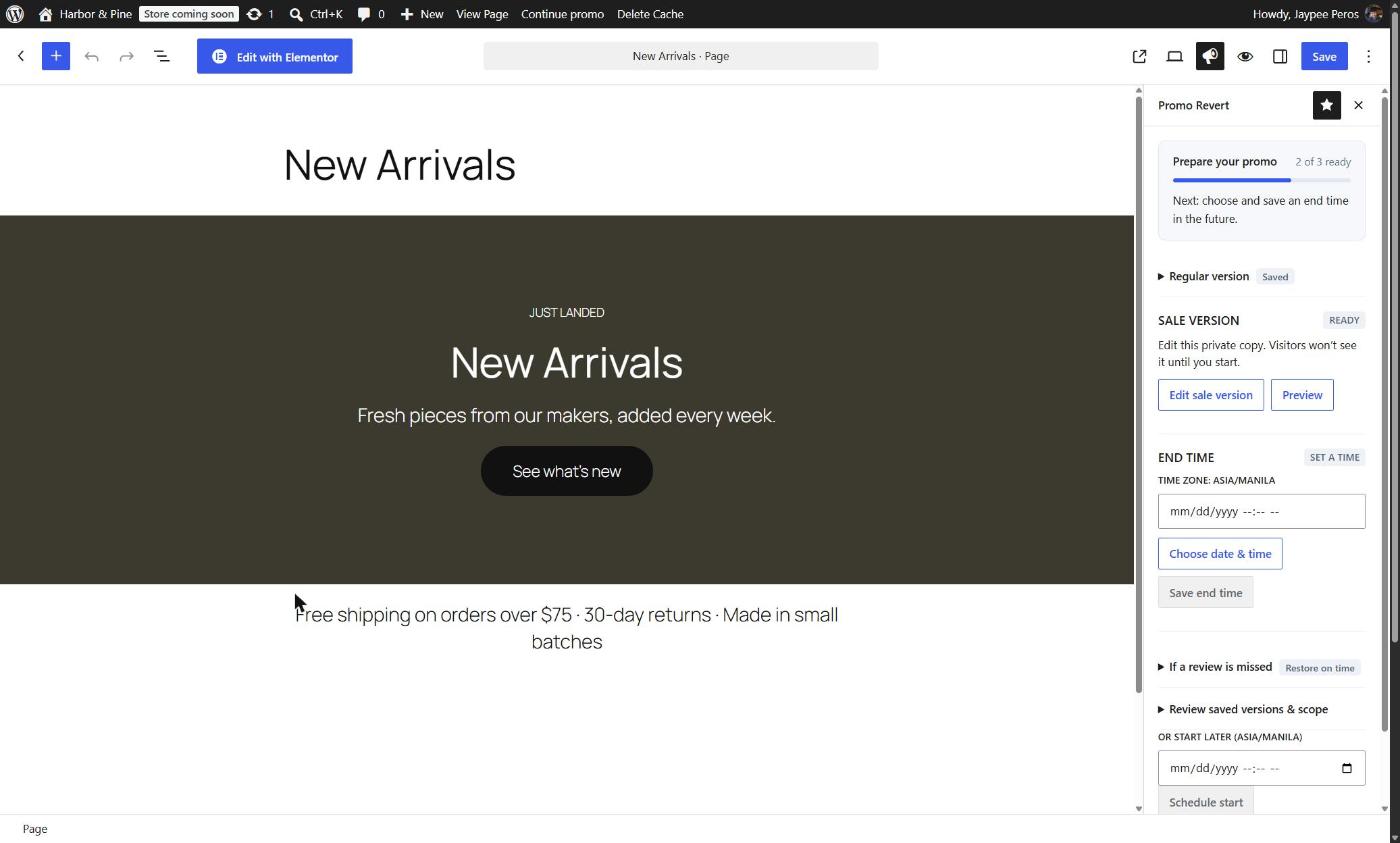
Open Pages and choose Create promo under the page you want to change, or open Promo Revert and use Create promo to search for a page. The Promo Revert panel opens beside the page, shows your progress and tells you what to do next.
- Regular version. Choose Use as regular version to save the page as it is now. If you have unsaved edits, use Save page & continue. For a draft page, use Publish page & continue.
- Sale version. Choose Edit sale version. Promo Revert opens a private copy of the page. Make your sale changes, then choose Save & return to setup. Use Preview to check it. Visitors don’t see the copy until you start.
- End time. Choose Choose date & time, pick when the sale ends and choose Save end time. The panel shows your site’s time zone.
- If a review is missed. Open this section to choose what happens if someone edits the sale and nobody reviews it by the end time: save a copy and restore on time (the default), or keep the current page live until someone decides.
- Start. Choose Start now. The sale version goes live at the same URL. With Pro, you can use Or start later instead.
The free plugin runs as many campaigns as you like, on as many pages as you like. Each page can have one unfinished campaign at a time.
Elementor pages
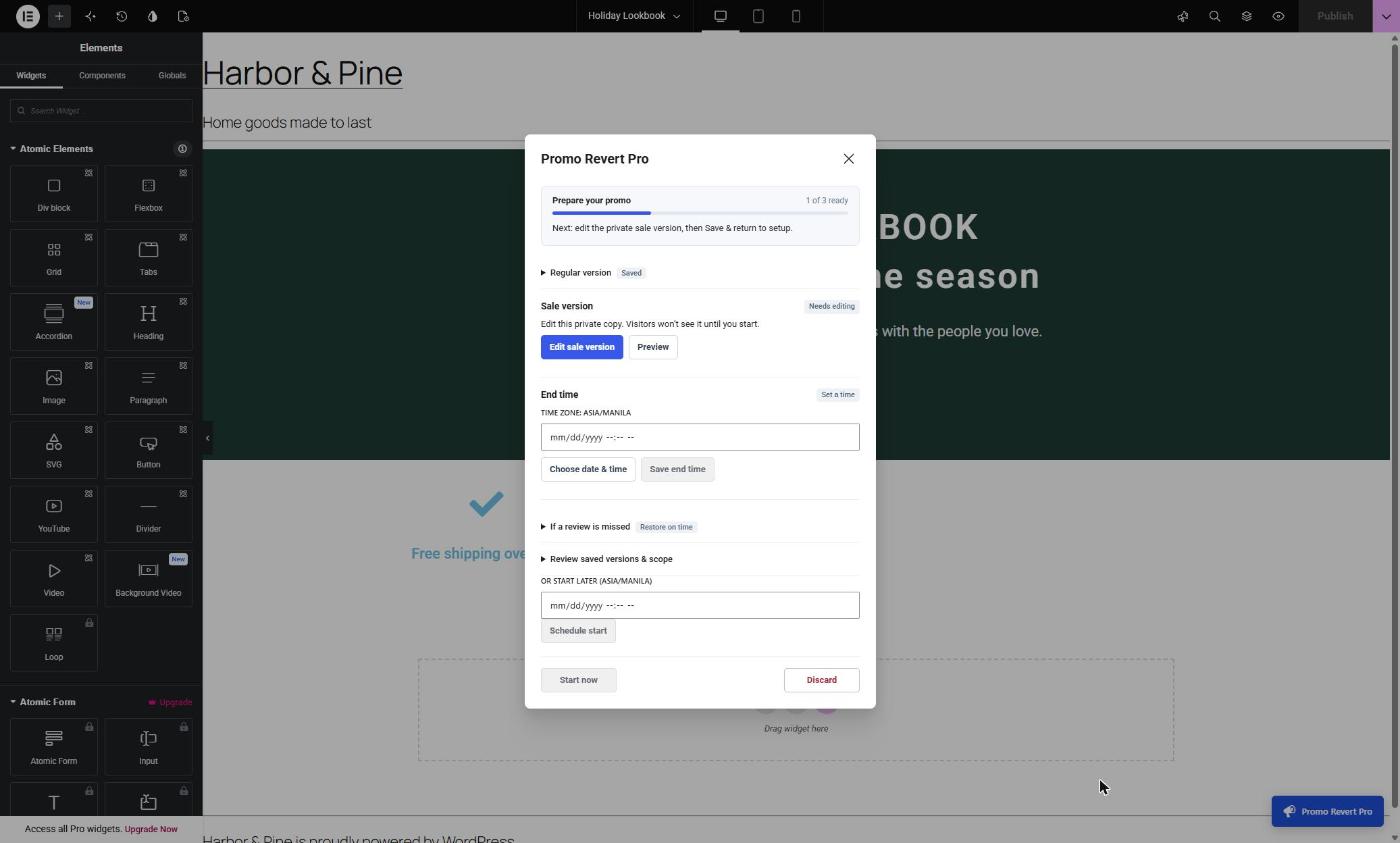
Promo Revert swaps the Elementor layout stored on the page. Open the page in Elementor and choose Promo Revert (Promo Revert Pro with a Pro license) at the bottom right of the editor. The panel opens with the same steps as in the block editor.
- Use Save page & continue to save your current edits and capture the regular version, or Publish page & continue for a draft page.
- Choose Edit sale version to open the private copy in Elementor, then Save sale version to save it without making it public.
- Save your Elementor changes before starting a campaign. With an active Pro license, the panel also offers scheduled starts.
Presets are available for block-editor pages only.
Campaigns & records
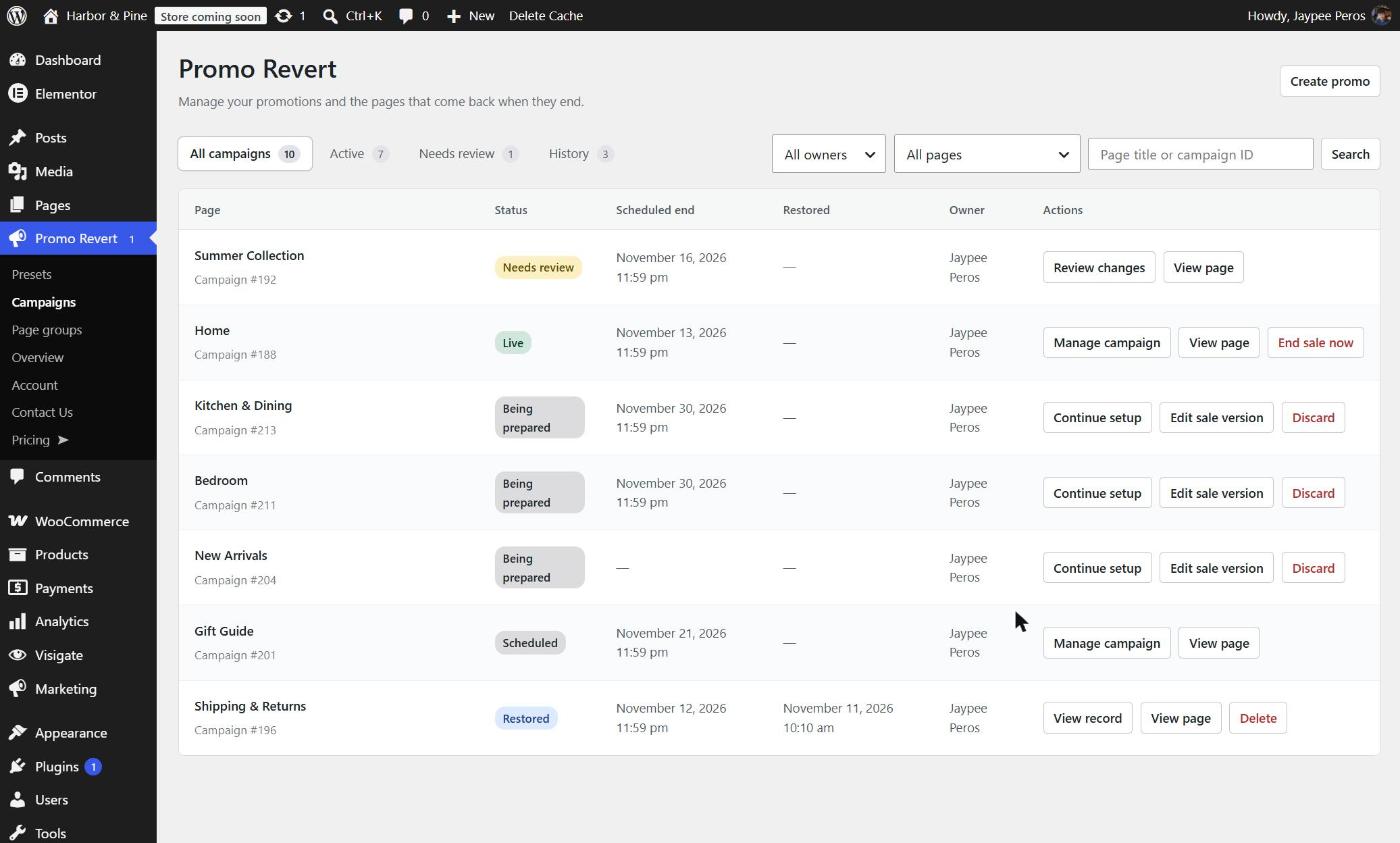
Open Promo Revert → Campaigns to see every campaign. Reviews and live sales are listed first. Filter by status, owner or page, or search by page title or campaign ID.
- Being prepared campaigns can be continued or discarded. Discarding deletes the private sale version.
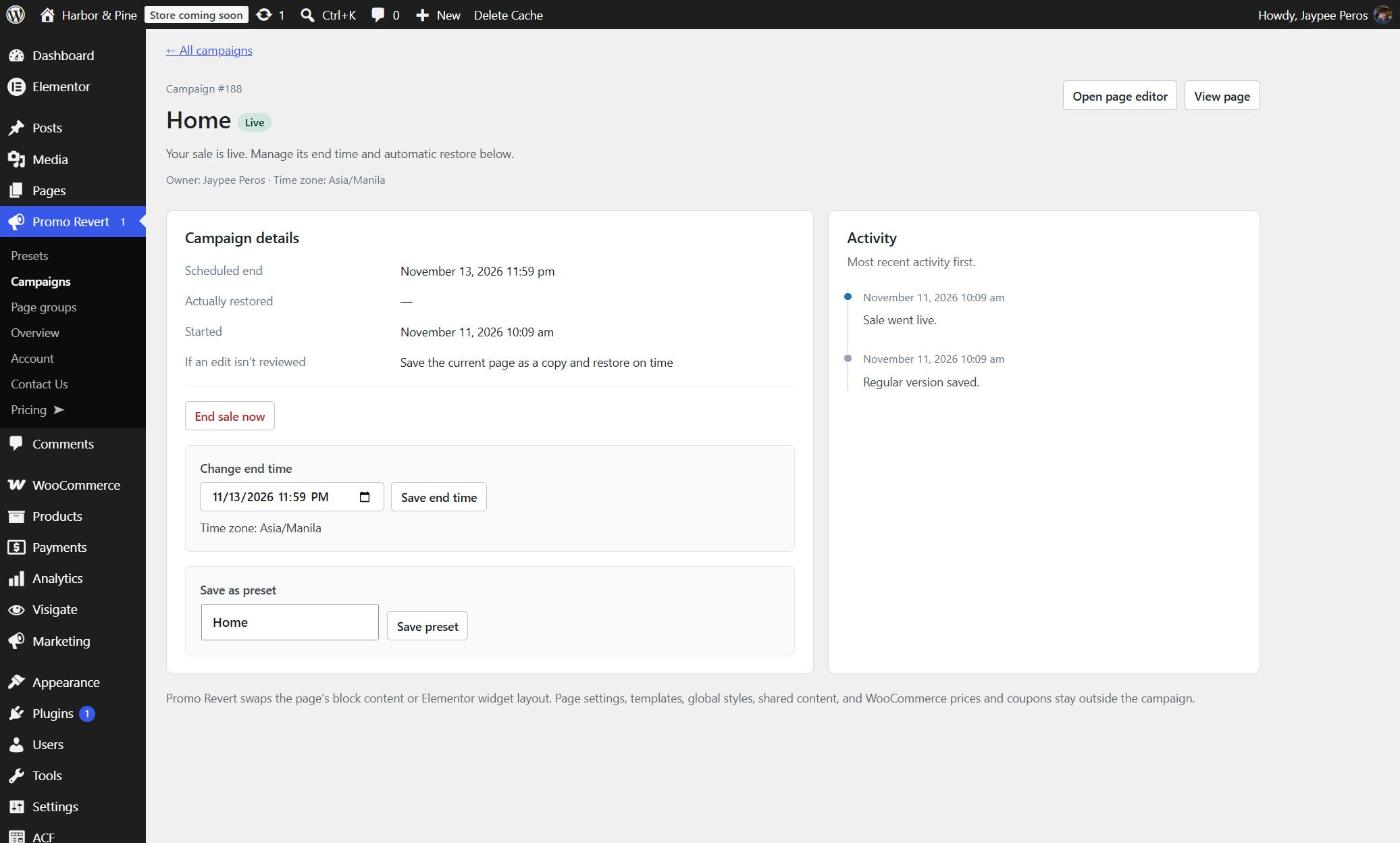
- Live campaigns show their end time. Use Change end time to move it, or End sale now to restore the regular version straight away.
- Needs review campaigns are waiting for a decision. See Edits during a sale.
- Restored and Restore cancelled campaigns keep their record. You can delete a finished record and its saved versions without changing the page.
Each campaign record shows the scheduled and actual restore times, the saved versions and an activity timeline. When you view or edit a page, the WordPress toolbar also shows a shortcut to its promo.
Edits during a sale
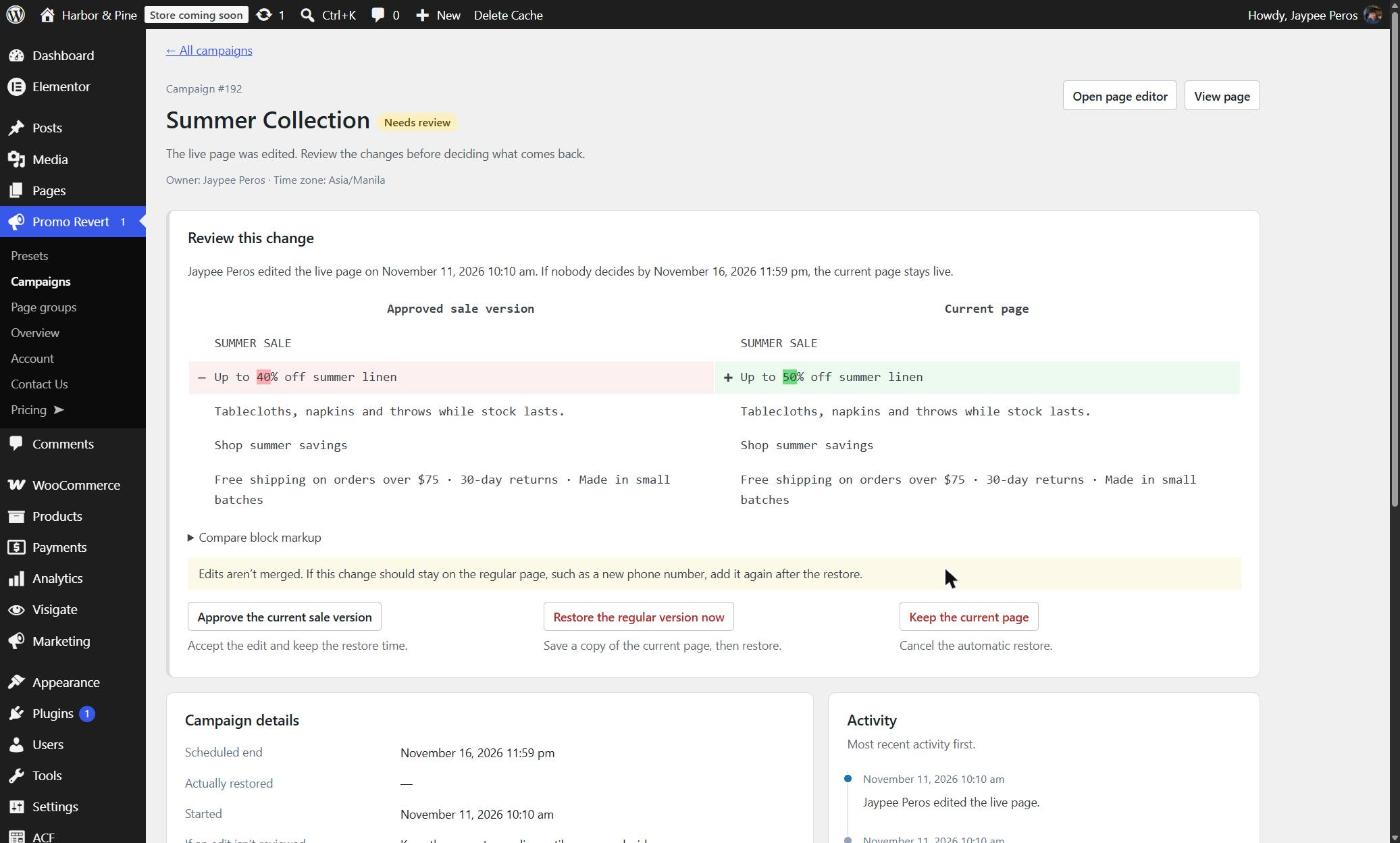
If someone edits the page while a sale is live, the campaign moves to Needs review and the campaign owner gets an email. Choose Review changes to compare the approved sale version with the current page, then pick one:
- Approve the current sale version accepts the edit and keeps the restore time.
- Restore the regular version now saves a copy of the current page, then restores.
- Keep the current page leaves it live and cancels the automatic restore.
If nobody decides by the end time, Promo Revert follows the choice you made during setup. Edits aren’t merged, so if a change should stay on the regular page, copy it from the saved copy after the restore. Saved copies are listed in the campaign record.
What gets restored
Promo Revert swaps the block content or Elementor layout of one published page. These stay outside the campaign, so change them separately:
- Page title, featured image, page settings and template
- SEO fields, global styles and shared content such as synced patterns or global widgets
- WooCommerce prices and coupons
Saved versions are stored separately from WordPress revisions, so pruning revisions can’t break a restore. Every write to the page is conditional: if someone saves the page at the same moment, Promo Revert checks again and never overwrites work it hasn’t seen. Edits to shared content may not trigger a review.
Timing & caching
Promo Revert uses WP-Cron, which runs when someone visits your site. On a quiet site a restore can run late. The Campaigns screen shows when the scheduler last checked in, and late restores are flagged as Overdue. If your sale must end to the minute, set DISABLE_WP_CRON to true in wp-config.php and ask your host to run WordPress cron from the server every minute.
After a restore, Promo Revert purges the page in WP Super Cache, W3 Total Cache, WP Rocket, SiteGround Optimizer and LiteSpeed Cache, then requests the public page to check it no longer shows the sale. If it still does, the record shows Still showed the sale. Clear your page cache or CDN. Developers can purge other caches with the promo_revert_purge_page action.
While a sale is live, the page includes one HTML comment used for this check. Promo Revert adds no CSS or JavaScript to your pages and sends no data to third parties.
Scheduled starts Pro
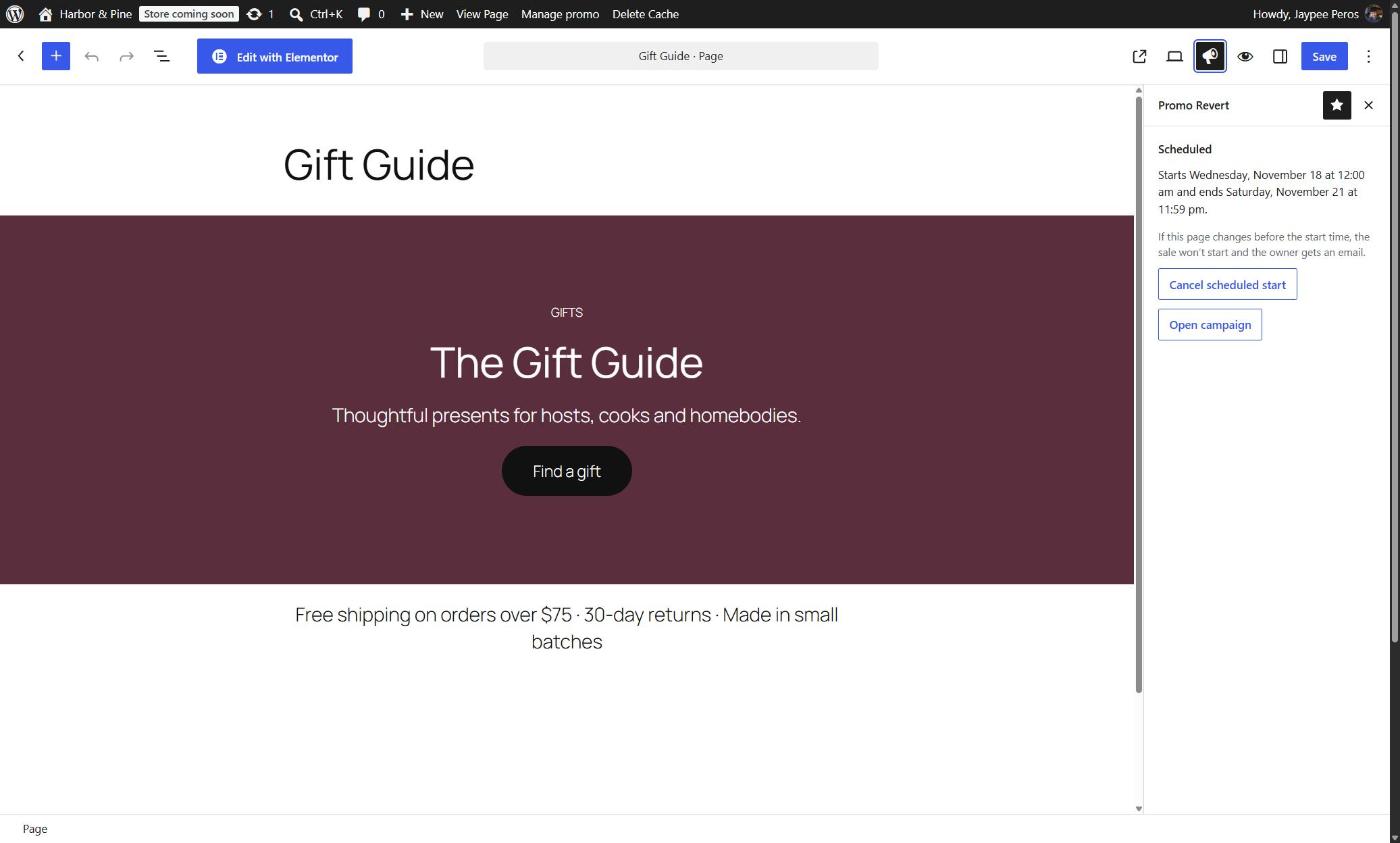
In the Promo Revert panel, after saving the end time, use Or start later to pick a start time and choose Schedule start. The panel then shows when the sale starts and ends, with Cancel scheduled start and Open campaign.
If the page changes before the start time, the sale doesn’t start and the owner gets an email, so a scheduled sale can never bring back an out-of-date page.
Presets Pro
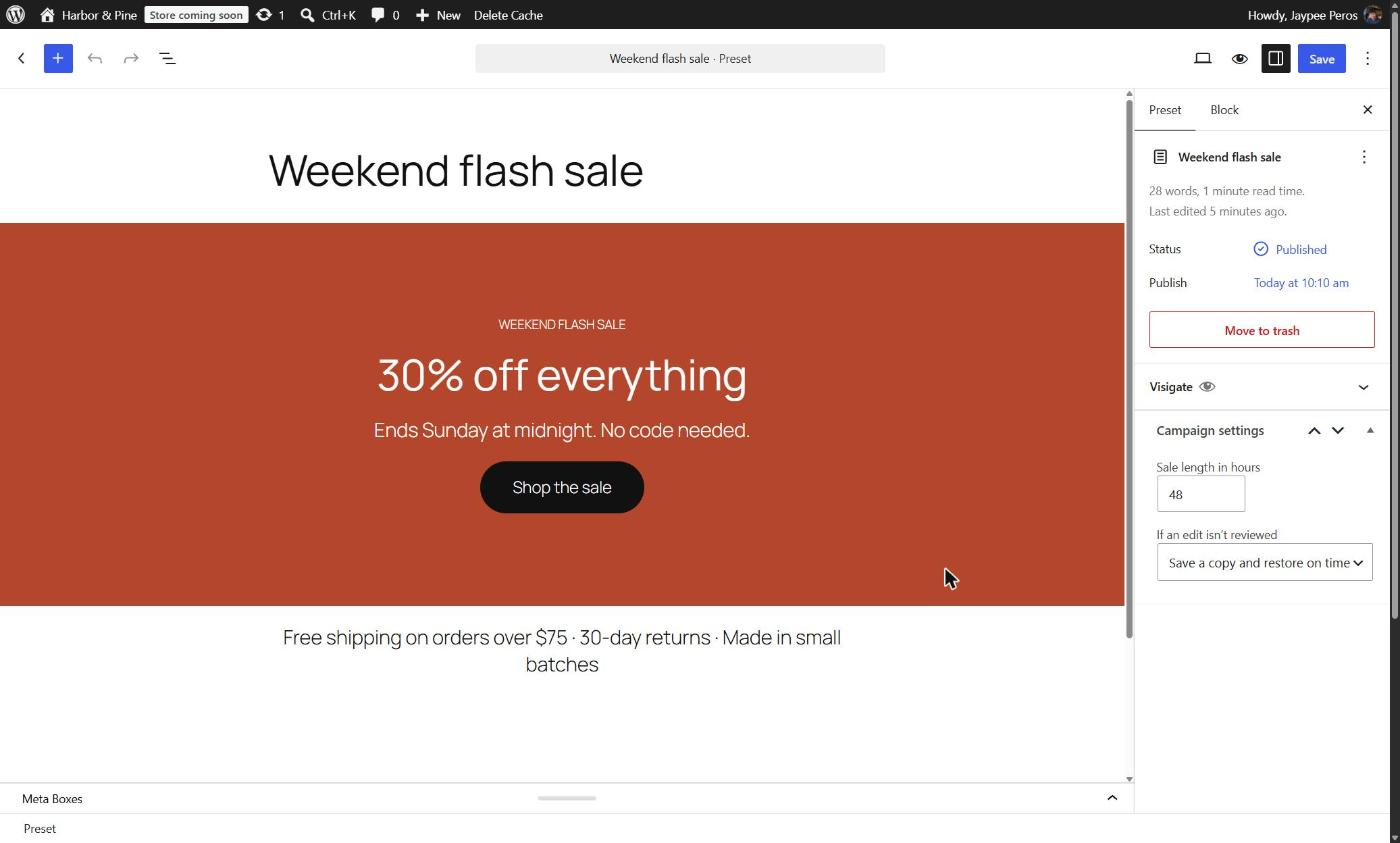
A preset stores sale content, sale length and the review fallback so you can reuse a promotion. Open Promo Revert → Presets to add or edit one, or use Save as preset on a campaign record.
When you create a promo, choose a preset under Or start from a preset. Each use saves a fresh regular version of the page, so an old preset can’t bring back an old page. Presets work with block-editor pages.
Page groups Pro
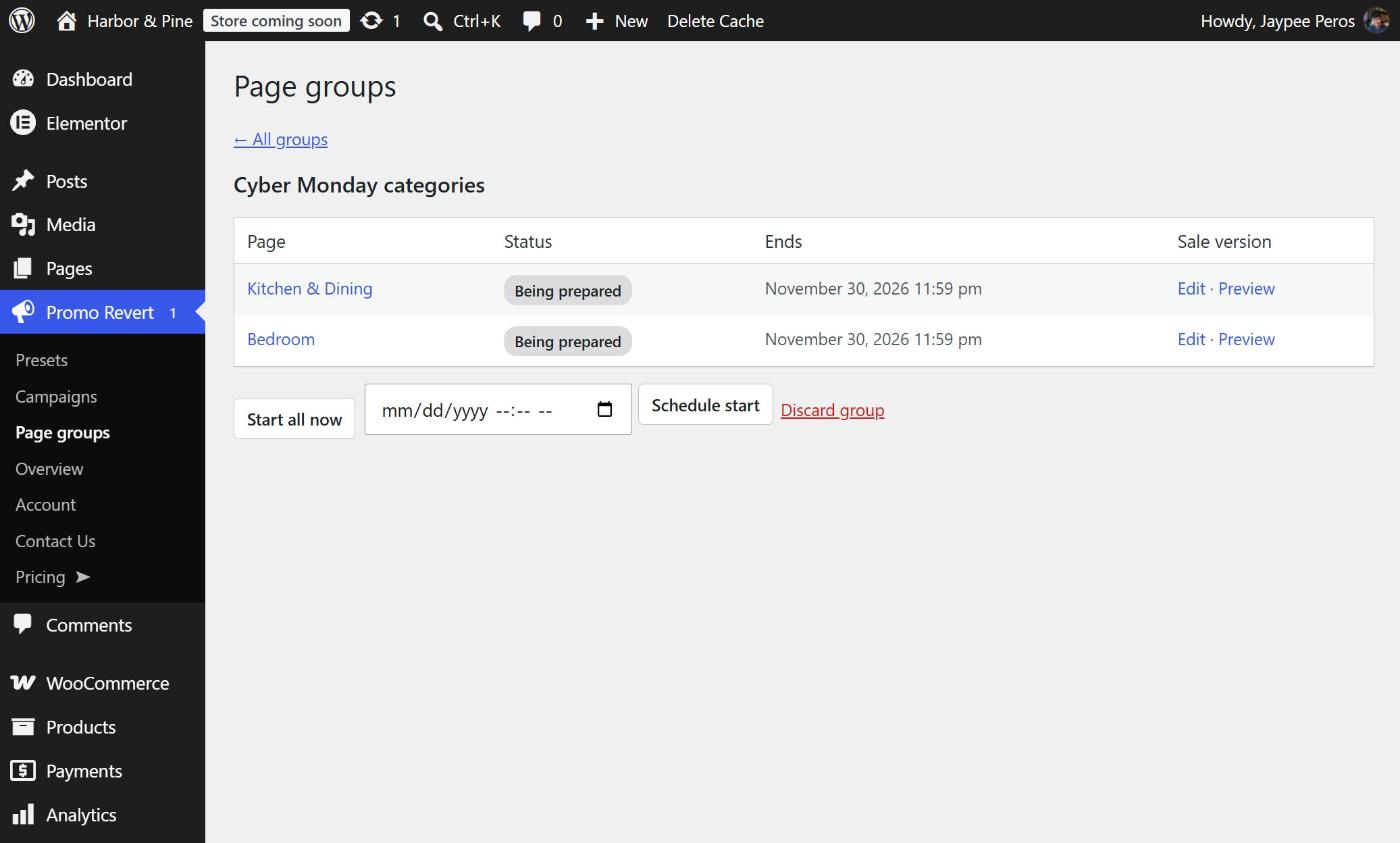
Run a sale across several pages, such as the homepage, a landing page and the shop intro. Open Promo Revert → Page groups, choose New group and pick at least two pages. Save the regular versions, edit each sale version, then start the group now or schedule it.
Pages in a group start together and come back together. If any page needs review, the whole group waits until that review is resolved. Use End all now to restore every page at once.
Overview & client sites Agency
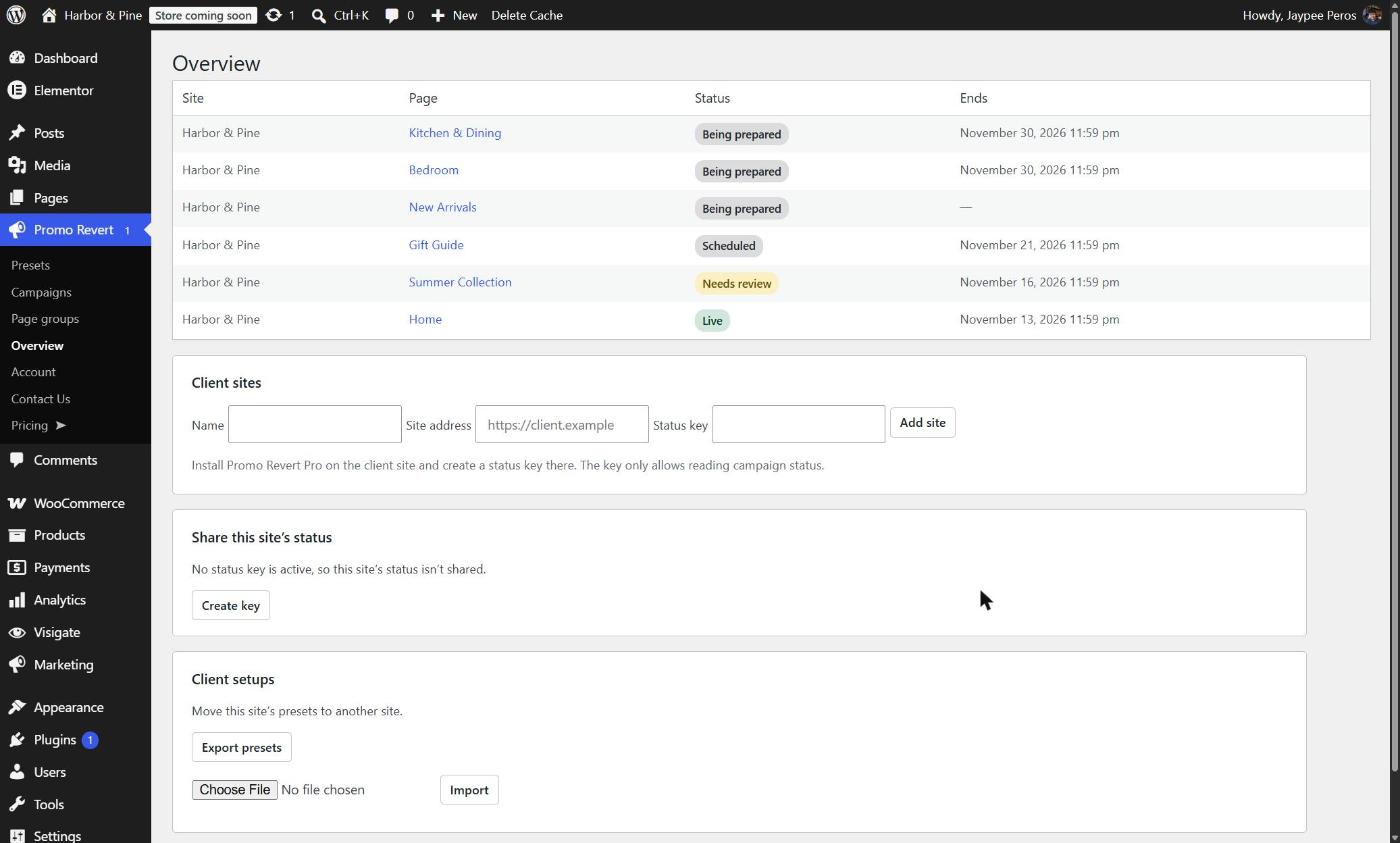
Open Promo Revert → Overview to see what’s live, overdue or waiting for review across this site, its multisite network and connected client sites.
- On each client site, install Promo Revert Pro and choose Create key under Share this site’s status. Copy the key; it is shown only once.
- On your agency site, choose Add site and enter the client site’s address and key.
A status key only allows reading page titles and campaign statuses. Use Revoke key or Replace key to stop or rotate access. Use Export presets and Import to move presets between sites.
Troubleshooting
The restore is overdue
The site’s scheduler may not be running. Visit the site or set up a server cron job, then check the campaign again. You can also choose End sale now to restore immediately.
The public page still shows the sale
Clear your page cache and CDN. If you use a cache that Promo Revert doesn’t purge automatically, hook its purge into promo_revert_purge_page.
What if I deactivate the plugin during a sale?
The sale stays on the page and the automatic restore pauses. When you reactivate Promo Revert, an overdue restore runs soon afterward.
Need help?
Include your WordPress, PHP and Promo Revert versions when contacting support. Email support or use the contact form.