Overview
EditGate adds a lightweight client permissions layer inside the Elementor editor (both Classic V3 widgets and the V4 Atomic Editor), backed by a server-side PHP Save Guard. Agencies can hand off finished WordPress sites so clients can update copy and images safely without breaking spacing, global styles or layout structure.
Administrators are never restricted. Guardrails apply only to the non-administrator roles (or individual users in Pro) that you choose, and EditGate loads zero CSS or JavaScript on your public frontend.
What each plan includes
| Plan | Sites | Adds |
|---|
| Free | Any | Role guardrails for every non-administrator role (hide Style tab, Advanced tab, Site Settings, Pro & AI upsells), 1-click presets, unlimited protected handoff pages with “Let Client Edit Content”, server-side Save Guard, Site Settings (Kit) server lock, stale-session protection, automatic pre-save snapshots with live preview and 1-click restore, Client lens dashboard preview, Classic & V4 Atomic support |
| Pro | 1 | Per-user overrides, hide specific Elementor settings sections, Global Colors & Fonts only, lock individual elements by structure/style/both, approved button styles, bulk page policy, Preview as Client, field-by-field snapshot comparison |
| Business | 5 | Everything in Pro, plus editable zones & unlimited repeatable content sections, Elementor V4 global class & variable protection, paste sanitizer, default guardrails by post type, audit log with CSV export |
| Agency | Unlimited | Everything in Business, plus white-label interface branding, custom lock messages & agency support links, guardrail profile export/import across sites, WordPress Multisite network defaults |
Installation & setup
Requirements: WordPress 6.2 or newer, PHP 7.4 or newer, and Elementor (Classic V3 or Editor V4, tested up to 4.4).
Installing the free plugin
- Install and activate Elementor.
- Go to Plugins → Add New, search for EditGate (or upload the
editgate ZIP), and click Activate. - Open EditGate in the WordPress admin menu.
Installing EditGate Pro, Business or Agency
Paid plans ship as a standalone editgate-pro ZIP from your Freemius purchase email or customer portal. Deactivate the free edition first, upload and activate the paid ZIP, then enter your license key under EditGate → Account. All your saved guardrails, protected page policies and snapshots carry over automatically.
First steps
- Open EditGate → Role guardrails and select your client role (such as
Editor). - Apply a 1-click preset (for example Strict Client or Copywriter) and click Save.
- Go to EditGate → Protected pages to lock finished pages and mark editable widgets in Elementor.
Role guardrails & presets
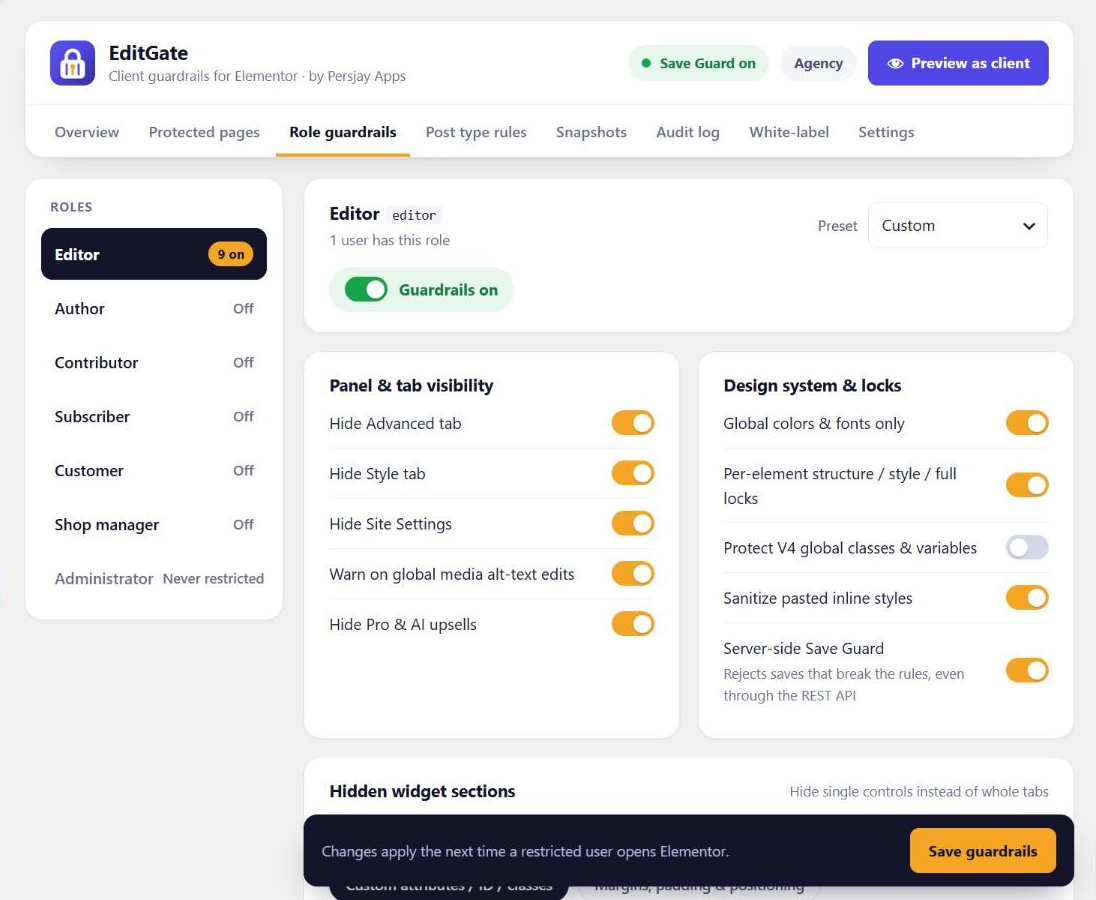
Under EditGate → Role guardrails, you can enable and configure guardrails for every non-administrator WordPress role (Editor, Author, Shop Manager, or any custom client role).
Core toggles (Free & up)
- Hide Style tab: removes the Style tab (and V4 Atomic Style tab) from the Elementor panel.
- Hide Advanced tab: removes the Advanced tab (and V4 Atomic Interactions tab) so clients cannot alter margins, padding, z-index, motion effects or custom CSS.
- Hide Site Settings: removes Site Settings from the editor menu and locks the Elementor Kit on the server.
- Hide Pro & AI upsells: cleans up Elementor Pro and AI promotional banners (including Elementor 4.x banners) from the client’s editor.
1-click presets
- Strict Client: hides Style and Advanced tabs, locks Site Settings, enforces Global Tokens, strips pasted styles, and enforces all element locks.
- Copywriter: focused on safe copy and image updates; hides Advanced tab, locks Site Settings, enforces Global Tokens, and sanitizes pasted text.
- Marketing Manager: allows on-brand styling with Global Tokens and repeatable zones while locking Advanced layout controls and Site Settings.
- Junior Designer: allows spacing and styling with Global Tokens enforced; Custom CSS, Site Settings and V4 Global Class creation stay protected.
Client lens
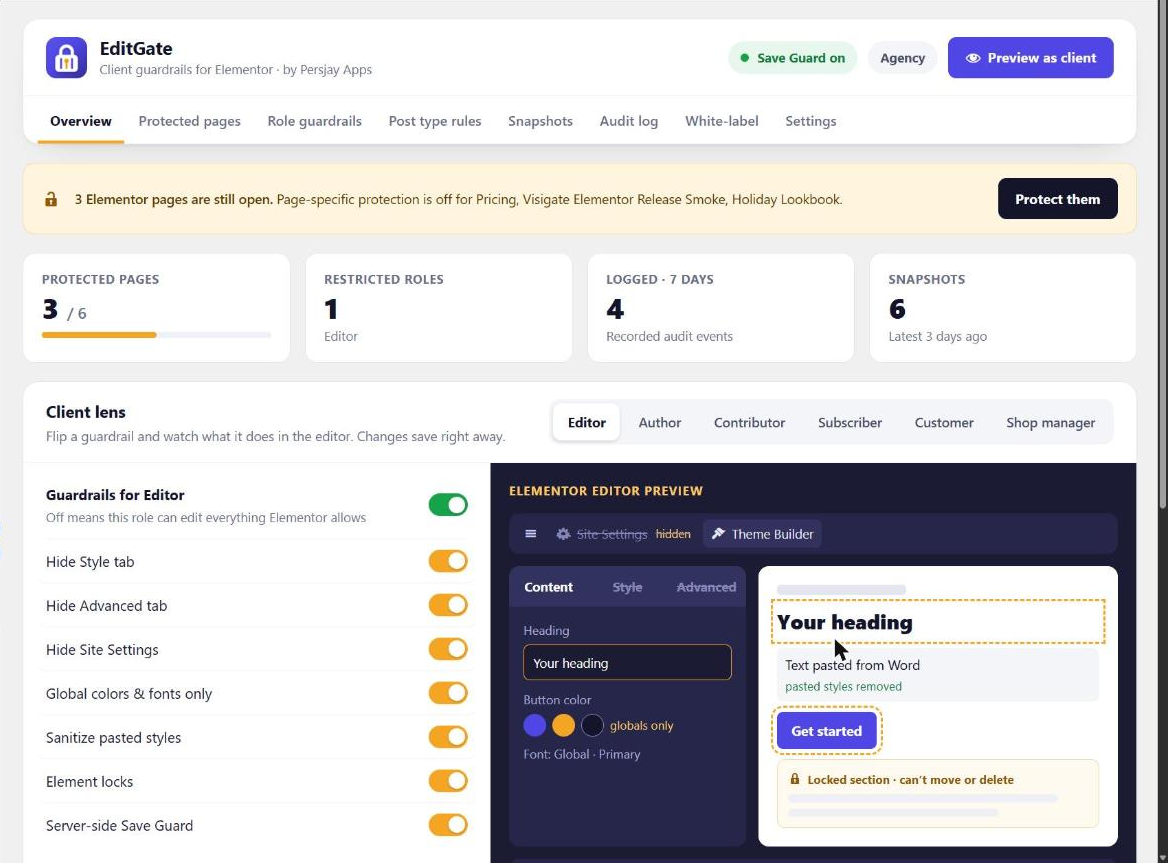
On the EditGate → Overview dashboard, flip any guardrail toggle to see its live effect in the interactive Client lens mock editor before saving.
Protected pages & editable fields
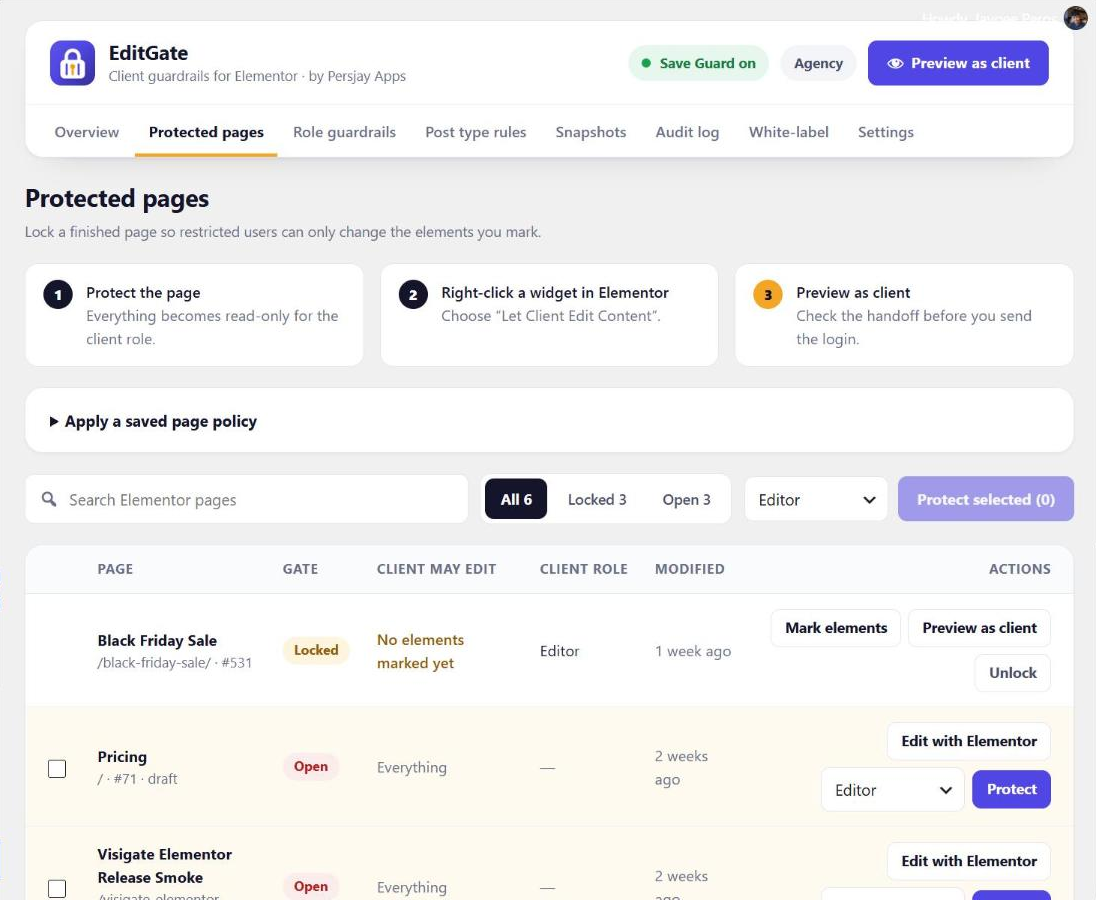
Role guardrails control which Elementor panels a client sees across the whole site. Protected pages go further by locking the entire layout of a finished page and allowing edits only on specific widgets you approve.
How to protect a page
- Go to EditGate → Protected pages, choose the pages you want to lock, select the client role, and enable protection.
- Open the protected page in Elementor as an administrator.
- Right-click any widget you want the client to update and choose Let Client Edit Content.
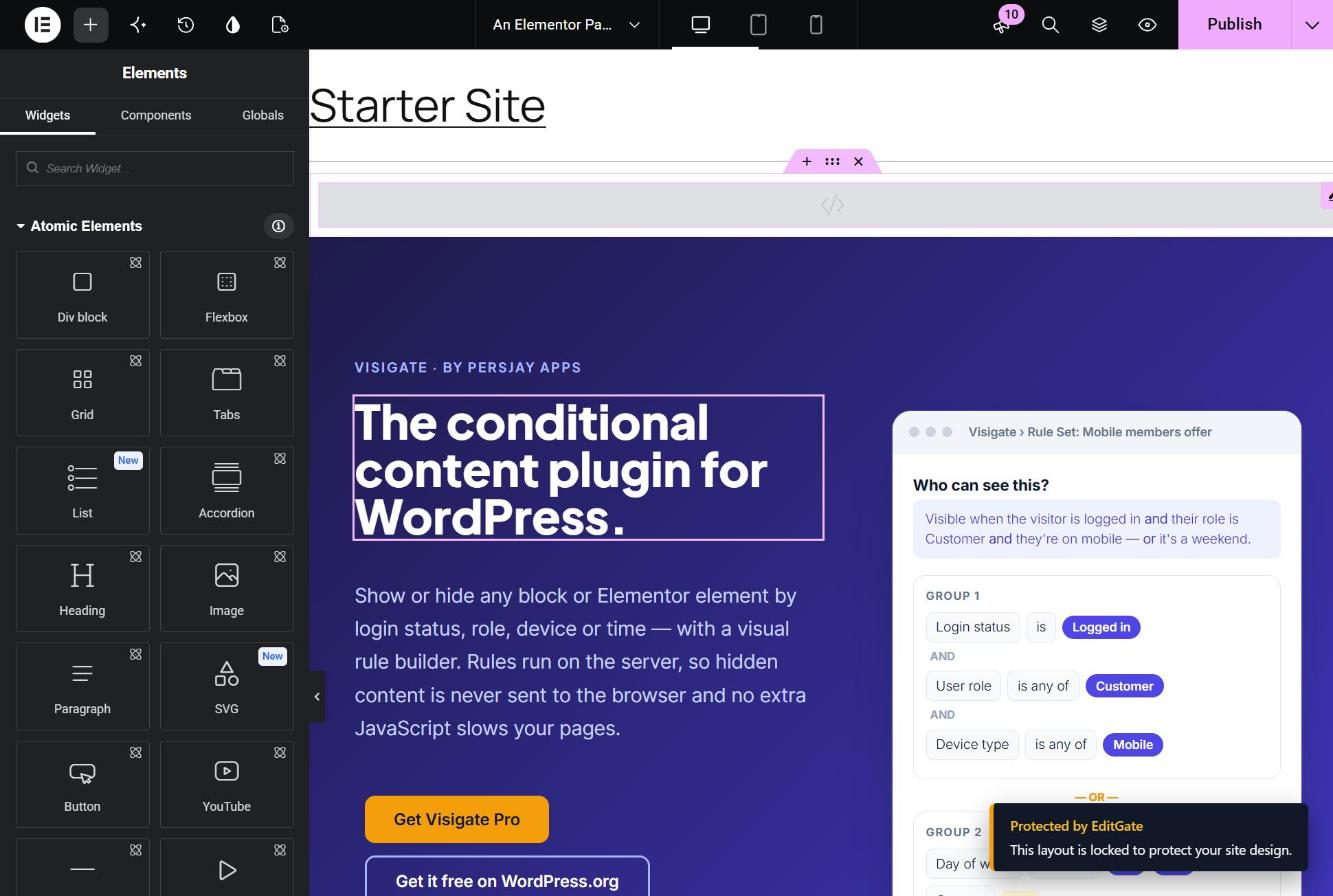
On a protected page, everything not marked editable is read-only for the client role: elements cannot be deleted, duplicated, dragged in the canvas or Structure panel, and nothing can be dropped into them. Clicking an element still selects it cleanly.
Save Guard & Site Settings lock
Hiding buttons in CSS or JavaScript is never enough on its own. EditGate’s PHP Save Guard validates every Elementor save request on the server before it is written to the database.
What the Save Guard enforces
- Protected page integrity: restores any unauthorized structural changes (deleted, moved, duplicated or inserted elements) and reverts changes to locked widgets while preserving the client’s allowed content edits.
- Elementor Kit (Site Settings) lock: blocks unauthorized saves to the active Elementor Kit (global colors, fonts, theme style, layout settings) whenever Hide Site Settings is enabled for the user’s role.
- Stale-session protection: every page policy carries a revision stamp. If you tighten protection on a page while a client already has it open in Elementor, their stale save is held back instead of overwriting your rules.
- Autosave & reset protection: autosaves, first saves, and control “Reset to default” actions are all checked by the Save Guard.
Automatic snapshots & rollback
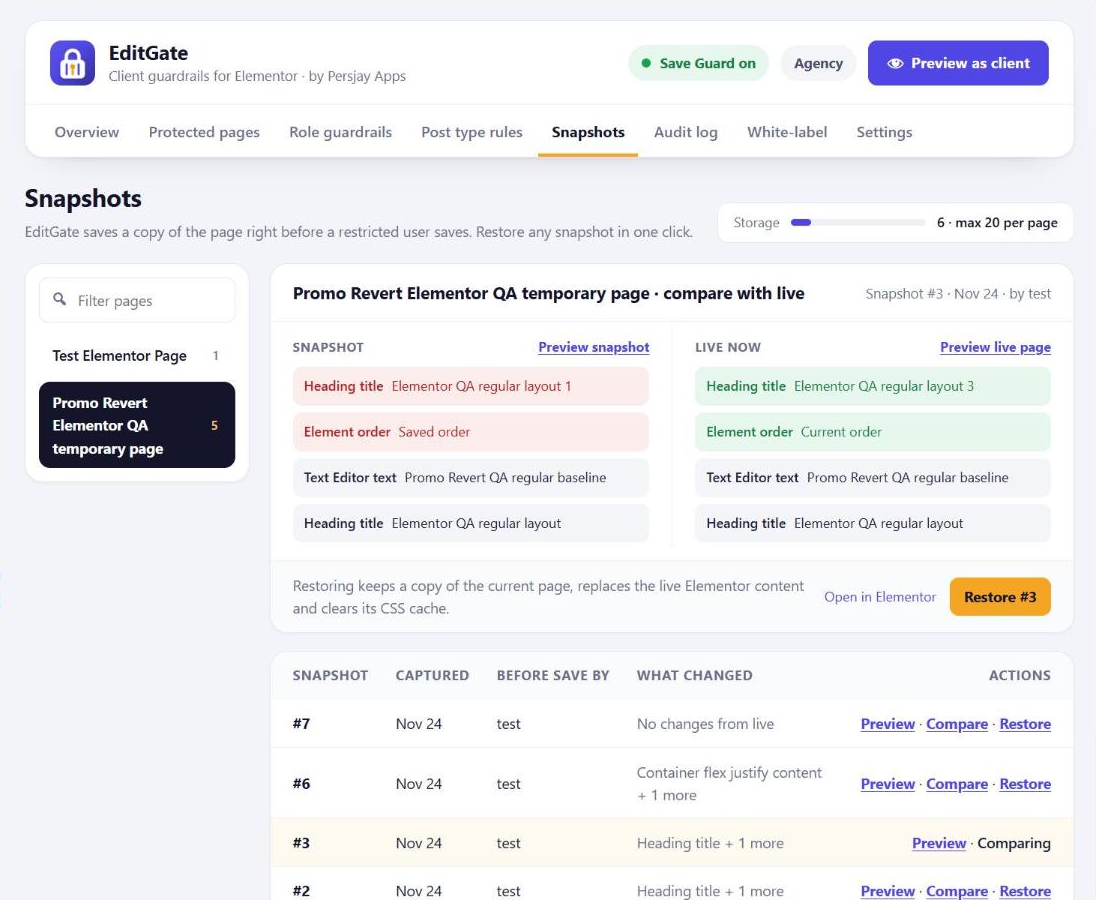
Whenever a restricted user saves an Elementor page, EditGate automatically captures a pre-save snapshot of the previous layout before writing the new version.
Previewing & restoring
- Open EditGate → Snapshots to browse saved snapshots by page, user and timestamp.
- Click Preview to inspect the saved snapshot alongside the live page.
- Click Restore to roll the page back to that exact Elementor state in one click.
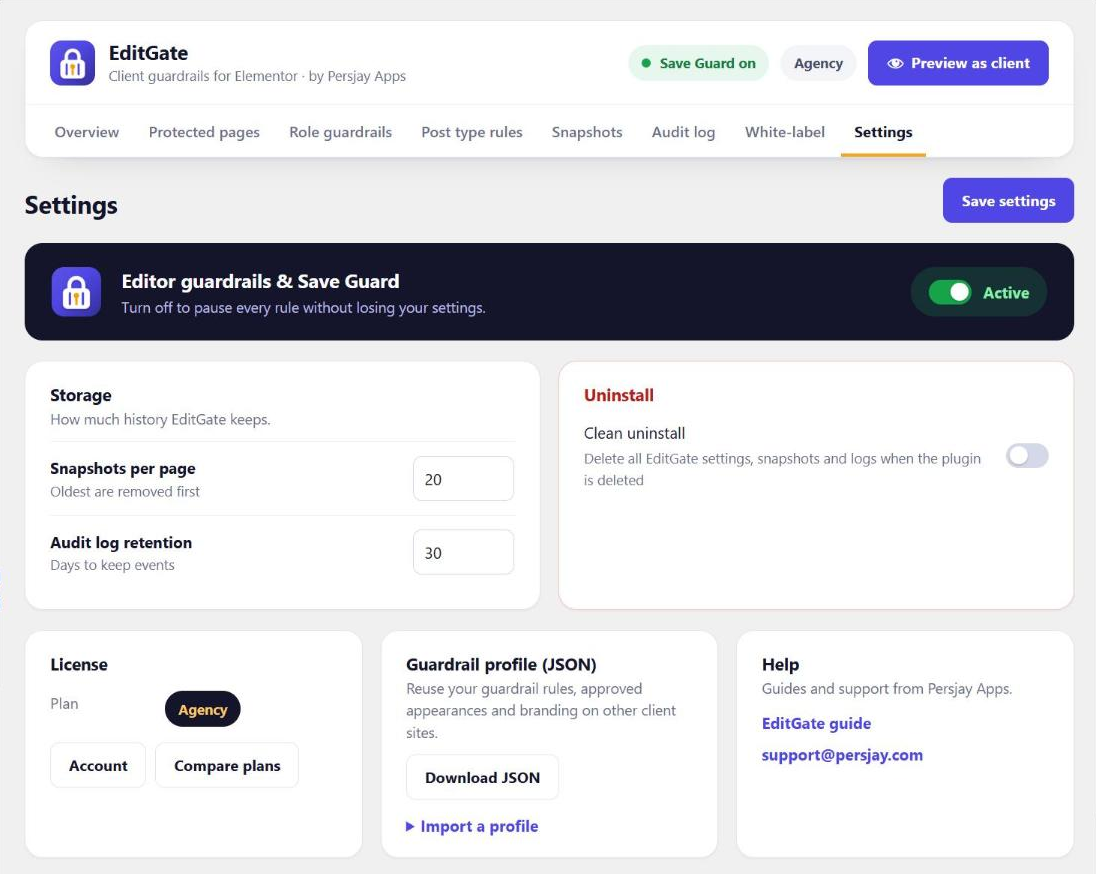
- Retention: EditGate keeps 5 snapshots per page by default; adjust this (1–100) under EditGate → Settings.
On Pro and higher, click Compare to inspect exact field-by-field differences between any snapshot and the current page.
Overrides, tokens & element locks Pro
- Per-user overrides: on any user’s WordPress profile screen, grant an exception (unrestricted access) or assign a custom guardrail rule that overrides their role.
- Hide specific settings sections: hide individual Elementor sections —
Custom CSS, Responsive, Motion Effects, Z-Index, Attributes, and Layout & Spacing — without hiding the entire Advanced tab. - Global Colors & Fonts only: restrict color and typography pickers to your site’s Elementor Global Design Tokens and enforce them in the Save Guard.
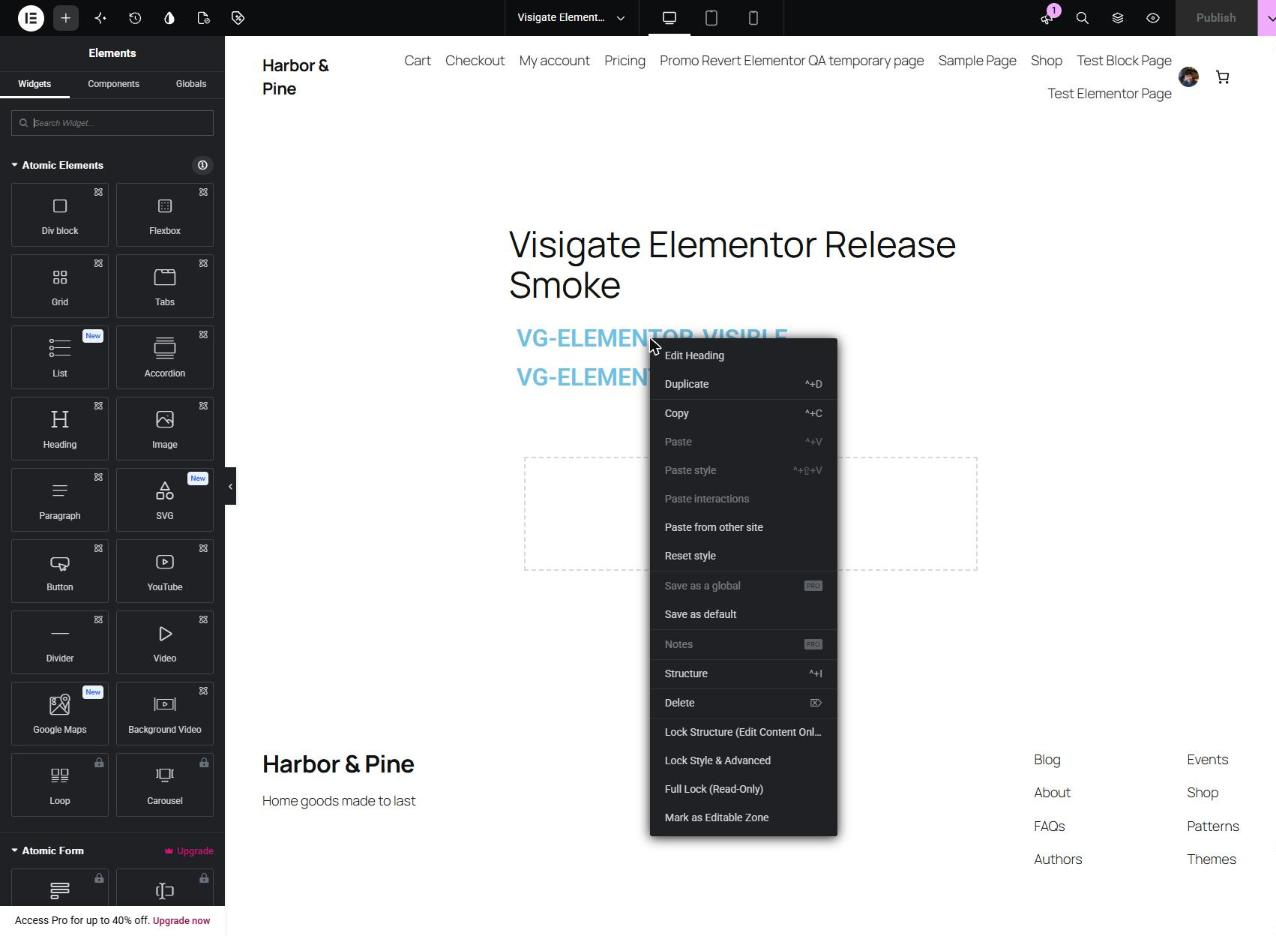
- Per-element locks: right-click any widget or container in Elementor to lock its Structure, Style, or Both (Full) independently of page-wide protection.
- Approved button styles: define curated button appearances (mapping to Classic V3 settings or V4 Atomic classes) so clients pick from approved presets instead of custom colors.
- Bulk page policy: apply a saved protection policy across multiple matching pages in one step.
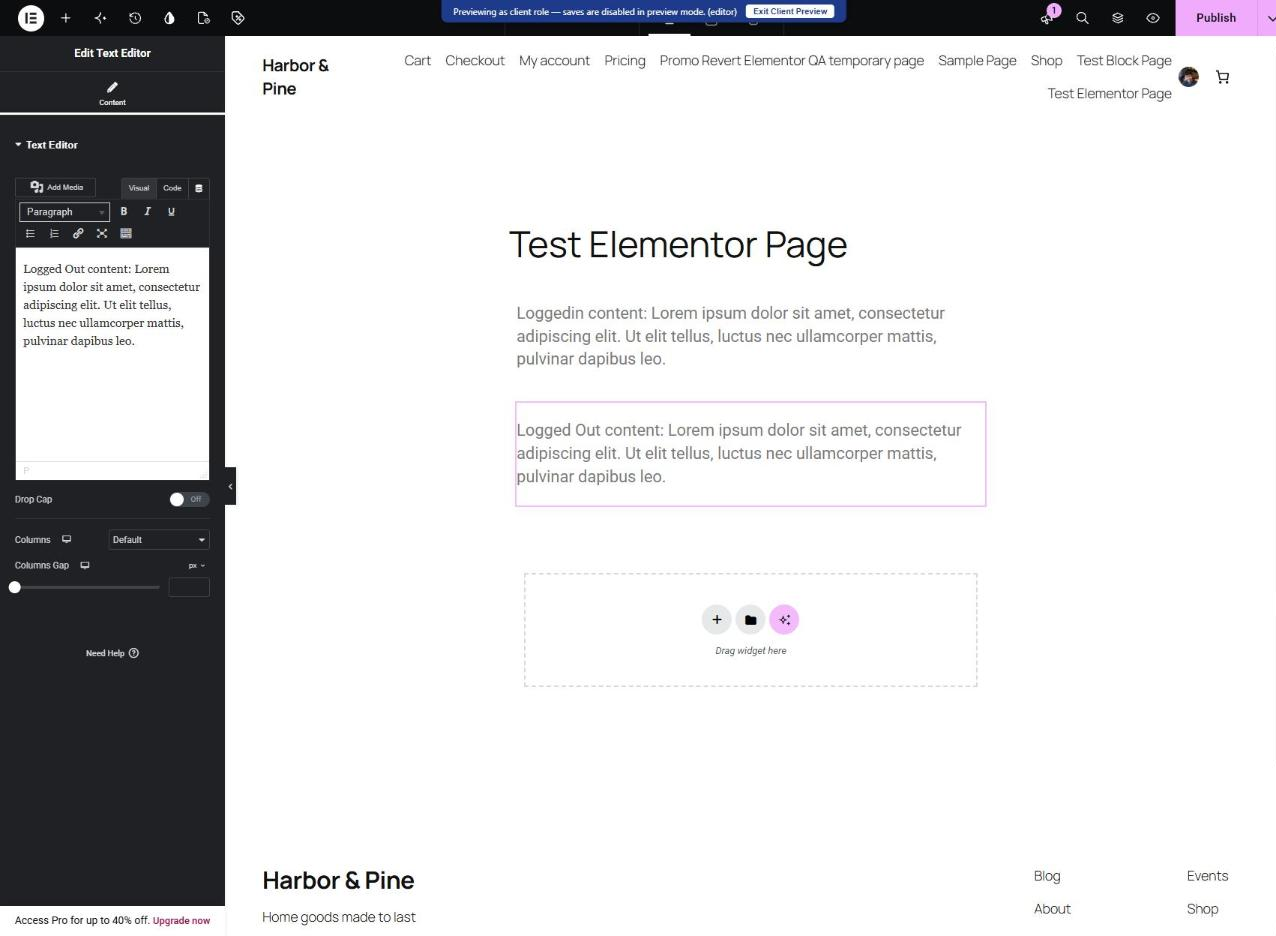
- Preview as Client: launch the Elementor editor previewing the exact guardrails a client role experiences, without logging out.
- Snapshot comparison: diff any pre-save snapshot against the live page field by field before restoring.
Editable zones, V4 & audit log Business
- Editable zones & repeatable sections: mark an accordion or container as a repeatable zone so clients can add, reorder or remove items matching your approved template pattern (with optional minimum item counts) while the surrounding page stays locked.
- Elementor V4 global class protection: prevent restricted users from modifying or creating V4 global classes and design variables.
- Paste sanitizer: automatically strip messy inline styles, font tags and formatting pasted from Word, Google Docs or web pages.
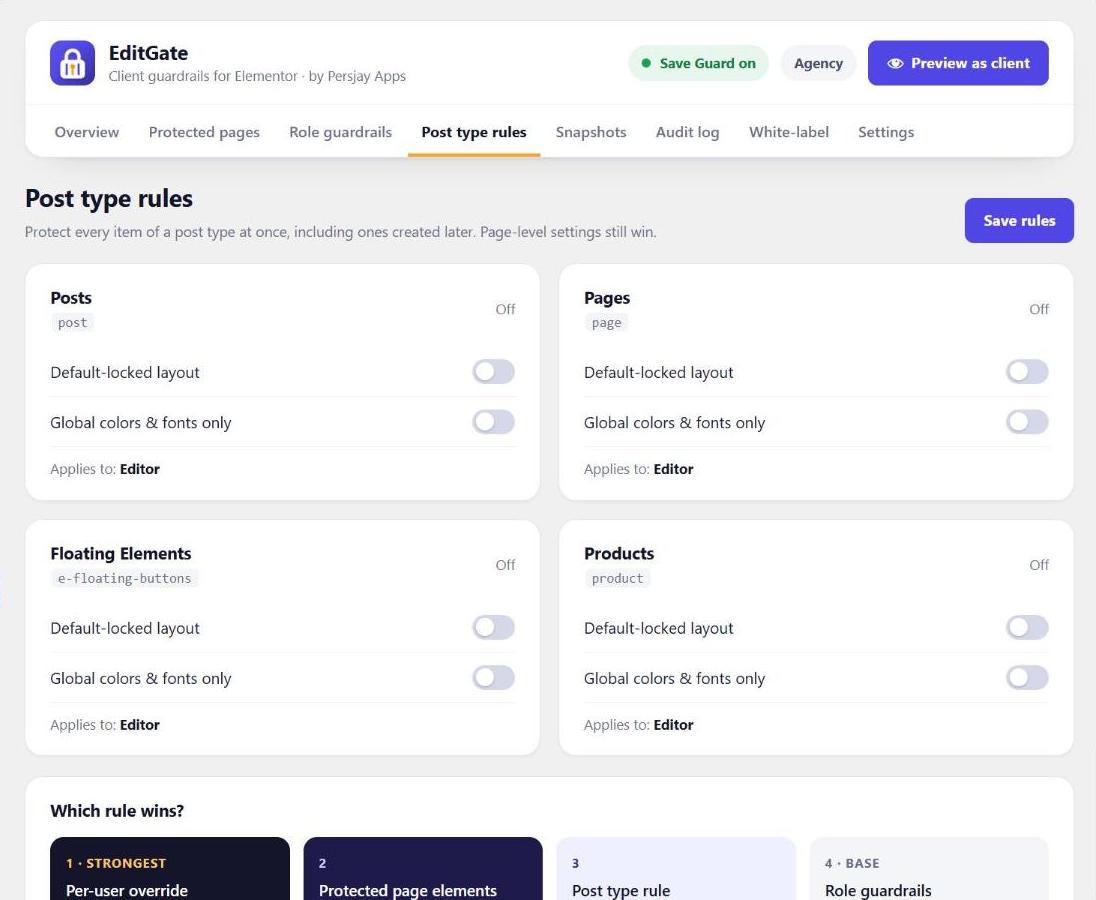
- Post-type defaults: under EditGate → Post types, configure default page-locking and Global Token rules per post type (Pages, Posts, or custom post types).
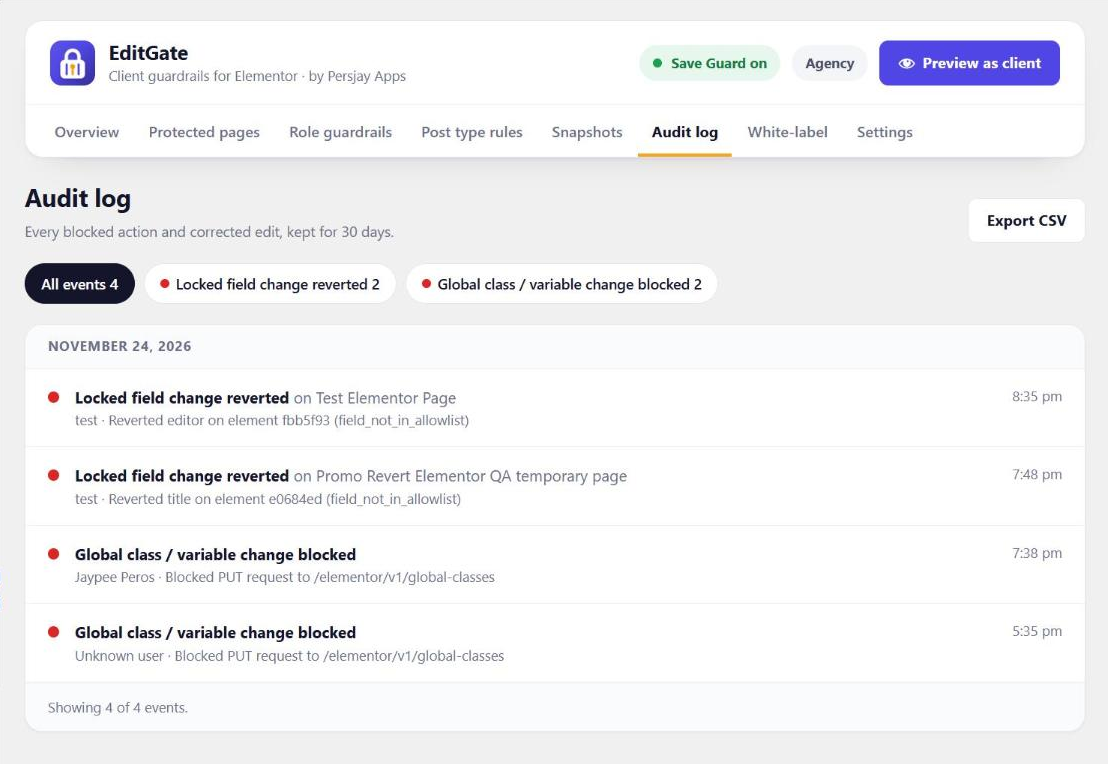
- Audit log & CSV export: track blocked actions, Save Guard reverts, snapshot restores and policy changes under EditGate → Audit log. Retention defaults to 30 days (configurable 1–365 days) with 1-click CSV export.
White-label, profiles & Multisite Agency
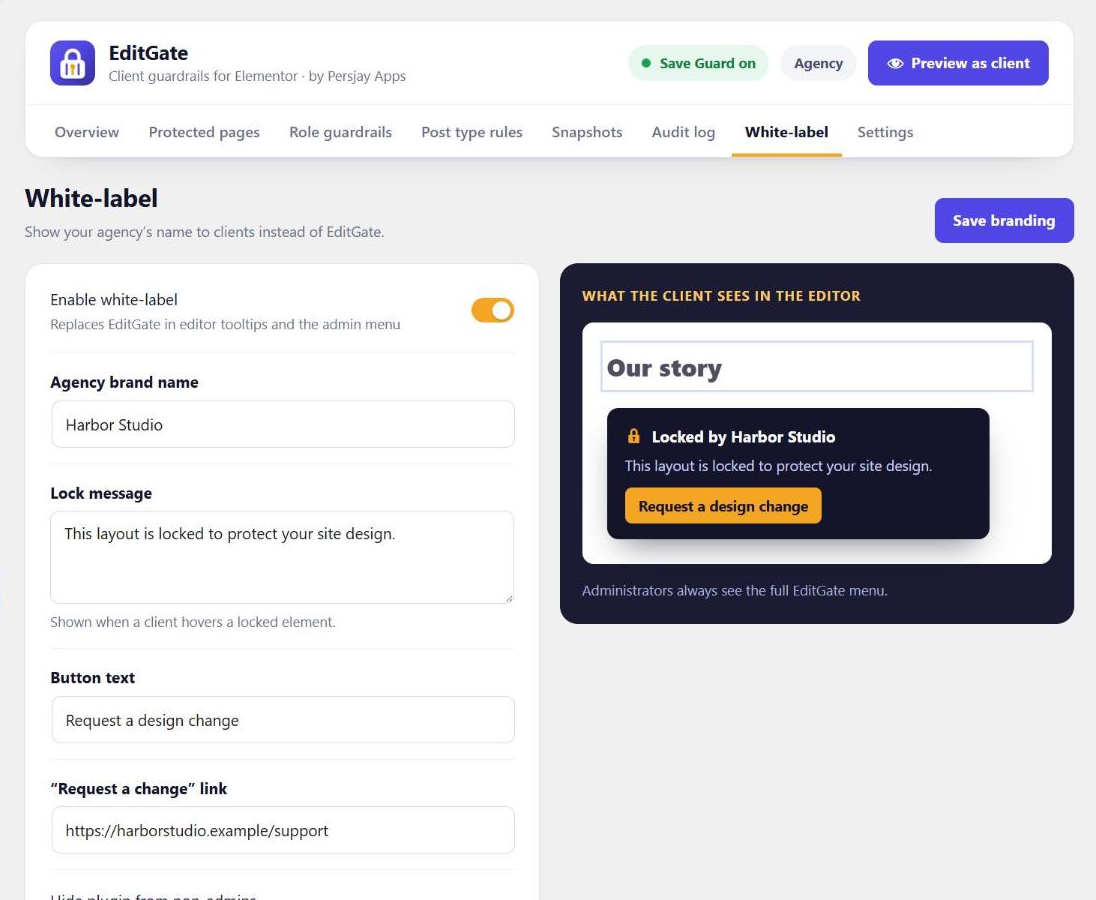
- White-label branding: under EditGate → White-label, replace the EditGate name with your agency brand and optionally hide the EditGate admin menu from non-administrators.
- Custom lock messages & support links: customize the notice shown when a client clicks a locked control and add a direct link (such as “Request a design change”) to your agency portal or email.
- Profile export & import: export your role guardrails, approved appearances and defaults as JSON and import them onto new client builds in seconds.
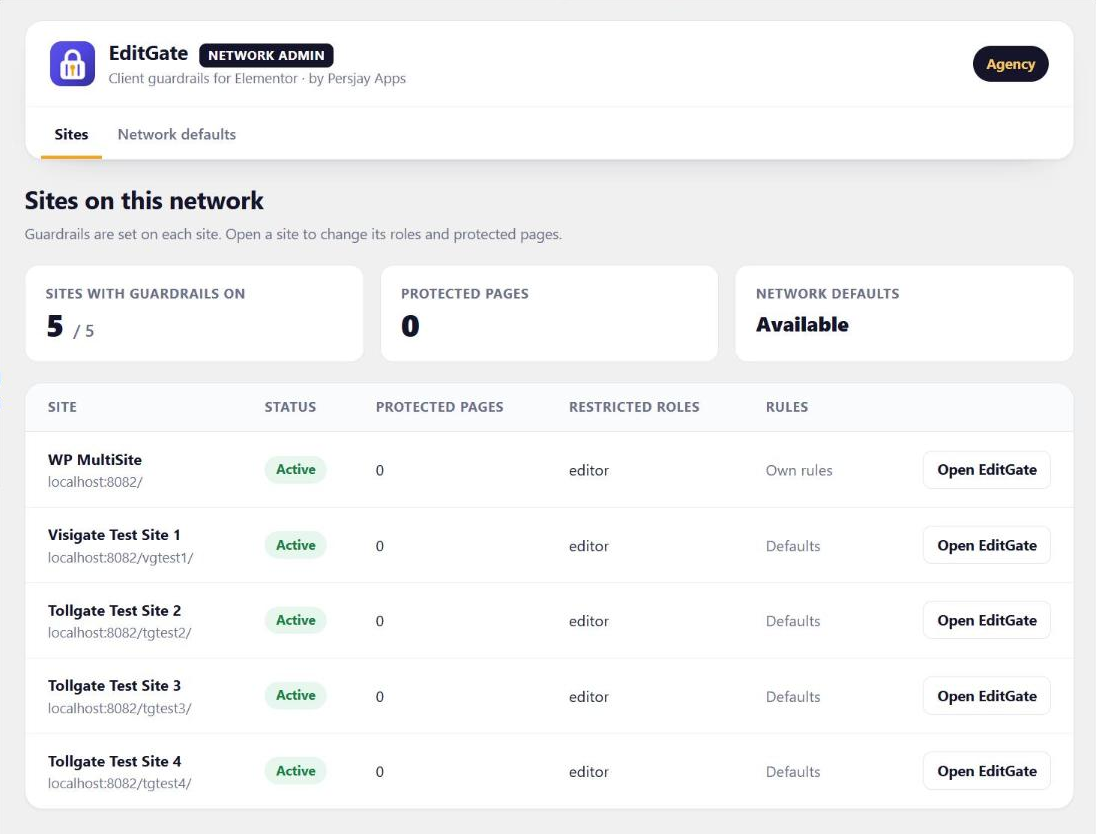
- WordPress Multisite network controls: manage network-wide default guardrails from Network Admin → EditGate. Uncustomized subsites inherit network defaults automatically while individual sites can still customize locally when needed.
Privacy, data & uninstall
- Zero frontend footprint: EditGate enqueues no styles or scripts on public pages and stores its main option with
autoload = false. - Local storage only: the free WordPress.org plugin makes no remote requests and stores all policies and snapshots in your WordPress database.
- Clean uninstall: by default, deleting EditGate keeps your settings and snapshots in case you are reinstalling or upgrading to Pro. Enable Clean uninstall under EditGate → Settings to remove all EditGate options, post meta, user meta and snapshots when deleting the plugin (multisite-aware across opted-in sites).
Troubleshooting
I enabled guardrails, but I still see all Elementor tabs
Administrators are never restricted by EditGate so you can never lock yourself out. Test with a non-administrator account (like an Editor) or use Preview as Client in EditGate Pro.
My client sees “Outdated session” when saving a protected page
This is stale-session protection working as intended. It happens when an administrator updates a page’s protection rules while the client already has the editor open. Ask the client to reload the Elementor editor to load the latest rules.
Upgrading from EditGate Free to EditGate Pro
Deactivate the free editgate plugin first, then upload and activate the editgate-pro ZIP. WordPress will warn you if both editions are activated at the same time. Your settings, protected pages and snapshots are preserved.
Multisite: site menu not visible after network activation
EditGate keeps the site-level EditGate menu accessible on subsites even when network-activated so each site can manage its own pages and snapshots. Network-wide defaults live under Network Admin → EditGate (Agency).