WordPress Can Now Copy Your Whole Site: Test Changes Safely with Reprint
WordPress.org just introduced Reprint, a free tool that copies your entire site (files and database) to another computer or host. Here's what it does, who it's for, and how to use a copy to test updates before they reach your visitors, with WordPress 7.2 arriving in December.
 By Persjay Apps5 min read
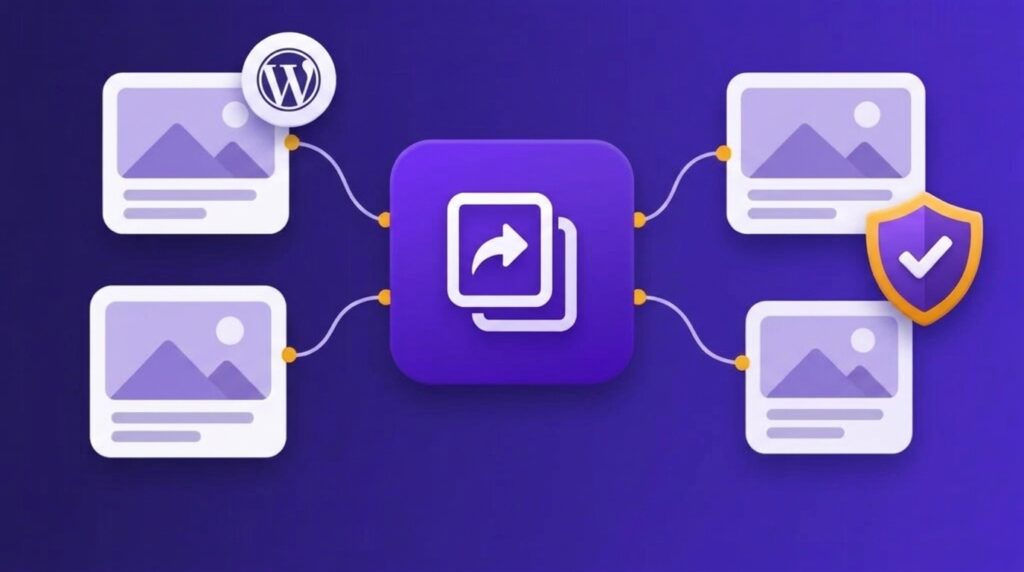
Most of us have made a “small change” to a live site and then spent an afternoon fixing what broke. On November 13, 2026, WordPress.org introduced Reprint, a free, open-source tool that copies an entire WordPress site to another computer or server. That includes its files, its database, its theme, its plugins and its settings.
The timing works well. WordPress 7.2’s first release candidate is planned for November 17, and the final release is scheduled for December 8 (release schedule). A full copy of your site is the safest place to try a big update before your visitors see it.
What Reprint is
WordPress has long let you export posts and pages, but moving a whole site meant also bringing the theme, plugins, uploads and settings along by hand. According to the announcement, Reprint handles all of that in two parts: a plugin you install on your existing site, and a small command-line program that runs on the computer or server that receives the copy.
A few details are useful for site owners:
- No middleman. Your files and database go directly to the destination you choose, piece by piece, without passing through an outside service.
- It can pick up where it left off. If the connection drops, you can resume from the last saved point instead of starting over.
- It updates links for you. Give it a new address and it rewrites links that point to the old one, including links stored in settings, blocks and shortcodes.
- Later copies are faster. When you copy the same site again, it only transfers what changed.
Two ways site owners can use it
Moving to a new host. Your visitors keep using the original site while you copy it, check the copy, and switch your domain over only when everything works. WordPress.org has a step-by-step guide to moving hosts.
Making a test copy. This is the one most site owners will want. You get a private copy where you can try a WordPress update, a new plugin or a new layout without touching the live site.
An honest note before you start
Reprint is new, and right now it’s aimed at people who are comfortable typing a few commands. According to its getting-started guide, you need administrator access to your site and a terminal on macOS, Linux or Windows (through WSL). If that sounds like a lot, you have two easier options:
- Try it with nothing to install. WordPress Playground has an experimental browser-based demo that copies a sample site, so you can see how it works.
- Ask your host or developer. Many hosts already offer a one-click staging copy, and a developer can set up Reprint for you in a few minutes.
How a first copy works
Here’s what the official guide describes, in plain terms:
- On the computer that will hold the copy, download the Reprint program into a new folder.
- On your live site, install and activate the Reprint plugin, then open Tools → Reprint Server.
- Create a key on the receiving computer, paste the token it gives you into the Reprint Server screen, and authorize it. This is what lets that one computer copy your site.
- Run the copy command. You can use a simple built-in database (SQLite) or a MySQL database if you already have one. When it finishes, Reprint starts a local preview of your site.
Checking your copy
Once the copy is running, go through a short checklist before you trust it:
- Turn off anything that talks to the real world first. The guide warns you to disable or switch to test settings for anything that sends email, takes payments or connects to live services. You don’t want your test copy emailing customers or charging cards.
- Check that the home page opens, images load, internal links stay on the copy, and you can log in.
- Look at your key pages as different visitors: logged in and logged out, on a phone-sized window and on desktop.
- Remember that a finished copy doesn’t guarantee every plugin works. Some plugins need MySQL or services from your original host.
That third point is easy to skip and important. If parts of your site change depending on who is visiting, a test copy is the place to confirm each visitor still sees the right version after an update. That includes members-only content, mobile-only buttons and scheduled sale banners. If you build those with Visigate, its rules are checked on the server before the page is sent, so viewing the copy logged out and on a small screen shows you exactly what those visitors will get.
Keep the copy private, and clean up after
A copy of your site contains everything your live site does, including user accounts and customer data. The guide says to keep the working folders private, because they hold credentials and your downloaded database. When you’re done, remove the client’s access from your live site, and deactivate the Reprint plugin if you won’t use it again.
A simple plan for WordPress 7.2
- Now: take a full backup of your live site and make a test copy (with Reprint, your host’s staging tool or your developer).
- From November 17: install the 7.2 release candidate on the copy only, never on your live site, and go through your checklist.
- After December 8: once your copy has run smoothly and your key plugins support 7.2, update the live site.
Reprint is still young, but it’s a welcome step toward making “test it first” something every site owner can do, not just developers.
Sources
Keep reading
Persjay Webhook Rescue Is Now on WordPress.org
Persjay Webhook Rescue has been accepted to the WordPress.org plugin directory. Stop WooCommerce's 5-strike silent webhook deaths, inspect failed deliveries and e-mails, and replay them in one click.
Read article