
How to Show a Sale Banner Only on Weekends or During Business Hours in WordPress
Show a banner only on weekends, during business hours or between two dates in WordPress, using free Day of week, Time of day and Date range rules. No code needed.
 By Persjay Apps3 min read
Quick answer: WordPress can schedule a post to publish once, but it can’t switch a block on and off on a repeating schedule. To show a banner only on weekends, only during business hours, or only between two dates, add Day of week, Time of day or Date range rules with a visibility plugin like Visigate. No code, and it’s free.
A weekend sale banner, an “We’re open, call now” button during business hours, or a Black Friday offer that ends on its own: all of these need content that appears and disappears by itself. Scheduling a post doesn’t cover them, because a scheduled post goes live once and stays live.
The three schedule rules at a glance
| Rule | Use it for | Example |
|---|---|---|
| Day of week | Repeating weekly patterns | Show “Weekend sale” on Saturday and Sunday |
| Time of day | Daily hours | Show “Call us now” between 09:00 and 17:00 |
| Date range | One-off campaigns | Show the Black Friday banner from Nov 27 to Nov 30 |
How to set it up
- Go to Visigate → Add New Rule Set and name it, for example “Weekend sale”.
- Add a condition. Choose Day of week, then is any of Saturday and Sunday. For business hours, choose Time of day and is between your opening and closing times. For a campaign, choose Date range and is within your start and end dates.
- Save the rule set. The rule set shows a plain-English summary, so you can confirm exactly when the content will appear.
- Edit your page, select the banner block (use a Group to cover several blocks at once), open the Visibility Rules panel in the sidebar, and choose your rule set. In Elementor, open the widget’s Advanced tab and use the Visigate section.
Combine rules with AND and OR
Conditions inside one group must all match (AND). Separate groups are alternatives (OR). That lets one rule set say “show this on weekends, or on weekdays between 09:00 and 17:00” without building two banners. Put Day of week alone in Group 1, then Day of week (Monday to Friday) plus Time of day in Group 2.
Which time zone does it use?
Visigate uses your site’s time zone, the one set in Settings → General. If a rule seems to switch at the wrong hour, check that setting first.
Does it work with page caching?
Yes. Because time rules change over the day, Visigate can flag those pages so caching plugins don’t store a stale version. This is the Cache safety option in Visigate → Settings, and it’s on by default.
Check your work before visitors do
Turn on Admin preview in Visigate → Settings. Administrators can then add ?visigate_preview=1 to a page URL to see hidden content faded and outlined in red, instead of removed.
https://example.com/sale/?visigate_preview=1Prefer shortcodes? Rule sets can also wrap any content: . Find the shortcode for each rule set in the Rule Sets list.
See the full Visigate documentation for every condition, or learn more about Visigate.
Keep reading
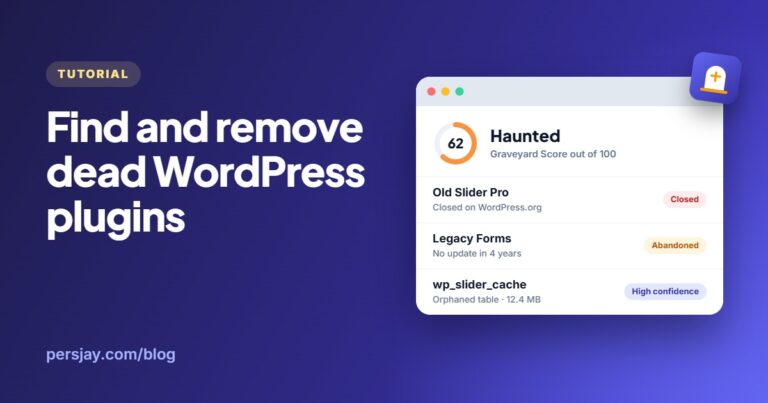
How to Find and Safely Remove Dead WordPress Plugins (and the Tables They Leave Behind)
Closed, abandoned and inactive plugins, plus the database tables they leave behind: how to find them all and clean up safely, by hand or with a free Graveyard scan.
Read article
How to Show Different Content on Mobile and Desktop in WordPress
CSS hiding vs server-side device rules: how to show different content to mobile and desktop visitors in WordPress, with caching tips and a step-by-step setup.
Read article