
How to Show Different Content on Mobile and Desktop in WordPress
CSS hiding vs server-side device rules: how to show different content to mobile and desktop visitors in WordPress, with caching tips and a step-by-step setup.
 By Persjay Apps5 min read
Quick answer: you can show different content on mobile and desktop in two ways. CSS (and the “hide on mobile” switches in page builders) hides content in the visitor’s browser, but it’s still downloaded. Server-side rules decide before the page is sent, so phones never download the desktop-only content. Visigate adds server-side device rules to any block or Elementor element.
A short “Call us” button for phones and a longer form for desktop. An app download banner that only makes sense on a mobile. A heavy product demo video you’d rather not push over a phone connection. Showing different content by device is one of the easiest ways to make a WordPress site feel tailored, and to keep mobile pages fast.
Here’s how the two main approaches work, when each one is the right choice, and how to set up device rules step by step.
Option 1: Hide content with CSS (responsive visibility)
This is what most themes and page builders do when you switch on “Hide on mobile” or “Hide on desktop”. The content stays in the page, and a CSS media query hides it when the screen is narrower or wider than a breakpoint:
@media (max-width: 767px) {
	.desktop-only { display: none; }
}- Good: it reacts to the actual screen width, including a resized browser window, and works with any page cache.
- Not so good: the hidden content is still in the HTML. Embedded videos and iframes typically still load, and every visitor downloads both versions of anything you duplicate.
Option 2: Decide on the server (device rules)
With a server-side rule, WordPress checks what kind of device is asking for the page before building it, and leaves out the blocks that don’t apply. A phone never receives the desktop-only section at all.
- Good: lighter pages, nothing to download that isn’t shown, and the hidden content isn’t visible in the page source.
- Not so good: it depends on the device type the browser reports, and pages with device rules need care with full-page caching (covered below).
| CSS hiding | Server-side rules | |
|---|---|---|
| Hidden content downloaded? | Yes | No |
| Based on | Screen width | Device type (user agent) |
| Works with full-page cache | Always | Needs the page excluded, or a separate mobile cache |
| Best for | Layout tweaks, small differences | Different offers, heavy media, cleaner HTML |
How WordPress tells a phone from a desktop
Every browser sends a user agent string describing itself, and WordPress includes a helper, wp_is_mobile(), that reads it. Visigate builds on it and sorts visitors into three groups: mobile, tablet and desktop.
Good to know: since iPadOS 13, Safari on iPad asks for the desktop version of sites by default, so most iPads are treated as desktop. If tablet visitors matter to your design, check on a real iPad.
Set up mobile-only content with Visigate
Step 1: Create a device rule set
- Install and activate the free Visigate plugin.
- Go to Visigate → Add Rule Set and call it Mobile visitors.
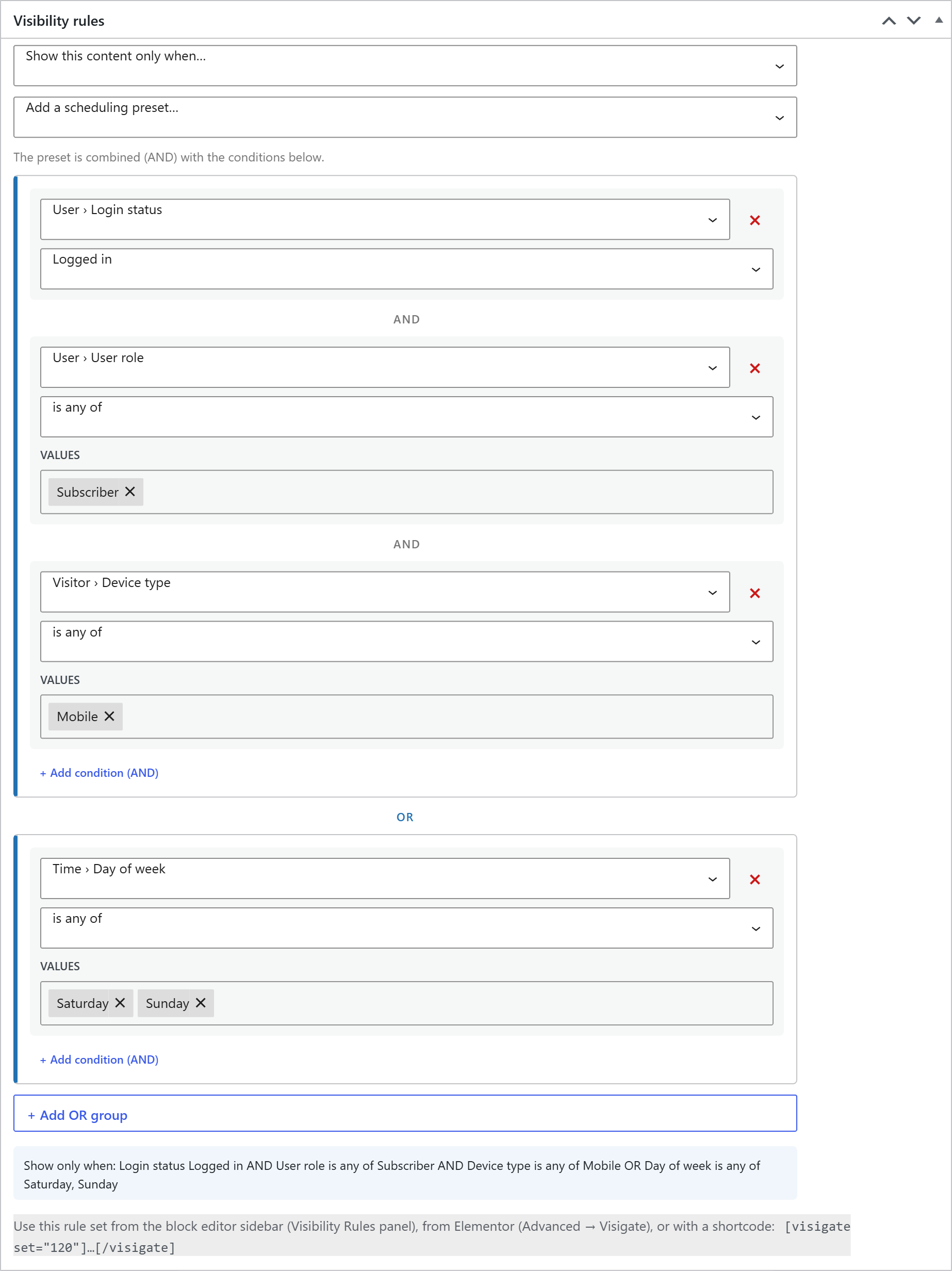
- Add the condition Device type → is any of → Mobile and publish. Make a second set for Desktop visitors the same way.
Step 2: Apply the rules
- Block editor: select a block or group, open the Visibility Rules panel and pick the rule set.
- Elementor: select the element, go to Advanced → Visigate and choose the rule set.
- Shortcode: wrap any content, as shown below.
[visigate device="mobile"]<a href="tel:+15550100">Tap to call us</a>[/visigate]
[visigate device="desktop"]Fill in the form below and we’ll reply within a day.[/visigate]
Step 3: Combine device with other conditions
Device rules get more useful in combination. For example, show a members-only offer to logged-in visitors on mobile: add Login status → Logged in and Device type → Mobile to the same group. You can also add a time window, such as weekdays from 9:00 to 17:00, so a “Call now” button only shows when someone can answer.
Device rules and page caching
A full-page cache stores one copy of each page and serves it to everyone. If a phone happens to be the first visitor, desktop users could get the mobile version from the cache.
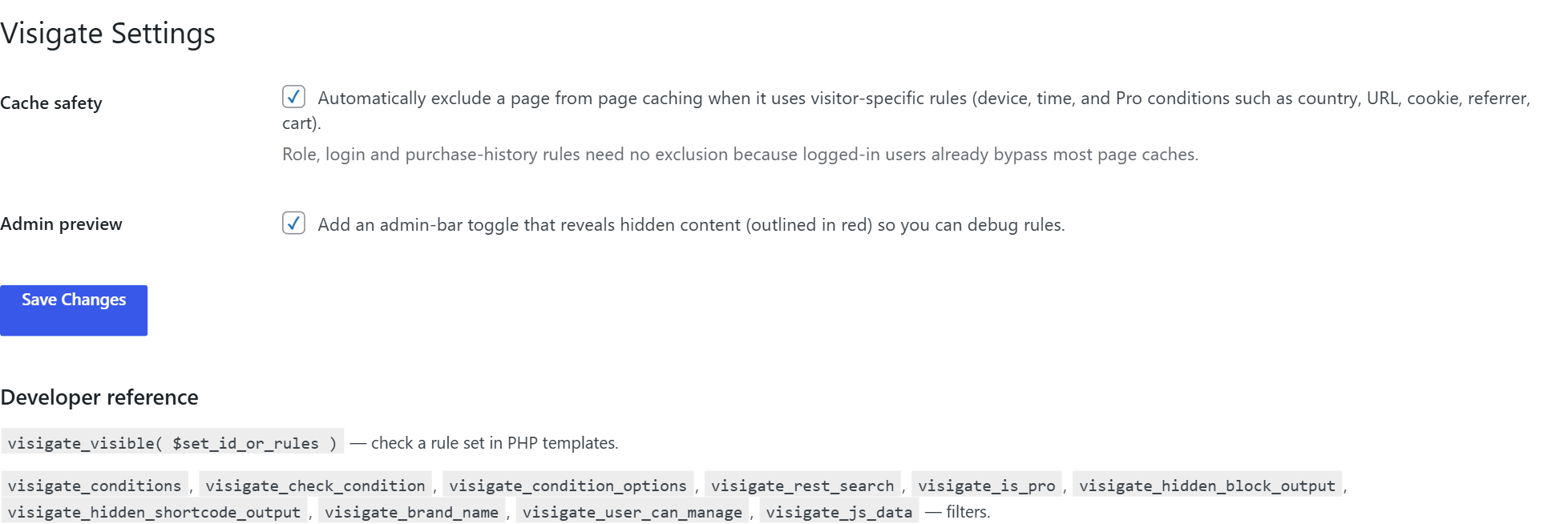
Visigate handles this for you. With the Cache safety setting (on by default), any page that uses device or time rules is marked with the standard DONOTCACHEPAGE flag, which popular caching plugins respect, so those pages are built fresh for each visitor.
On a very busy page, you have two alternatives: use a caching plugin or host that keeps a separate mobile cache, or use CSS hiding for that particular page.
How to test it
- Open the page in a private or incognito window so you see it as a logged-out visitor.
- In Chrome or Edge, open DevTools, switch on device mode, pick a phone and reload. Device presets also change the user agent the server sees.
- Check on a real phone before you launch.
As an administrator, you can also use Visigate’s reveal hidden content toggle in the admin bar to see every rule-controlled block on the page, outlined in red.

Which approach should you use?
- Small layout differences, such as stacking columns or a shorter heading: use your theme or builder’s responsive settings (CSS).
- Genuinely different content, such as different offers, calls to action, or heavy media you don’t want phones to download: use server-side device rules with Visigate.
Keep reading
How to Show Content Only to Logged-In Users in WordPress (4 Ways)
Four ways to show content only to logged-in users in WordPress, from private pages and a PHP shortcode to a no-code rule for any block or Elementor element.
Read article