
How to Show Content Only to Logged-In Users in WordPress (4 Ways)
Four ways to show content only to logged-in users in WordPress, from private pages and a PHP shortcode to a no-code rule for any block or Elementor element.
 By Persjay Apps5 min read
Quick answer: WordPress can hide a whole page from logged-out visitors (with a private or password-protected page), but not a single block or section. To show just part of a page to logged-in users, use a few lines of PHP, a membership plugin, or a visibility plugin like Visigate that adds a “logged in” rule to any block, Elementor element or shortcode.
Plenty of sites need content that only signed-in visitors should see: a download link for customers, a members-only video, a discount for registered users, or a “Welcome back” message. And the opposite is just as common: a sign-up prompt that should disappear once someone logs in.
This guide walks through four ways to do it, from built-in WordPress options to a no-code rule you can reuse across your whole site, so you can pick the one that fits.
The four options at a glance
| Method | What it hides | Code needed | Best for |
|---|---|---|---|
| Private or password-protected page | The whole page | No | Hiding an entire page quickly |
| A small PHP shortcode | Any content you wrap | Yes | Developers who want zero extra plugins |
| A membership plugin | Pages, posts, files | No | Paid memberships and subscriptions |
| Visigate (free) | Any block, Elementor element or shortcode | No | Showing or hiding parts of a page |
1. Use a private or password-protected page (built in)
In the block editor, open the page settings and change Visibility to Private or Password protected.
- Private pages are only visible to Administrators and Editors (users who can read private posts). Ordinary members, Subscribers and WooCommerce Customers cannot see them, so this rarely works for a members area.
- Password protected pages use one shared password instead of the visitor’s account. Anyone with the password can get in, logged in or not.
Both options also work on the whole page only. You can’t use them to hide a single section, button or image.
2. Wrap content in a small PHP shortcode
If you’re comfortable adding code, WordPress already knows whether the visitor is logged in through the is_user_logged_in() function. Add this to a child theme’s functions.php or a code-snippets plugin:
function mysite_members_only( $atts, $content = '' ) {
	if ( is_user_logged_in() ) {
		return do_shortcode( $content );
	}
	return '';
}
add_shortcode( 'members_only', 'mysite_members_only' );
Then wrap anything in your content with it:
[members_only]This text only appears for logged-in users.[/members_only]It works, but it has limits: it only covers content you can wrap in a shortcode, it doesn’t help inside a page builder’s layout, and every new rule (roles, a logged-out message, a date) means more code to write and maintain.
3. Use a membership plugin
If you sell access, with paid plans, recurring billing or content that unlocks over time, a dedicated membership plugin is the right tool. They restrict whole pages, posts and categories by membership level and handle sign-up and payments.
They’re usually more than you need when you simply want to show one section to logged-in users and something else to everyone else.
4. Add a “logged in” rule to any block with Visigate
Visigate is a free plugin that adds visibility rules to every block in the block editor and every element in Elementor. Rules are checked on the server, so hidden content is never sent to the visitor’s browser. It isn’t just hidden with CSS.
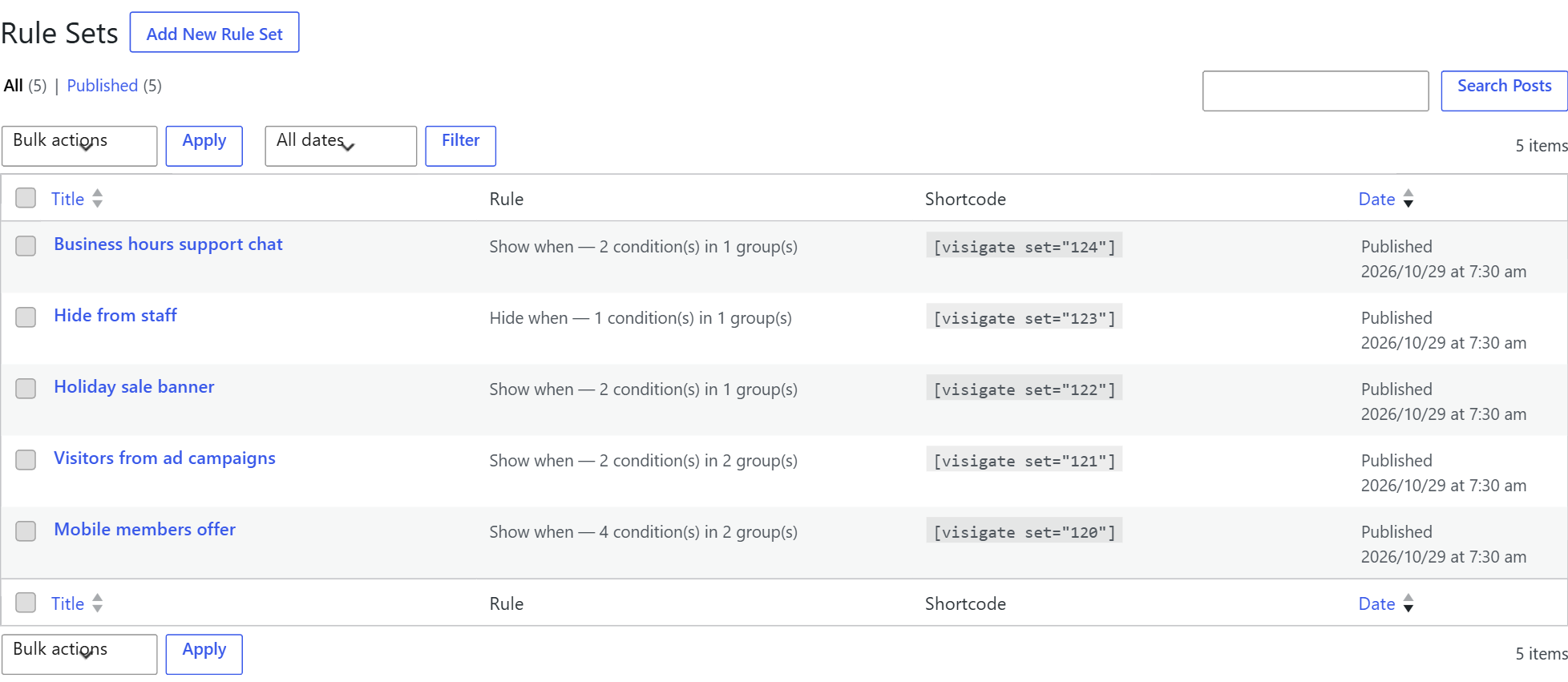
Step 1: Create a reusable rule set
- Install and activate Visigate.
- Go to Visigate → Add Rule Set and name it, for example, Logged-in users.
- Add the condition Login status → is → Logged in and publish.
Step 2: Apply it to a block
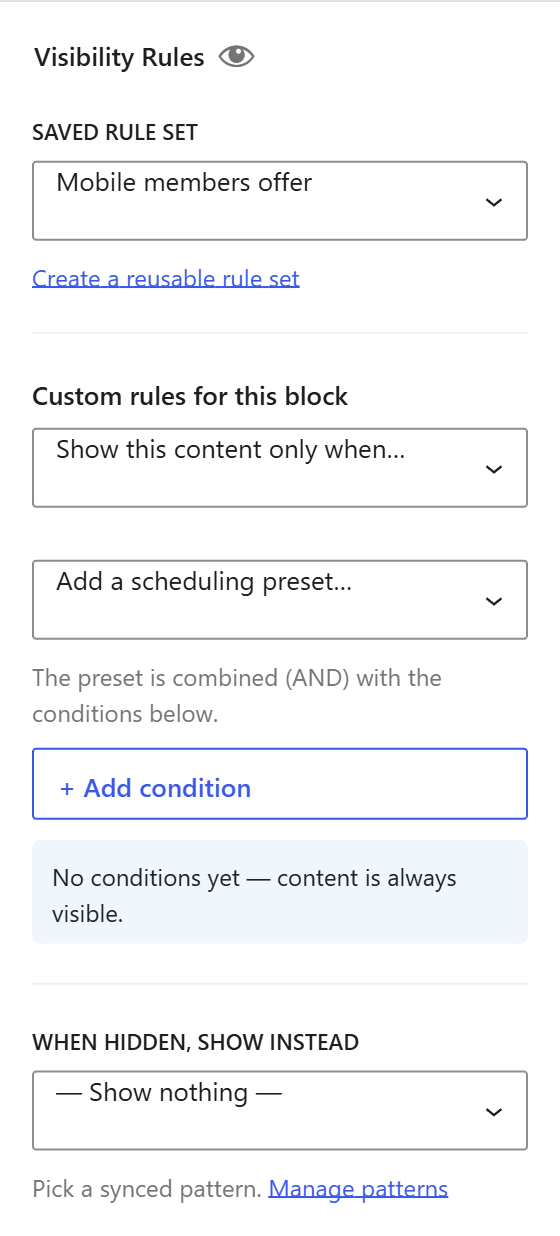
Select any block, such as a paragraph, button, image or whole group, and open the Visibility Rules panel in the sidebar. Choose your rule set (or build a one-off rule right there). The block now only renders for logged-in visitors.
Step 3 (Elementor users): Apply it to any element
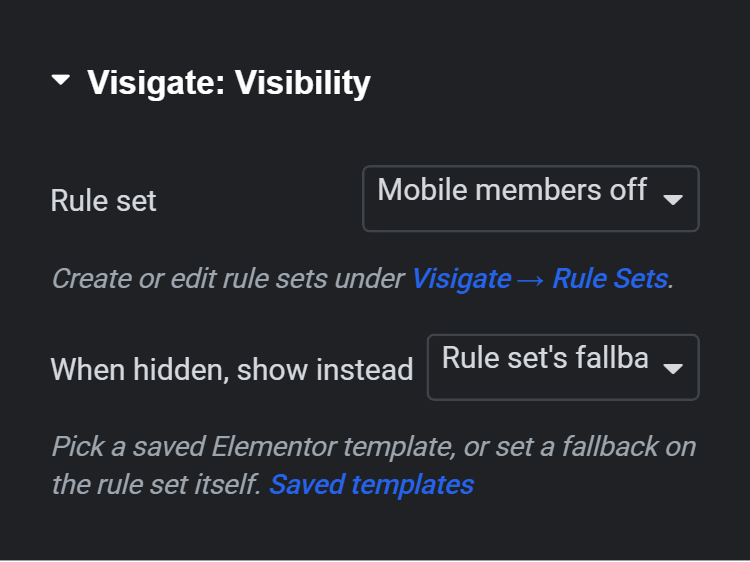
In Elementor, select a widget, column or container, open the Advanced tab and pick the rule set in the Visigate section.
Prefer shortcodes? That works too
[visigate logged_in="yes"]Welcome back! Here is your download link.[/visigate]
[visigate logged_in="no"]Log in or create a free account to get the download.[/visigate]
You can narrow it further by role. For example, show something only to logged-in WooCommerce customers:
[visigate logged_in="yes" roles="customer"]Thanks for being a customer![/visigate]Show logged-out visitors something better than a blank space
The best members-only sections come in pairs: one version for logged-in users and one for everyone else. Create a second rule set with Login status → is → Logged out and put a sign-up prompt or login button there. Each visitor sees exactly one of the two.
Will this work with page caching?
Yes, for login rules. Most caching plugins and hosts skip the page cache for logged-in users, so each logged-in visitor gets a freshly built page with the right content. Logged-out visitors all see the same version, which is exactly what a cache stores.
One important caveat: hiding a link isn’t the same as protecting the file behind it. If you hide a download button from logged-out visitors, the file’s URL still works for anyone who has it. For truly private files, use a membership or download-protection plugin.
Which method should you use?
- Whole page, admins and editors only: make it Private.
- A single shared password: password-protect the page.
- Paid access and subscriptions: use a membership plugin.
- Parts of a page, in the block editor or Elementor, without code: use Visigate. It’s free, and the same rule set can be reused on as many blocks as you like.
Keep reading
How to Show Different Content on Mobile and Desktop in WordPress
CSS hiding vs server-side device rules: how to show different content to mobile and desktop visitors in WordPress, with caching tips and a step-by-step setup.
Read article