
How to Find and Safely Remove Dead WordPress Plugins (and the Tables They Leave Behind)
Closed, abandoned and inactive plugins, plus the database tables they leave behind: how to find them all and clean up safely, by hand or with a free Graveyard scan.
 By Persjay Apps6 min read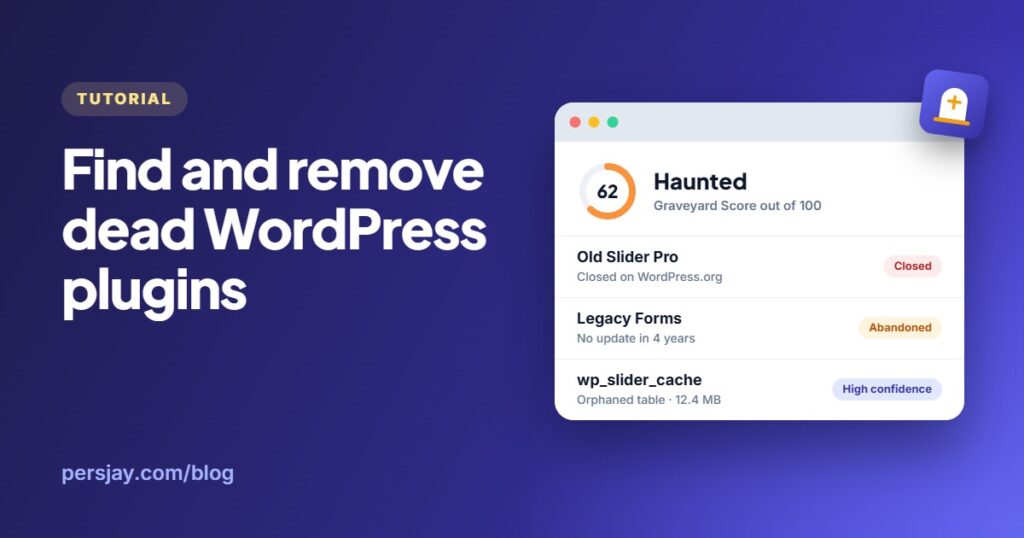
Quick answer: a “dead” plugin is one that has been closed on WordPress.org, hasn’t been updated in years, or sits inactive on your site. To clean up safely: list every plugin with its status, look at what each one stores in your database, take a backup, then remove the plugin and the tables it left behind. Graveyard does the listing, the check and the cleanup in one free scan.
Most WordPress sites collect plugins the way a garage collects boxes. A slider you tried once. A form plugin you replaced two years ago. A “temporary” fix that became permanent. Each one seemed harmless at the time.
The trouble is that plugins don’t age gracefully. Some are closed on WordPress.org and stop getting updates. Others are simply abandoned by their authors. And even after you delete a plugin, its database tables and settings often stay behind. Here’s how to find all of it, and how to remove it without breaking anything.
What makes a plugin “dead”?
Not every old plugin is a problem, so it helps to be precise. These are the four kinds of clutter worth looking for:
| What it means | Why it matters | |
|---|---|---|
| Closed | Removed from WordPress.org, often for a security issue or a guideline problem | No more updates through WordPress.org, and you won’t get a warning in your dashboard |
| Abandoned | Still listed, but no update in two years or more | May not be tested with current WordPress or PHP versions |
| Inactive | Installed on your site but switched off | Still on disk, still in backups, and still loadable by an attacker if it has a flaw |
| Orphaned tables | Database tables left by a plugin you already deleted | Wasted space, bigger backups and a cluttered database |
Good to know: “abandoned” is a signal, not a verdict. Some small plugins are simply finished and work fine for years. Treat the label as a reason to take a closer look, not an automatic delete.
Why your dashboard doesn’t tell you
WordPress shows you when a plugin has an update available. It doesn’t tell you when a plugin has been closed on WordPress.org, and a closed plugin looks exactly like any other plugin on your Plugins screen. Deleting a plugin removes its files, but whether its data goes too is up to the plugin’s own uninstall routine, and many plugins leave their tables and options behind.
So the only way to know what you’re carrying is to check each plugin against WordPress.org and look inside your database.
The manual way
If you only have a handful of plugins, you can check them by hand:
- Go to Plugins → Installed Plugins and list every plugin, including inactive ones.
- Search for each one on WordPress.org. A closed plugin shows a notice that it’s no longer available for download. Note the “Last updated” date for the rest.
- Open your database in phpMyAdmin (or your host’s database tool) and compare the table names with your active plugins. Tables with your site’s prefix (usually
wp_) that no plugin claims are candidates for cleanup. - Take a full backup before you delete anything, then remove what you’re sure about.
It works, but it’s slow, and matching table names to plugins by eye is where mistakes happen. Delete the wrong table and you can lose a live plugin’s data.
The faster way: scan with Graveyard
Graveyard is a free plugin that does all of the above in one scan. It checks every installed plugin against WordPress.org, lists inactive plugins and unused themes with the space they take up, and finds database tables left behind by plugins you removed.
Step 1: Install and run your first scan
- Download the free Graveyard plugin, then go to Plugins → Add New → Upload Plugin and install it.
- Open Tools → Graveyard and click Run first scan.
- Wait a few seconds. The scan only reads; nothing on your site is changed.
Privacy: to check a plugin’s status, Graveyard sends only the plugin’s folder name to the WordPress.org plugin API. Your site address is never sent, and results are cached for 7 days.
Step 2: Read your Graveyard Score
At the top of the screen you get a score from 0 to 100, based on what the scan found. It also appears in a widget on your dashboard, so you can keep an eye on it.
| Score | Label | What to do |
|---|---|---|
| 90–100 | Spotless | Nothing urgent |
| 70–89 | A little dusty | A few things worth tidying |
| 40–69 | Haunted | Closed or abandoned plugins to deal with |
| Under 40 | Full cemetery | Time for a proper cleanup |
Step 3: Check each plugin’s autopsy
On the Plugins tab, every plugin gets a status (Closed, Abandoned, Maintained, or Premium / vendor) and an autopsy: the database tables, saved options, cached values, scheduled tasks and upload folders it keeps. That tells you exactly what will be left behind if you delete it.
Premium plugins that aren’t hosted on WordPress.org are labeled as such rather than flagged, so you don’t get false alarms. If you want to keep a flagged plugin, click Ignore and it no longer counts against your score.
Step 4: Remove orphaned tables safely
The Orphaned tables tab lists tables that use your site’s prefix but that no installed plugin, theme or must-use plugin accounts for. Each one gets a confidence label:
- High: the table name clearly matches a plugin that’s no longer installed.
- Medium: a likely match, worth a quick check.
- Low: no clear owner. Look before you delete.
To delete, tick the tables (or use Select high confidence), type DELETE to confirm and click Delete selected tables. Graveyard only ever removes orphaned tables. WordPress core tables are never touched.
Back up first. Deleting a table can’t be undone on its own. The free version reminds you to take a backup; Graveyard Pro saves a restorable snapshot before every deletion, so you can undo it with one click.
What Pro adds
Everything above is free. If you look after a site long term, or several sites, Graveyard Pro adds:
- Burial snapshots: a compressed copy of anything you remove, restorable with one click for 30 days.
- Full cleanup: remove a plugin’s leftover options, cached values and scheduled tasks, not just its tables, and remove unused themes in one click.
- Scheduled scans: daily, weekly or monthly, with a short email digest.
- For agencies: Business and Agency plans add closure alerts, an activity log, WP-CLI, a multisite network view, white-label branding and client reports.
Pro starts at $2.99 a month, with a 14-day free trial and a 30-day money-back guarantee.
A simple cleanup routine
- Run a Graveyard scan and note your score.
- Replace or remove anything Closed first. Look for a maintained alternative if you still need what it does.
- Review Abandoned plugins: keep the ones that are finished and working, replace the rest.
- Delete inactive plugins and themes you don’t need. Keeping one default theme as a fallback is a good idea.
- Take a backup, then clear out high-confidence orphaned tables.
- Scan again every month or so, or let Pro do it on a schedule.
A tidy plugin list makes your site easier to update, quicker to back up, and one less thing to worry about. Try Graveyard free and see what your site is carrying.
Keep reading
How to Show a Sale Banner Only on Weekends or During Business Hours in WordPress
Show a banner only on weekends, during business hours or between two dates in WordPress, using free Day of week, Time of day and Date range rules. No code needed.
Read article
How to Show Different Content on Mobile and Desktop in WordPress
CSS hiding vs server-side device rules: how to show different content to mobile and desktop visitors in WordPress, with caching tips and a step-by-step setup.
Read article