
Copy plugin settings between sites with confidence. Follow the export, preview and undo workflow, then explore presets and direct transfers with Pro.
OverviewInstallation & first copyExport plugin settingsUnderstand detection labelsImport a settings fileRead the import previewAPI keys, passwords & secretsUndo an import & view historySave reusable presets · ProPush & pull between sites · ProIDs, URLs & plugin tables · ProMultisite · ProPlugin registry updatesWP-CLIRegister settings for your pluginTroubleshooting & help
Settings Copier moves plugin settings from one WordPress site to another. Choose the plugins you want to copy, export a JSON file, then review the import before applying it on the receiving site.
Use it to reuse a familiar setup on a new site, prepare a client starter configuration, or move selected settings from staging to production.
| Feature | Free | Pro |
|---|---|---|
| Plugins per export | Up to 3 | Unlimited |
| Import preview and optional encrypted secrets | Included | Included |
| Undo points | Latest import | 20 with history |
| Saved presets and direct push/pull | — | Included |
| ID remapping, URL replacement and plugin tables | — | Included |
| Multisite bulk apply and network settings | — | Included |
For Pro features, install the Pro package and activate your license through the plugin’s account screen. Start with a small export so you can check the receiving plugin’s behavior after importing.
The free version exports up to three plugins per file. Pro removes that limit and can also save the selection as a preset.
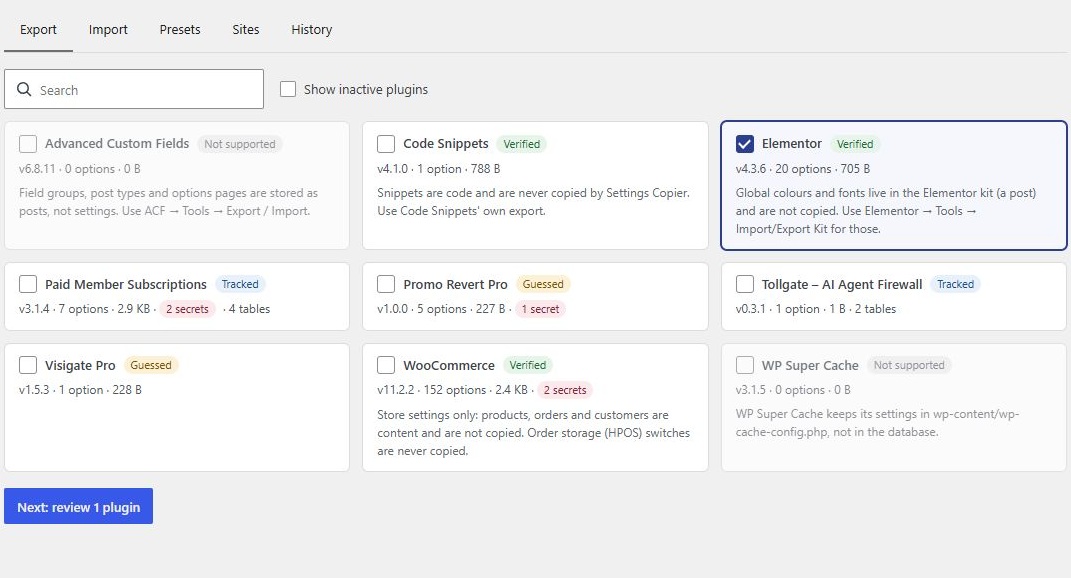
Settings Copier identifies which database options belong to a plugin. The label tells you how it made that match:
The label describes ownership detection. It does not guarantee that every setting is portable between sites. For example, Elementor kits, ACF field groups and Code Snippets contain content or code that needs the plugin’s own export tools.
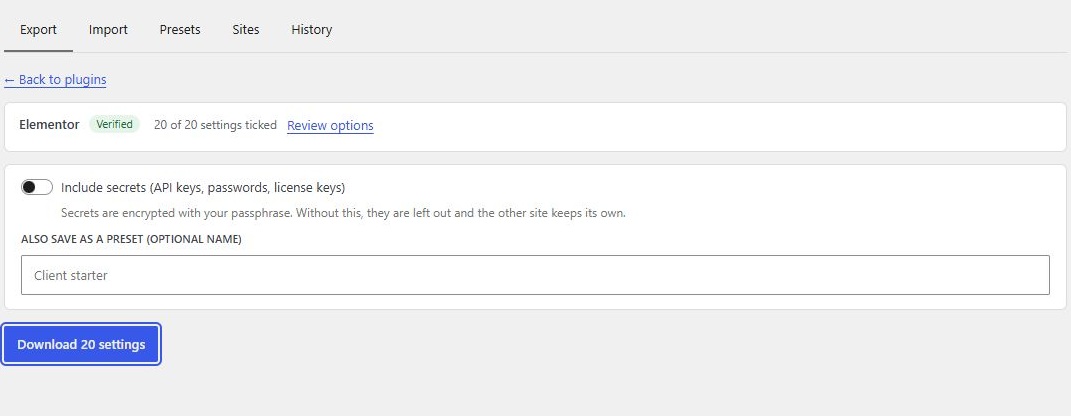
Uploading a file opens the preview; it does not apply the settings. The receiving site must have the plugin installed. WordPress core settings and executable code are not imported.
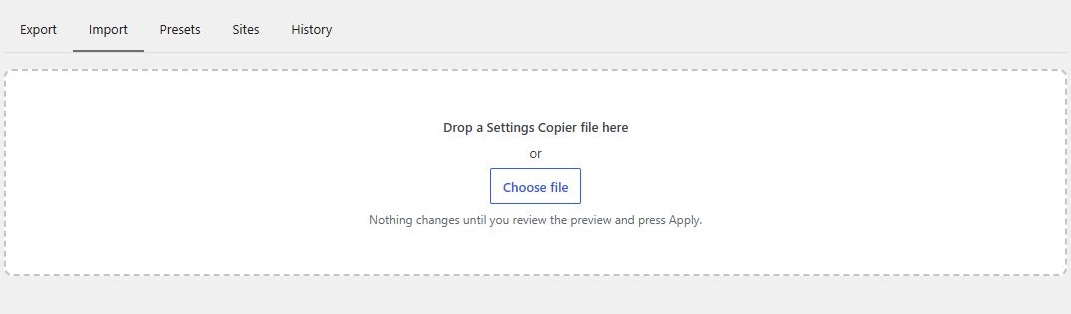
| Status | Meaning |
|---|---|
| New | The receiving site does not have this option yet. |
| Changed | The incoming value differs from the value on this site. |
| Same | The value already matches. No change is needed. |
| Skipped | The setting will not be applied. Read its reason or warning. |
Changed settings show the before-and-after differences. Select only the rows you want to apply. If the source plugin version is newer than the installed version, the preview requires confirmation before those settings can be imported.
Page and post IDs can refer to different items on another site. Free warns about these references; Pro can remap supported IDs. If everything matches, the button reads Nothing to apply.
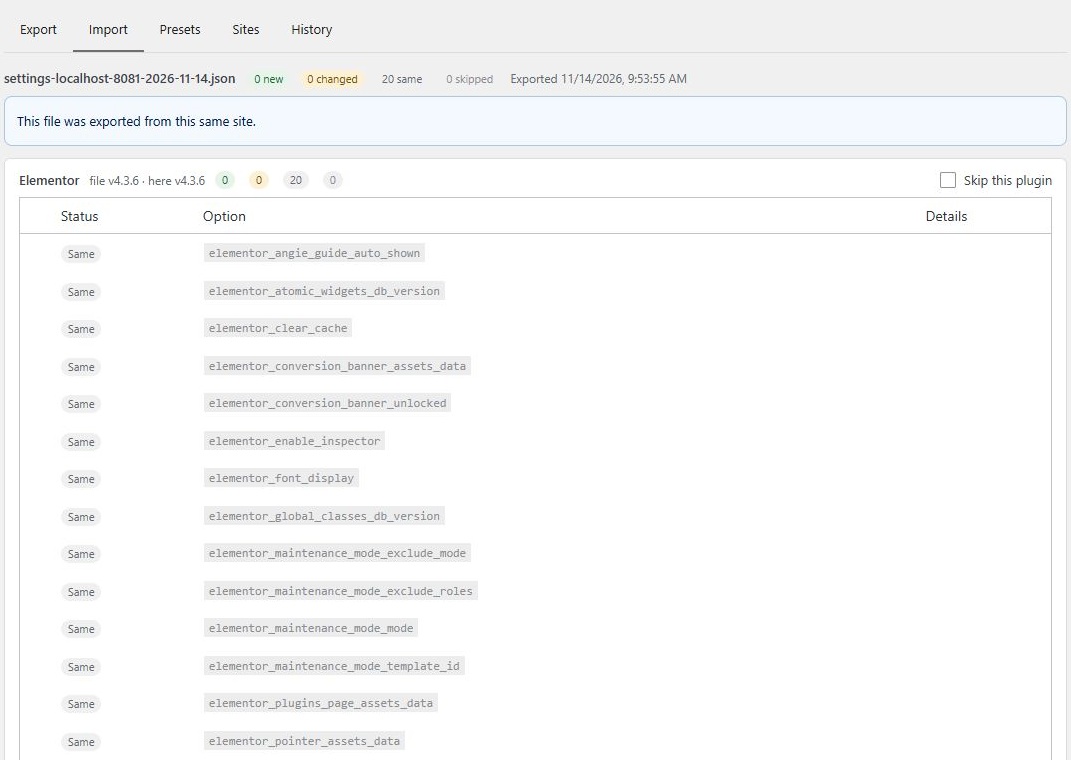
Secrets are excluded by default. The receiving site keeps its own API keys, passwords and license keys.
To move them, enable Include secrets during export and enter a passphrase twice. The secrets are encrypted in the export; the passphrase is not stored. Enter it during import to unlock them, or leave it empty to keep the receiving site’s secrets.
Review the preview’s secret-handling choices before replacing credentials already on the receiving site. If PHP sodium is unavailable, Settings Copier cannot encrypt secrets and leaves them out.
Settings Copier saves the previous values before applying an import. Use Undo after an import, or open the History tab to find it.
Free can undo the latest import. Pro keeps 20 undo points with history. If an import fails while applying, its changes are rolled back automatically.
A preset stores a group of plugin settings you can reuse, such as a client starter setup.
You can also upload a Settings Copier file into the Presets tab. Applying a preset uses the same preview and undo process as a file import.
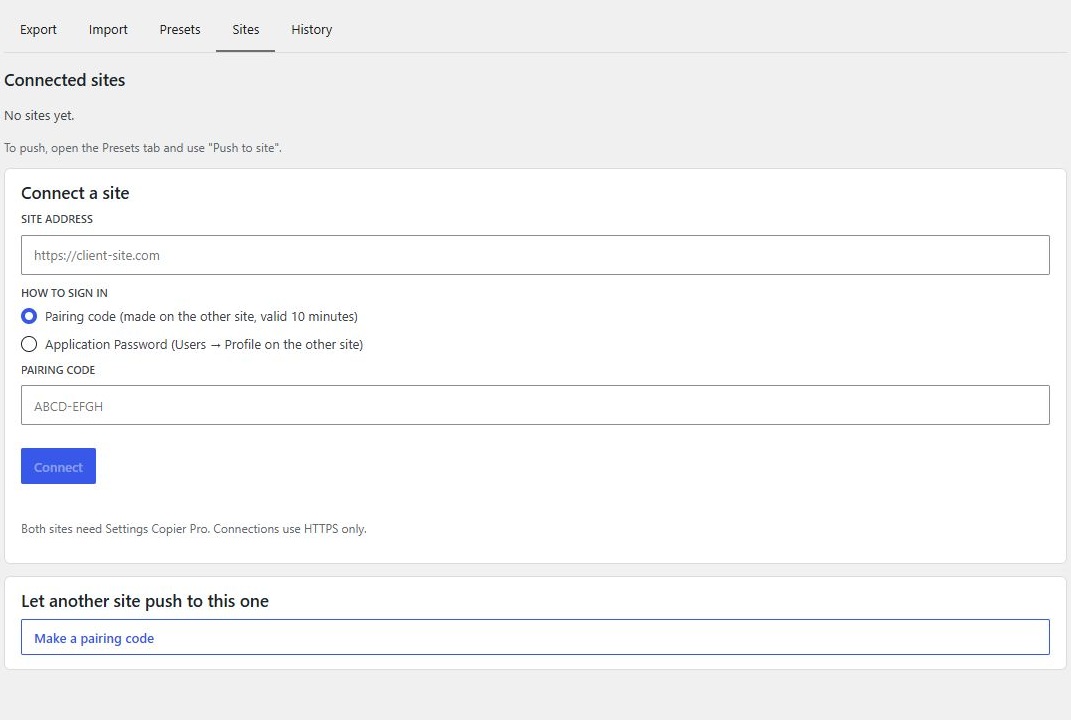
Direct transfers avoid moving a JSON file by hand. Both sites need Settings Copier Pro and HTTPS.
You can alternatively use an Application Password created under Users → Profile on the other site.
Review the transfer preview before applying. The undo point is kept on the receiving site, in its History tab. Use Remove or Revoke in Sites when a connection is no longer needed.
These tools do not create the referenced pages, users or media files. Make sure the receiving site has the corresponding items.
Free works within each subsite. Pro adds a Network Admin screen for network-wide settings and applying a preset to multiple subsites.
Network settings are separate from a subsite’s ordinary settings. Choose the correct scope when exporting, previewing or applying.
The plugin includes a registry of known option names. Current builds can download a signed registry update from Persjay Apps once a day, so plugin-detection improvements can arrive between releases.
Open the Settings tab to see the list in use, known plugin count and last check. Use Download registry updates to turn updates on or off, and Check now for a manual check. On multisite this preference applies across the network.
The download request does not send your plugin list, settings, site address or user details. As with any web request, the server sees your web server’s IP address. Only a valid signed data file is used; a failed update keeps the last good copy.
If your installed build does not show the Settings tab, update Settings Copier. Developers can disable registry downloads with define( 'SETTINGS_COPIER_REGISTRY_UPDATES', false ); in wp-config.php.
Use plugin folder slugs when choosing plugins. Start with list to see the available slugs and detected settings.
wp settings-copier list
wp settings-copier list elementor
wp settings-copier export elementor --file=starter.json
wp settings-copier import starter.json --dry-run
wp settings-copier import starter.json
wp settings-copier history
wp settings-copier undo
--dry-run shows the preview without applying. A normal import shows a preview and asks for confirmation. --yes skips that question. Use wp help settings-copier import for skip, passphrase and version-confirmation options.
Pro also provides preset, push, pull and sites commands.
Plugin authors can tell Settings Copier which options they own and which fields contain secrets or item IDs:
add_filter( 'settings_copier_register', function ( $entries ) {
    $entries['my-plugin'] = array(
        'options' => array( 'my_plugin_settings' ),
        'secrets' => array(
            array( 'option' => 'my_plugin_settings', 'path' => '$.api_key' ),
        ),
        'id_fields' => array(
            array( 'option' => 'my_plugin_settings',
                   'path' => '$.thanks_page', 'type' => 'page' ),
        ),
    );
    return $entries;
} );
Use your plugin folder slug as the key. Register only configuration that belongs to your plugin.
Try Show inactive plugins and read the plugin’s compatibility note. Some plugins store configuration as posts, files or account data rather than copyable database options. Use their own export tools for those items.
Check the counts. Same means the values already match. Check whether the receiving plugin is installed and whether settings or whole plugins were skipped.
Compare plugin versions on both sites. Prefer matching versions before importing, especially when the file comes from a newer plugin.
IDs differ between sites. Review page/post warnings and Pro mapping choices, and make sure the target items exist.
They are excluded by default. Include them explicitly on export and use the matching passphrase on import. Check whether the receiving site is keeping its own credentials.
Check HTTPS, Pro activation on both sites, the site address and whether the pairing code expired. Hosts and security plugins must allow the authenticated connection.
Still need help? Email [email protected] with the plugin version and error message. Read the changelog →