
A Closed WordPress Plugin Is Under Attack, and No Fix Is Coming
Attackers are targeting a critical flaw in CryptoPayment Gateway, a plugin closed on WordPress.org with no patch coming. Here's what to do if you use it, and a simple routine to find closed plugins on any site.
 By Persjay Apps5 min read
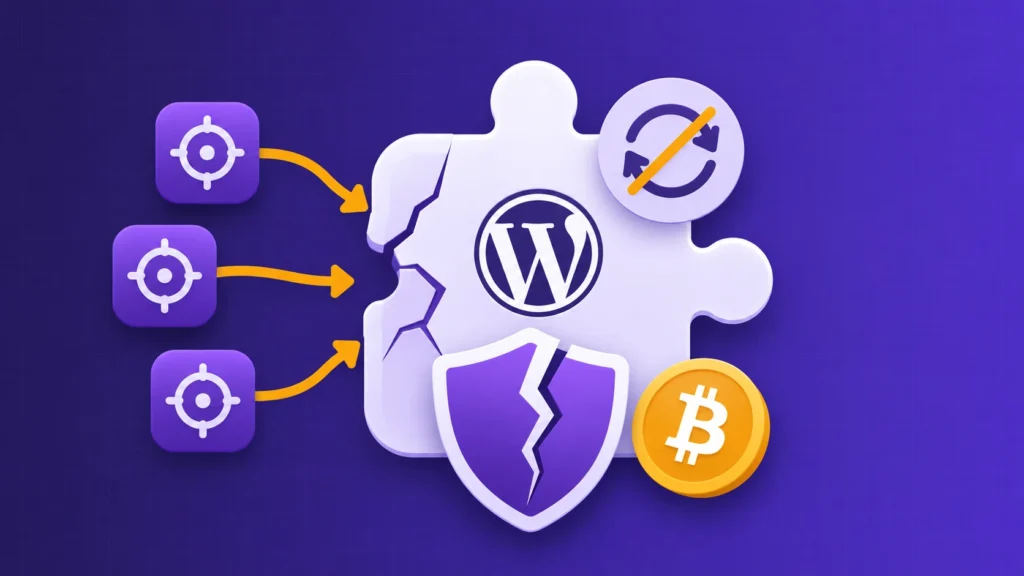
Most of the time, a security problem in a WordPress plugin follows a familiar pattern: someone finds a flaw, the developer ships a fix, and you click “Update.” This week’s story is a reminder of what happens when that last step never comes.
Attackers have been spotted trying to exploit a critical flaw in CryptoPayment Gateway, a WordPress plugin for accepting cryptocurrency payments. The plugin was closed on WordPress.org months ago, there is no patched version, and none is expected. If it is on your site, updating will not help. Removing it will.
What happened
According to the WPScan vulnerability entry (CVE-2026-81648), versions 1.2.1 and 1.2.2 of CryptoPayment Gateway have no permission check on one of their background (AJAX) requests. That means anyone on the internet, without logging in, can trigger actions that should be reserved for an administrator. WPScan lists three possible results: deleting files on your server, overwriting the plugin’s payment settings, and reading the stored wallet credentials in plain text. It rates the flaw 10.0 out of 10, the highest severity score there is, and lists it as having no known fix.
The plugin’s WordPress.org page says it was closed on August 28, 2026 for a “Security Issue” and is no longer available to download. Then, in early November, the security firm Defused Cyber reported seeing real-world attempts to exploit it, as covered by The Hacker News and TokenPost. The plugin was never hugely popular (The Hacker News counts about 1,845 downloads in total), and no stolen funds have been reported. But attackers clearly think it is worth scanning for.
Why this matters even if you don’t take crypto payments
The specific plugin matters less than the pattern. When a plugin is closed on WordPress.org, three things usually happen at once:
- Updates stop. Sites that already have the plugin keep running the last version, flaws and all.
- Your dashboard goes quiet. WordPress does not show an alert in your Plugins screen when a plugin you use is closed. Unless you happen to visit its WordPress.org page, you may never know.
- Attackers take notice. A closure for a security issue is a public signal that something is wrong, and a plugin with no fix coming is a target that stays open indefinitely.
Notice the timeline here: closed in August, publicly documented in September, attacked in November. Site owners had months to act, but only if they knew to look.
If you use CryptoPayment Gateway: do this now
- Check whether it’s installed. Go to Plugins → Installed Plugins and look for CryptoPayment Gateway, active or not.
- Delete it, don’t just deactivate it. Deactivating stops the plugin from running, but deleting removes its files from your server entirely. With no fix on the way, deletion is the safe choice.
- Rotate any wallet keys or API credentials you ever entered into the plugin. Assume they may have been exposed.
- Look for signs of tampering. Check for missing or changed files, unfamiliar admin accounts and payment settings you didn’t change. If anything looks off, restore from a clean backup and ask your host for help.
- Choose a maintained replacement if you still need to accept crypto: one with recent updates and a responsive developer.
For everyone: a 20-minute closed-plugin check
Even if you’ve never heard of this plugin, it’s worth checking whether something similar is sitting on your site. Here’s a simple routine you can repeat every few months:
- List every plugin you have installed, including the inactive ones. Inactive plugins still have files on your server, and some flaws can be reached even when a plugin isn’t switched on.
- Look each one up on WordPress.org. A closed plugin’s page shows a notice saying it has been closed, often with the date and the reason. A “Security Issue” reason is your cue to remove it promptly.
- Check the “Last updated” date. A plugin that hasn’t been updated in two years or more isn’t automatically dangerous (some small plugins are simply finished), but it deserves a closer look, especially if it handles payments, logins, forms or file uploads.
- Delete what you no longer use. The safest plugin is the one that isn’t installed. If you’re unsure, take a backup first.
- Clean up what’s left behind. Deleting a plugin often leaves its database tables and saved settings in place. They don’t usually cause harm, but they add clutter and can hold old data, such as credentials, that you would rather not keep. Only remove a table once you’re confident which plugin it came from, and always have a backup.
If you’d rather not check each plugin by hand, Persjay Graveyard does this check for you: it scans your site for plugins closed on WordPress.org or not updated in two years, flags inactive ones, and finds database tables left behind by plugins you’ve removed. The free version includes the scan and orphaned-table cleanup with a typed confirmation and a restorable snapshot.
The takeaway
Keeping plugins updated protects you from flaws that get fixed. It does nothing for plugins that will never be fixed. Make “is this plugin still alive?” part of your regular site maintenance, and when the answer is no, remove it before someone else finds it first.
Sources: WPScan, WordPress.org plugin page, The Hacker News, TokenPost.
Keep reading

Persjay Graveyard Is Now on WordPress.org
Persjay Graveyard, the free plugin that finds dead, abandoned and leftover plugin clutter and cleans it up safely, is now on WordPress.org.
Read article
WordPress 7.2 Adds a Random Post Link to Every Site: What Visitors Could Find
WordPress 7.2 adds a /random/ link that sends visitors to a random published post, switched on by default. Here's what it could surface on your site and how to tidy up before December 8.
Read article