A Backdoored Redirect Plugin Just Got a CVE: Is Your Site Clean?
The Quick Page/Post Redirect plugin, closed on WordPress.org after researchers found a hidden backdoor, now has an official CVE. Here's how to check your site, why the problem was so easy to miss, and a simple routine for catching closed plugins before they cause trouble.
 By Persjay Apps5 min read
On November 14, 2026, a security problem in the Quick Page/Post Redirect Plugin was given an official vulnerability ID, CVE-2026-126697. The problem itself isn’t new. WordPress.org closed the plugin back in April, and reports said it was installed on more than 70,000 sites at the time. But a CVE means vulnerability databases, security scanners and hosts can now flag it automatically, so a lot of site owners may be seeing this plugin named in a warning for the first time.
This post covers what happened, why so many site owners never noticed, and what you should do this week, whether or not you’ve ever used this plugin.
What happened
Quick Page/Post Redirect was a simple tool for sending visitors from one URL to another. In April 2026, Austin Ginder, founder of the WordPress host Anchor, found that a dozen sites he manages were running a copy of the plugin that didn’t match the official version on WordPress.org. BleepingComputer’s report explains what he found:
- Versions 5.2.1 and 5.2.2, released in 2020 and 2021, had a hidden update mechanism. It checked a server outside WordPress.org for updates.
- In March 2021, sites running those versions quietly got a tampered “5.2.3” from that outside server. It contained a backdoor that could add content to the site’s pages.
- The added content appeared to be spam aimed at search engines, and it was only shown to logged-out visitors. Site owners who checked their pages while logged in saw nothing wrong.
The plugin’s WordPress.org page now says it was closed on April 14, 2026, for a security issue, and it can no longer be downloaded. Version 5.2.4 on WordPress.org doesn’t include the outside update channel. However, a closed plugin gets no further updates or fixes, and copies already installed stay on sites until someone removes them.
Why this matters even if you never used it
Three lessons apply to every WordPress site:
- A closed plugin keeps running. When WordPress.org closes a plugin, it stops offering downloads. It does not remove the plugin from the sites that already have it.
- Some problems only appear to visitors. If you only ever see your site while logged in, you may be looking at a different site than everyone else.
- Small “set and forget” plugins are easy to overlook. A redirect tool you installed years ago is exactly the kind of plugin nobody thinks about until a warning appears.
What to do this week
1. Check whether the plugin is installed
Go to Plugins → Installed Plugins and look for “Quick Page/Post Redirect Plugin”. Check deactivated plugins too. If you manage several sites, check every one, including old staging copies.
2. If you find it, replace it
Before you delete it, write down or export the redirects you rely on so you can recreate them. Then deactivate and delete the plugin, and set those redirects up again in an actively maintained redirect plugin. Anchor’s write-up suggested Redirection or Safe Redirect Manager as replacements. Updating to 5.2.4 isn’t a long-term fix: the plugin is closed, so it won’t get any future security fixes.
3. Look at your site the way visitors do
Open your site in a private or incognito browser window, where you’re not logged in, and browse a few pages. Look for strange links, text you didn’t write, or pages that redirect somewhere unexpected. You can also search Google for site:yourdomain.com and scan the results for pages or topics that don’t belong to you.
4. Make sure your plugin files are genuine
The tampered copy was spotted because its files didn’t match the official version. Many security plugins and hosts can compare your plugin files against WordPress.org for you. If you or your developer use WP-CLI, wp plugin verify-checksums --all does the same check. If anything doesn’t match and you’re not sure why, ask your host or a security professional to take a look before you delete things yourself.
5. Check for other closed or abandoned plugins
Go through your plugin list and open each plugin’s WordPress.org page. A closed plugin shows a notice saying when and why it was closed. Also note any plugin that hasn’t been updated in two years or more. For each one, decide whether you still need it, and if you do, find a maintained alternative.
6. Clean up what removed plugins leave behind
Deleting a plugin doesn’t always remove its database tables, saved settings or scheduled tasks. Take a full backup first, and only remove leftovers you’re confident belong to a plugin you no longer use.
Make it a routine
A quick plugin review every month or two catches most of these problems early. That review should cover what’s installed, what’s closed, what hasn’t been updated in years, and what you no longer use. If you’d rather not check every plugin page by hand, Persjay Graveyard (our free plugin) flags plugins that are closed on WordPress.org or haven’t been updated in two years or more. It also lists the database tables left behind by plugins you’ve removed and saves a restorable snapshot before anything is deleted.
Whatever tool you use, the habit matters most. Plugins you’ve forgotten about are the ones most likely to cause trouble.
Sources
Keep reading
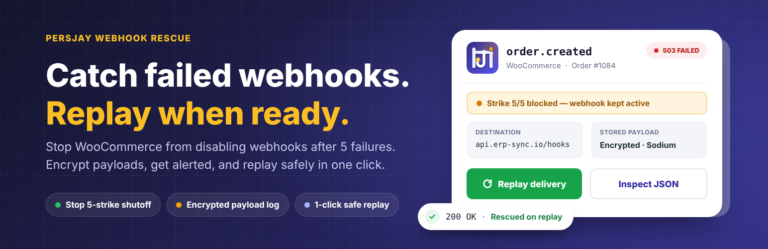
Persjay Webhook Rescue Is Now on WordPress.org
Persjay Webhook Rescue has been accepted to the WordPress.org plugin directory. Stop WooCommerce's 5-strike silent webhook deaths, inspect failed deliveries and e-mails, and replay them in one click.
Read article